Breathe New Life into Your Aging Laptop with an SSD Upgrade
Is your laptop feeling sluggish? You’re likely assuming it’s simply the result of age or the increasing demands of modern software. And you’re not entirely wrong. Though, before you resign yourself to buying a new machine, consider a surprisingly effective and affordable solution: upgrading your Solid State Drive (SSD).
Often, a simple SSD upgrade can dramatically improve performance, extending the useful life of your existing laptop – or even your desktop – for years to come. This applies whether you’re a gamer with an older rig or someone who relies on an ultra-light laptop for everyday tasks.
Why SSDs Make All the difference
Traditionally, laptops used Hard Disk Drives (hdds) for storage. HDDs are mechanical, relying on spinning platters and moving read/write heads. SSDs, on the other hand, use flash memory, offering substantially faster data access times.
Hear’s how an SSD upgrade can benefit you:
* Faster Boot Times: Experience a near-instantaneous startup, getting you to work (or play) much quicker.
* Snappier Application Loading: Programs will launch and respond much faster, improving your overall workflow.
* Improved Multitasking: Seamlessly switch between applications without frustrating lag.
* Enhanced System Responsiveness: Your entire system will feel more fluid and responsive.
Is Your Laptop a Good candidate?
While almost any laptop can benefit, some are prime candidates for an SSD upgrade.
Consider upgrading if:
* Your laptop is 5+ years old.
* You’re experiencing noticeable slowdowns when launching programs or booting up.
* You have a customary HDD as your primary storage drive.
* you’re noticing lag during everyday tasks like web browsing or document editing.
For example, even a well-regarded ultra-light laptop might feel held back by a slower SSD.Upgrading can unlock its full potential. Similarly, while a newer gaming laptop with a powerful graphics card is ideal, boosting the SSD speed can keep your existing RTX 30-series model competitive for longer.
The Upgrade Process: What to Expect
Swapping an SSD isn’t as daunting as it sounds, but it’s not for everyone. Some laptops are designed with easy access in mind.Models like certain Asus ROG Strix and HP ZBook configurations feature extra upgrade slots and swift-release panels.
However,most laptops require a bit more effort. You’ll likely need:
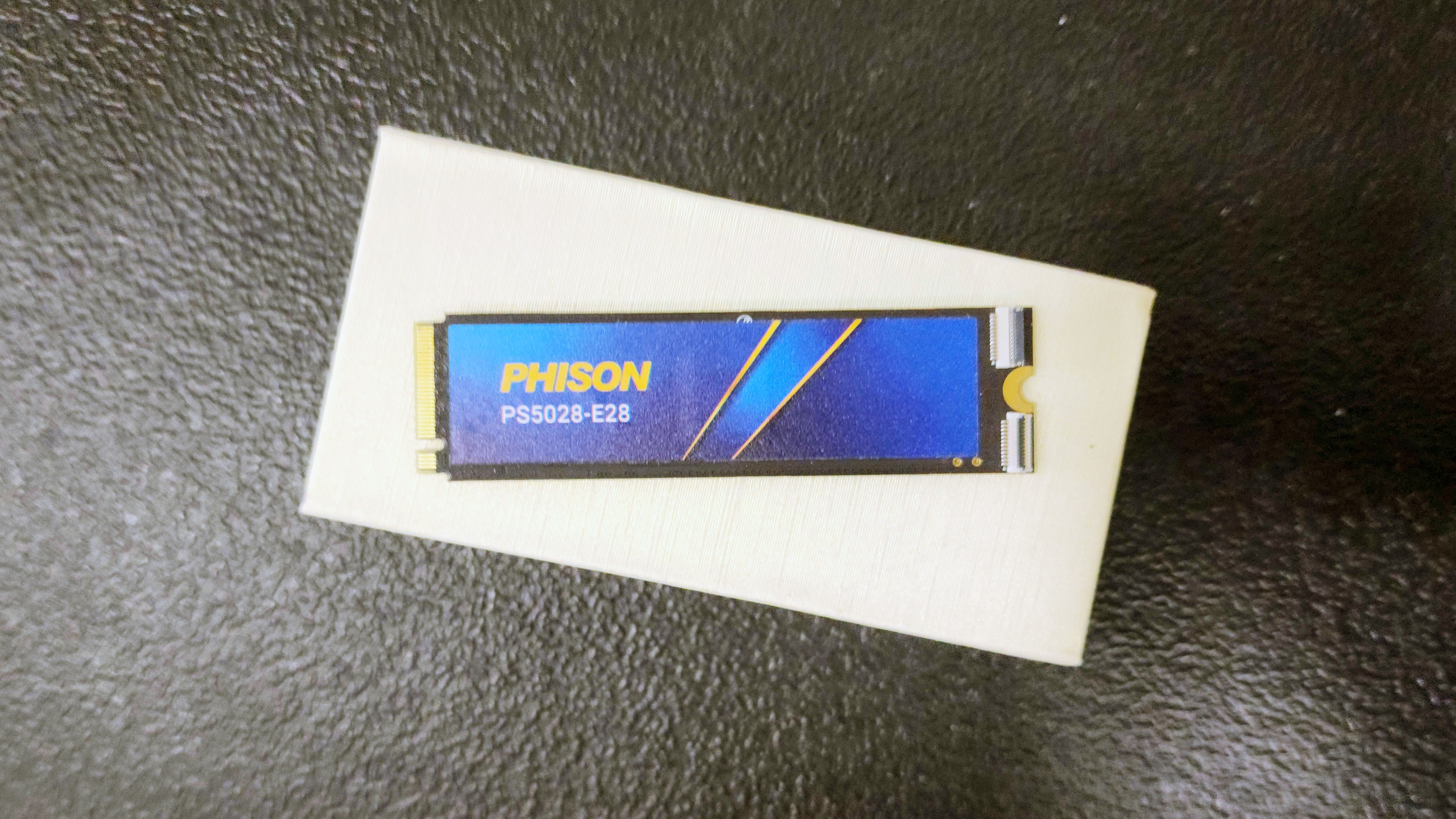
- A compatible SSD: Research the correct form factor (2.5-inch, M.2) and interface (SATA, NVMe) for your laptop.
- A screwdriver set: Precision screwdrivers are essential for opening your laptop without causing damage.
- Patience and a steady hand: Take your time and follow online guides carefully.
- Data backup: Always back up your important data before making any hardware changes.
With the right tools and a little courage,you can usually replace your existing SSD. Numerous online tutorials and videos can guide you through the process specific to your laptop model.
A Cost-Effective Solution
Ultimately, upgrading your SSD is a remarkably cost-effective way to revitalize your aging laptop. Instead of contributing to electronic waste, you can extend the life of your existing machine and enjoy a significantly improved computing experience. It just might buy you a few more years of reliable performance.
Keep reading