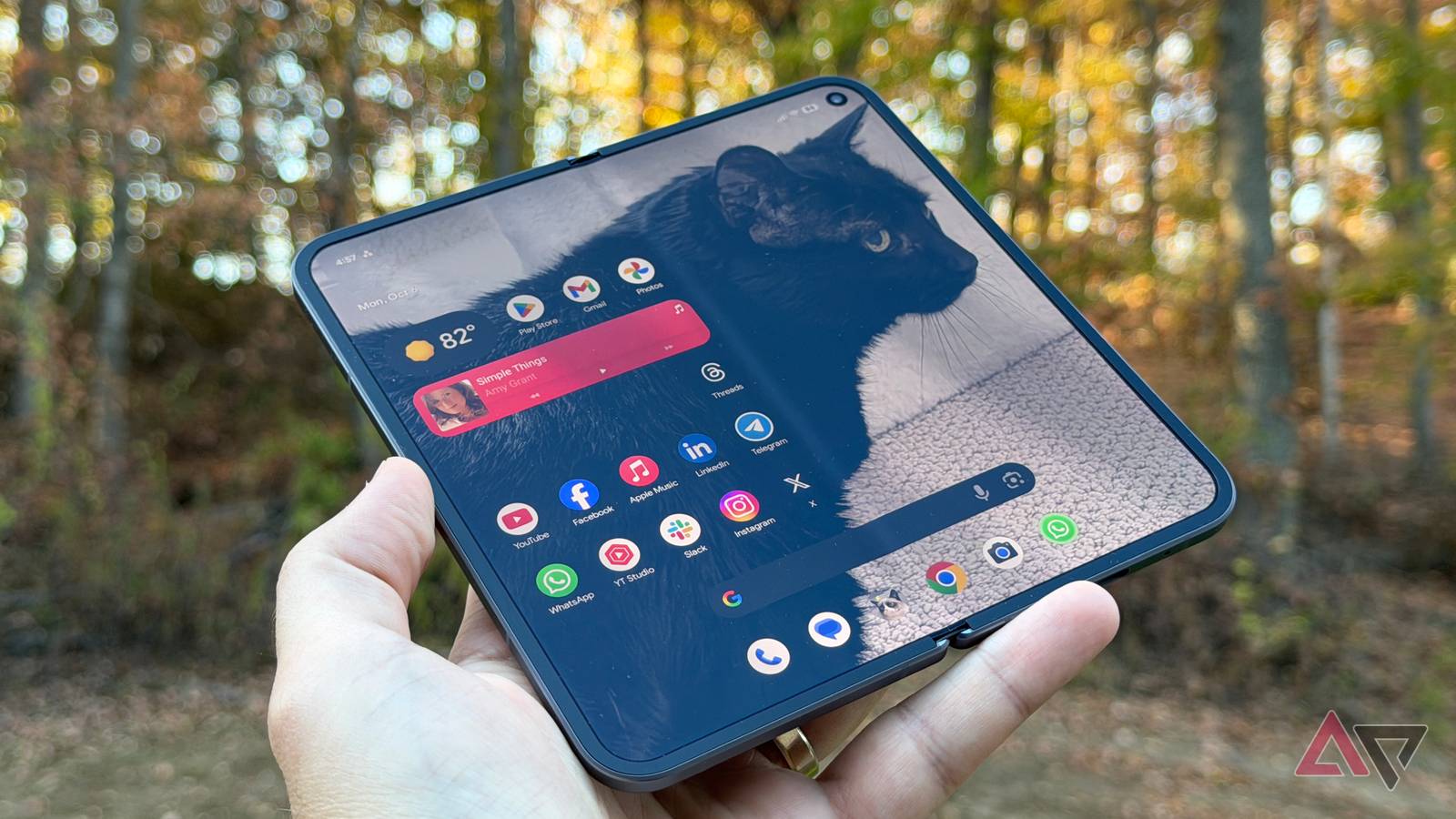
The Pixel Fold Battery Question Mark: What It Means & What to Do
A perplexing issue is cropping up for owners of Google’s foldable phones: a question mark appearing next to the battery icon. This isn’t a widely publicized problem, but it’s causing concern within the Pixel Fold and Pixel 9 Pro Fold communities.Let’s break down what’s happening, potential causes, and what you should do if you see this symbol on your device.
What is the battery Question Mark?
Essentially, the question mark replaces the usual battery percentage display. It signals that your Pixel Fold isn’t accurately communicating its battery status to the operating system.Users first began reporting this issue several months ago, primarily on the Pixel 10 Pro Fold, but it’s now appearing on some Pixel 9 pro Fold devices as well.
What’s Causing This?
The root cause remains officially unknown, as Google hasn’t publicly addressed the problem. However, several theories are circulating:
* Software Glitch: The most common suggestion is a simple UI bug. Many users report a reboot temporarily resolves the issue, suggesting a software hiccup.
* Non-Certified Chargers: Speculation points to the use of wireless chargers that don’t meet google’s certification standards. These chargers might disrupt communication between the battery and the phone’s system.
* Potential Hardware Issues: A more concerning theory suggests the question mark could be an early warning sign of deeper hardware problems. These include a failing or swollen battery, display issues, or even modem malfunctions.
It’s important to note that this issue appears to be isolated to Google’s foldable devices; standard “slab” pixel phones haven’t reported similar problems.
What Should You Do If You See the Question Mark?
If you notice the question mark next to your battery icon, here’s a step-by-step approach:
- Reboot Your Device: This is the first and simplest step. A restart often clears temporary software glitches and restores the battery percentage display.
- Check Your Charger: Ensure you’re using a wireless charger that is officially certified for Pixel devices. If you’re using a third-party charger, try switching to the official Google charger or a reputable, certified choice.
- Monitor Your Device: If the question mark reappears frequently, even after rebooting and switching chargers, it’s time to be more proactive.
- Contact Google Support: Don’t hesitate to reach out to Google support. While they haven’t publicly acknowledged the issue, they have reportedly offered device replacements to some users who reported the problem.
- Document Everything: Keep a record of when the question mark appears, what you were doing at the time, and any troubleshooting steps you’ve taken.this details will be helpful when contacting support.
Why this Matters & What to Expect
The appearance of the question mark is understandably unsettling. While it may be a harmless bug for some, the possibility of underlying hardware issues is a legitimate concern. Google’s silence on the matter is frustrating for affected users.
However,the fact that the company has provided replacements to some indicates they are aware of the problem and taking it seriously. Hopefully, a software update or official statement will soon provide clarity and a permanent solution for everyone experiencing this issue.
For now, staying informed, monitoring your device, and contacting support if needed are the best courses of action. Remember, proactively addressing this issue could prevent more significant problems down the road.