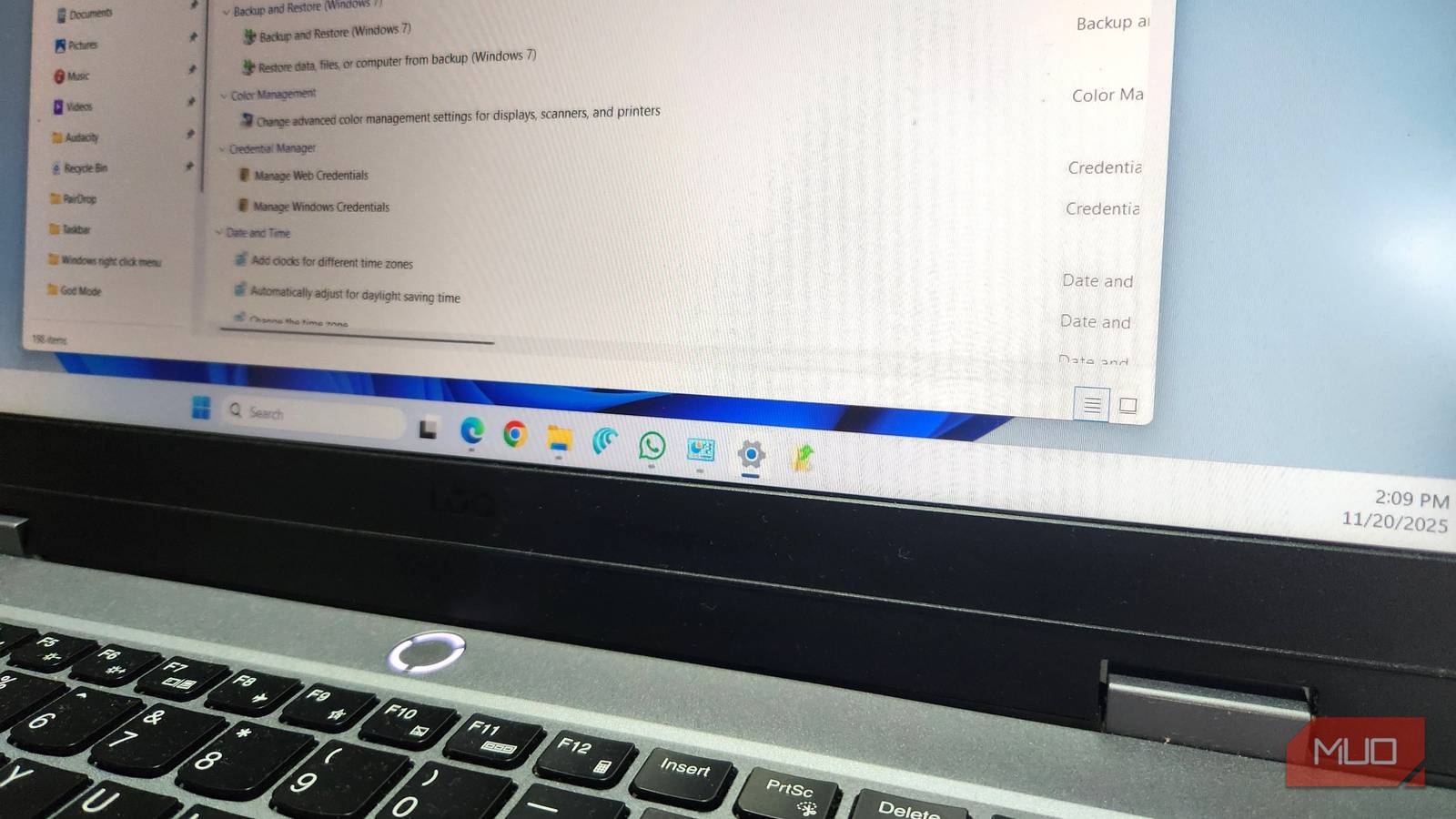
Unlock Windows’ Hidden Power: A Guide to God Mode
Have you ever felt lost navigating the labyrinthine settings of Windows? It’s a common frustration. Fortunately, a powerful, yet often overlooked, feature exists to streamline your control over your operating system: God Mode.
this isn’t some mysterious hack, but a legitimate, built-in Windows master control panel. Let’s explore what it is, how to access it, and why it should be a part of your Windows toolkit.
What exactly Is God Mode?
Essentially,God Mode consolidates nearly all of Windows settings into a single,comprehensive folder. Rather of bouncing between the modern Settings app and the classic Control Panel, you gain access to everything in one place. Think of it as a centralized command center for your PC.
It doesn’t grant you any new permissions or abilities. Rather, it provides a more efficient way to access the settings you already have. It’s a notable time-saver for power users and anyone who frequently tweaks their system.
How to Enable God Mode: A simple Step-by-Step
Activating God Mode is surprisingly straightforward. Here’s how:
- right-click on an empty area of your desktop.
- Select New > Folder.
- Rename the new folder to the following,exactly:
GodMode.{ED7BA470-8E54-465E-825C-99712043E01C}. - Press Enter.
The folder icon will change to a Control Panel-like image. Double-click the folder, and you’ll be greeted with the full god Mode interface.
Why Use God Mode? The Benefits Explained
God Mode offers several compelling advantages:
* Centralized Access: Find all settings in one place, eliminating the need to search through multiple apps.
* Improved Efficiency: Quickly locate and modify settings without wasting time.
* Enhanced Organization: Settings are categorized logically, making navigation easier.
* Direct Access: Bypass the sometimes-confusing menus of the Settings app and Control Panel.
* Custom Shortcuts: Create desktop shortcuts to frequently used settings for even faster access (more on that below).
Creating Shortcuts for Your Favorite Settings
God Mode doesn’t just offer a comprehensive list; it also allows for customization. Let’s say you regularly adjust Windows Firewall settings.
Here’s how to create a shortcut:
- Locate the specific setting within the God Mode folder.
- Right-click on the setting.
- Select Create shortcut.
A shortcut will appear on your desktop, providing instant access to that particular setting. This is incredibly useful for tasks you perform frequently enough.
God Mode: A Timesaver for the Discerning User
Windows is packed with hidden features,but few are as genuinely useful as God Mode. It’s not a necessity for every user, but if you find yourself frequently diving into the depths of Windows settings, it can dramatically improve your workflow.
Ultimately, God Mode empowers you to take complete control of your windows experience, making it more efficient and personalized. It’s a testament to the power and flexibility hidden within the operating system, waiting to be unlocked.
Keep reading