Windows users around the world are encountering a frustrating roadblock during May’s Patch Tuesday updates: insufficient storage space in the EFI System Partition (ESP). This critical but often overlooked component of modern PCs is failing to accommodate the latest security patches and system updates, leaving many devices stuck on outdated software. With Microsoft’s May 2026 updates rolling out—including critical fixes for Dynamics 365 and Windows 11 performance enhancements—users are discovering that their EFI partitions, typically just 100–500MB in size, are now too small to handle the growing demands of modern operating systems.
The issue has gained traction in tech forums and support channels, with reports from Heise Online and Swiss IT Magazine highlighting how even routine updates can fail when the ESP—required for booting UEFI-based systems—runs out of space. For IT administrators managing fleets of devices, this isn’t just an inconvenience; it’s a security risk. Outdated systems miss critical patches for vulnerabilities like those recently addressed in Dynamics 365, leaving organizations exposed.
But why is this happening now? And what can users do to resolve it? As Windows evolves to include more features like NPU (Neural Processing Unit) support and tighter integration with cloud services, the EFI partition—once a static 100MB allocation—is increasingly strained. The problem is compounded by the fact that many prebuilt systems and older PCs were designed with minimal ESP allocations, assuming they’d never need to store more than basic boot files. Today, that assumption is outdated.
Note: This article includes technical explanations and step-by-step solutions for users encountering EFI storage issues. If you’re not comfortable editing system partitions, we recommend seeking professional IT support.
Key Takeaways
- ESP Storage Crisis: The EFI System Partition (ESP) on many PCs is too small to accommodate May 2026 Windows updates, causing failures during Patch Tuesday installations.
- Security Risk: Unpatched systems miss critical fixes, including those for Dynamics 365 vulnerabilities and Windows 11 performance updates.
- Root Cause: Modern Windows versions and UEFI requirements demand more ESP space than originally allocated in many systems.
- Solutions Exist: Users can expand the ESP, disable unnecessary boot entries, or upgrade their systems—though some methods carry risks.
- IT Impact: Enterprises must audit their device fleets to identify and resolve ESP storage issues proactively.
- Future-Proofing: New PCs should allocate at least 500MB–1GB for the ESP to avoid future compatibility issues.
Why Is This Happening Now?
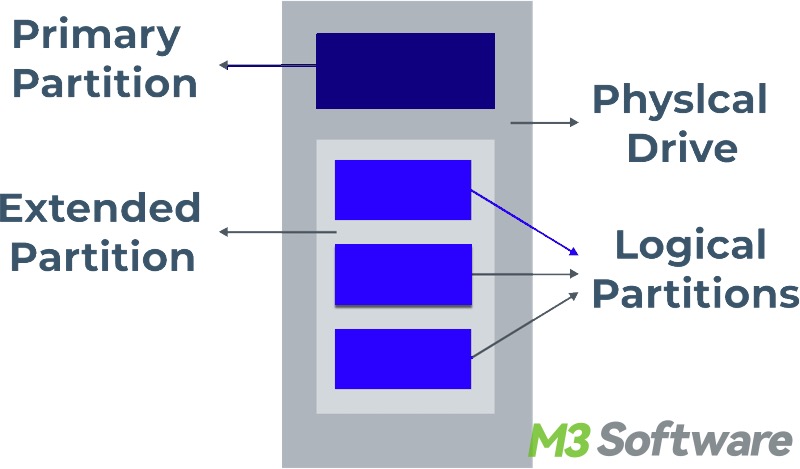
The EFI System Partition (ESP) is a critical component of UEFI-based systems, storing bootloaders, device drivers, and system configuration files. Traditionally, this partition was allocated a modest 100MB–200MB during system setup, an allocation that was sufficient for early Windows versions. However, as Windows has evolved—especially with the introduction of Windows 10 and 11—Microsoft has increased the size and complexity of update packages. The May 2026 Patch Tuesday, for example, includes:
- Critical security updates for Dynamics 365, addressing remote code execution vulnerabilities.
- Performance optimizations for Windows 11, including CPU and NPU (Neural Processing Unit) enhancements.
- Driver updates and firmware fixes that require additional space in the ESP.
According to Microsoft’s official documentation, the ESP should ideally be at least 500MB to accommodate modern updates and avoid storage-related failures. Many prebuilt systems and older PCs, however, still use the default 100MB allocation, leading to update failures when the partition fills up.
“The EFI System Partition is a shared resource that stores critical files for all installed operating systems on a UEFI system. As Windows updates grow in size and complexity, the default allocation is increasingly insufficient.”
— Microsoft Windows Hardware Guidelines
Who Is Affected?
The EFI storage issue impacts a broad range of users, but certain groups are particularly vulnerable:
- Home Users: Those running Windows 10 or 11 on older PCs or prebuilt systems with minimal ESP allocations.
- Enterprise IT Teams: Organizations managing large fleets of devices, where manual updates are impractical and automated patching fails silently.
- Gamers and Creatives: Users with high-end systems that rely on frequent driver updates for GPUs, sound cards, and other peripherals.
- Businesses Using Dynamics 365: Companies that depend on Microsoft’s cloud-based enterprise tools, as unpatched systems risk exposure to critical vulnerabilities.
How to Fix EFI Storage Issues
If your Windows update is failing due to insufficient EFI storage, you have several options. Proceed with caution, as modifying system partitions can risk data loss or system instability. Below are verified methods, ranked by safety and effectiveness.
1. Expand the EFI System Partition (Safest Method)
Most modern systems allow you to resize the ESP using built-in tools or third-party utilities. Here’s how to do it safely:

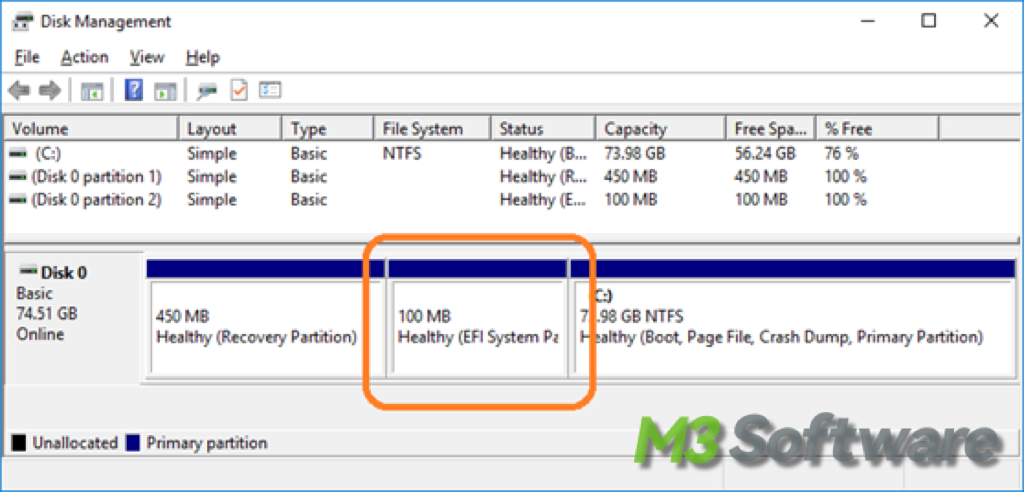
- Open Disk Management: Press Win + X, then select Disk Management.
- Locate the EFI System Partition: Identify the partition labeled as EFI System Partition (typically around 100MB).
- Shrink Adjacent Partitions: If there’s unallocated space on the same drive, you can extend the ESP. Right-click the partition and select Extend Volume.
- Use Third-Party Tools (If Needed): Tools like MiniTool Partition Wizard or Acronis Disk Director can resize partitions more flexibly. Backup your data first.
Warning: Resizing system partitions carries risks. If you’re unsure, consult a professional or use a backup tool before proceeding.
2. Disable Unnecessary Boot Entries
The ESP also stores boot entries for multiple operating systems or recovery environments. If you’re not using older Windows installations or custom bootloaders, you can free up space by removing them:
- Open Command Prompt as Administrator: Type cmd, right-click, and select Run as administrator.
- List Boot Entries: Run the command:
bcdedit /enum - Delete Unused Entries: For each entry you no longer need, run:
bcdedit /delete {GUID}(Replace{GUID}with the actual identifier from the list.) - Reboot and Retry Updates: After removing unnecessary entries, attempt the update again.
Note: Only delete entries for operating systems or bootloaders you no longer use. Deleting the wrong entry can prevent your system from booting.
3. Manually Clean Up the ESP
Over time, the ESP accumulates old boot files, drivers, and temporary files. You can manually clean it up:
- Open File Explorer and Navigate to the ESP: Press Win + R, type
\\EFI, and press Enter. - Delete Unnecessary Files: Look for folders like
Microsoft,Boot, orRecovery. Delete old backups or unused files (e.g.,Boot\Bootsect.bak). - Use Disk Cleanup: Open
cleanmgrfrom the Run dialog (Win + R) and select the EFI partition to free up space.
Caution: Only delete files you’re certain are no longer needed. Deleting critical system files can render your PC unbootable.
4. Upgrade Your System (Last Resort)
If your PC is several years old and the ESP cannot be expanded due to hardware limitations (e.g., full disk usage), consider:
- Reinstalling Windows with a larger ESP allocation (at least 500MB–1GB).
- Upgrading to a larger SSD or adding a secondary drive for the ESP.
- Purchasing a new PC with modern UEFI support and adequate storage allocations.
What’s Next for Windows and EFI Storage?
Microsoft has not yet issued an official statement addressing the EFI storage issue, but industry experts suggest several potential developments:
- Automated ESP Management: Future Windows updates may include tools to automatically resize or clean the ESP, similar to how disk cleanup tools work today.
- Stricter Hardware Requirements: As seen with Windows 11’s NPU and TPM 2.0 mandates, Microsoft may enforce minimum ESP size requirements for new systems.
- Cloud-Based Boot Solutions: Some speculate that Microsoft could explore cloud-based boot options to reduce reliance on local ESP storage.
In the meantime, users and IT administrators should:
- Audit their device fleets for ESP storage issues.
- Plan for proactive updates and storage management.
- Monitor Microsoft’s official channels for updates on this issue.
FAQ: EFI Storage and Windows Updates
Your EFI System Partition stores boot files, drivers, and recovery environments. Over time, old updates, unused boot entries, and temporary files accumulate, reducing available space.
Yes, but proceed with caution. Use built-in tools like Disk Management or trusted third-party utilities like MiniTool Partition Wizard. Always back up your data before making changes.
No, expanding the EFI partition should not affect your personal files stored on other partitions (e.g., C: drive). However, resizing can sometimes cause instability if not done correctly.