
For over two decades, power users have relied on a command-line utility known as Robocopy to handle file transfers that the standard Windows graphical interface struggles to manage. Originally released as part of the Windows NT 4.0 Resource Kit in 1997, the Robust File Copy tool remains one of the fastest and most reliable methods for moving data within the Windows ecosystem, despite its lack of a visual progress bar or folder animation.
While the modern Windows File Explorer provides a user-friendly experience with visual cues and interactive menus, it often introduces significant latency when calculating the size and number of files before a transfer begins. According to official Microsoft documentation, Robocopy bypasses these overhead-heavy processes by operating directly through the command line, allowing for high-performance transfers, recursive copying, and the ability to preserve file attributes and timestamps.
The Origins of Robust File Copy
Robocopy was developed by Microsoft engineers in the mid-1990s as a specialized tool for system administrators managing the burgeoning complexity of Windows NT networks. Unlike the standard “copy” or “xcopy” commands available at the time, Robocopy was designed to be “restartable,” meaning it could resume interrupted transfers without needing to restart the entire process from scratch. This functionality was essential for IT professionals performing backups over unstable network connections, where a single dropped packet could otherwise derail hours of work.
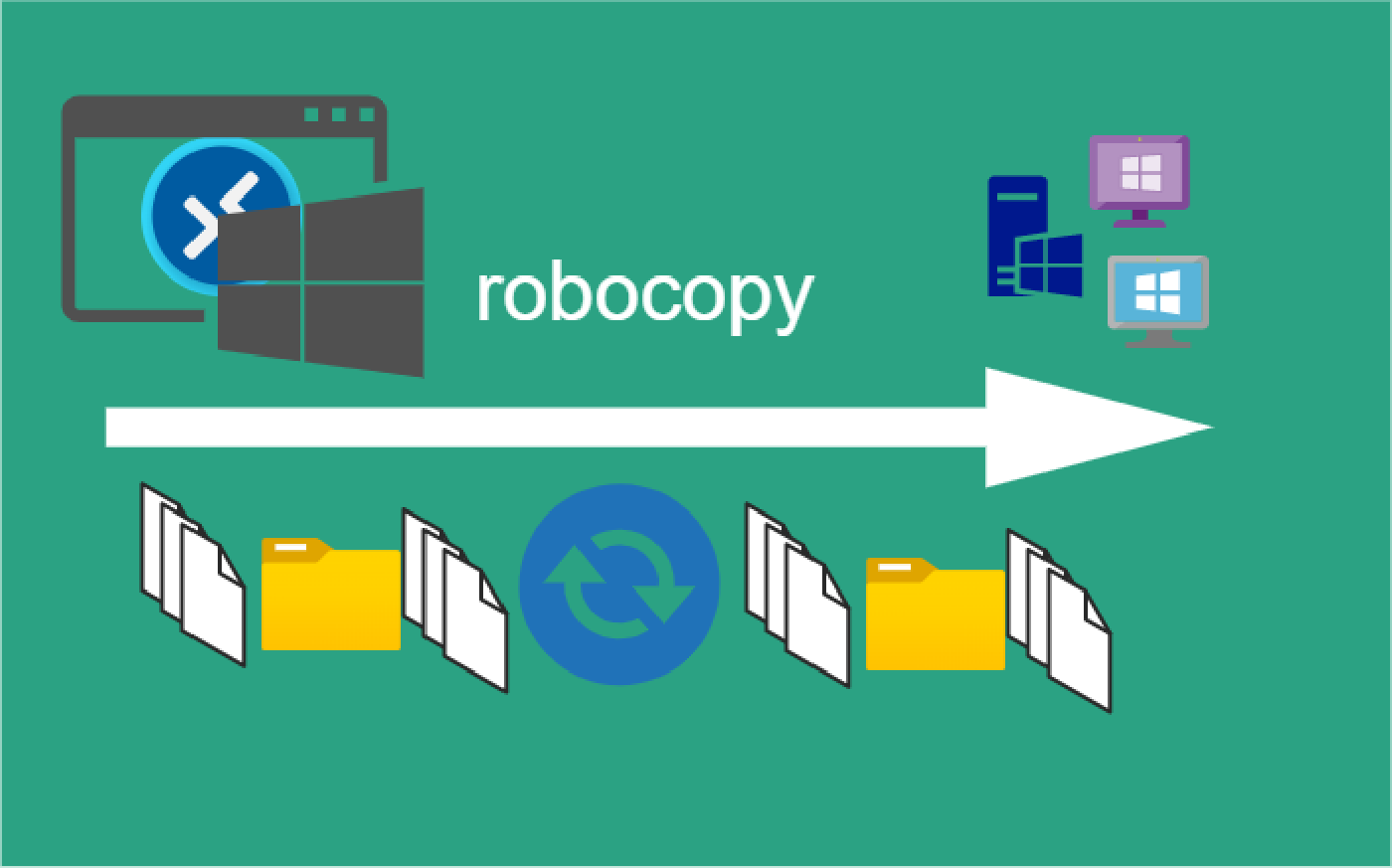
The utility was formally introduced in the Windows NT 4.0 Resource Kit, a collection of supplemental tools designed to help administrators manage the operating system. Because it was built to function in headless server environments and automated scripts, it was never given a graphical user interface (GUI). Instead, it outputs its progress as a scrolling stream of text in a command prompt window, a design choice that remains unchanged in current versions of Windows 10 and Windows 11.
Why Robocopy Outperforms File Explorer
The performance gap between File Explorer and Robocopy stems primarily from how they handle file system metadata. When a user drags and drops a folder in File Explorer, the shell must first enumerate the contents, calculate total sizes, and initialize the GUI, which can lead to significant delays, particularly when dealing with thousands of small files.
By contrast, Robocopy is a lightweight executable that interacts more directly with the Windows API. It employs advanced multithreading—introduced in later versions—to copy multiple files simultaneously, a feature that File Explorer did not implement in a comparable manner for many years. Furthermore, Robocopy’s ability to “mirror” directories by deleting files in the destination that no longer exist in the source makes it a standard tool for synchronization tasks. The Microsoft technical library confirms that the utility supports a wide array of switches (flags) that allow users to customize behavior, such as excluding specific file types or logging results to a text file for auditing purposes.
Integration into Modern Workflows
Despite the proliferation of third-party file management software, Robocopy remains a staple of the Windows toolkit. Its presence in every modern installation of Windows means that users do not need to install external software to benefit from its speed. For users accustomed to visual interfaces, the primary barrier is the learning curve associated with command-line syntax.
To use the tool, a user opens the Command Prompt or PowerShell and enters the command robocopy [source] [destination] followed by any desired flags. For example, using the /mir flag creates a mirror of a directory, while /mt enables multithreaded copying for increased speed. For those who prefer a visual interface but still require the power of Robocopy, various open-source developers have created GUI wrappers that sit atop the command-line engine, providing a progress bar while delegating the heavy lifting to the original 1997-era utility.

As of late 2024, Microsoft continues to maintain Robocopy as a core component of the Windows operating system, with no indications of deprecation. The tool’s longevity is a testament to the efficiency of its original design, which prioritized utility and performance over the aesthetic trends of the desktop environment. Users seeking further information on specific command switches or advanced synchronization techniques can reference the official Windows command reference for comprehensive, up-to-date documentation.
Do you use command-line utilities for your file management, or do you prefer the convenience of the graphical interface? Share your experiences and preferred command-line flags in the comments below.
Worth a look