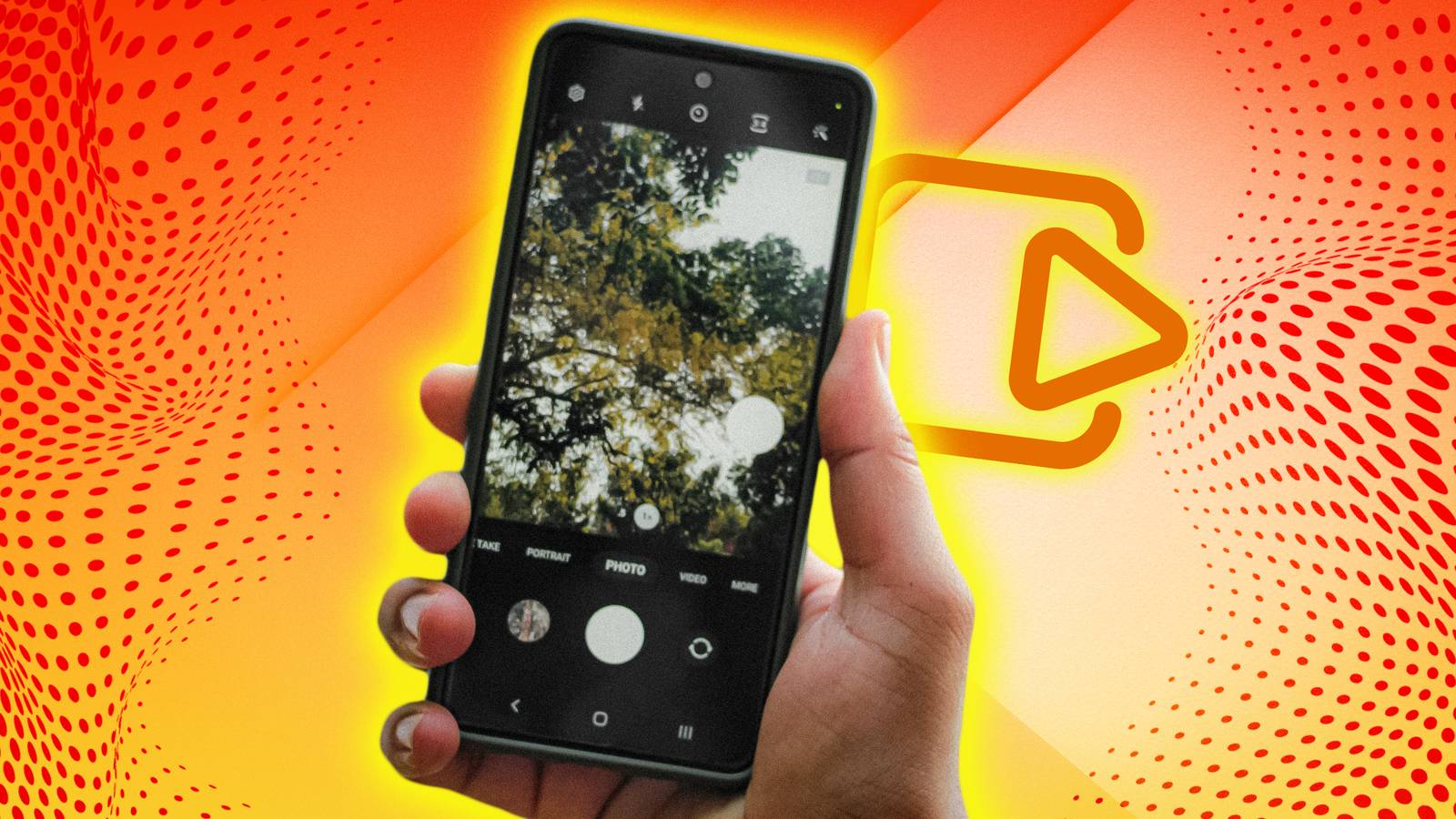
Mastering Motion Photos in Google Photos: A Complete Guide
Do you love the dynamic feel of Motion Photos, or do you prefer a more traditional still image? Google Photos offers a simple way to control this feature, letting you tailor your photo experience exactly to your liking. This guide will walk you through disabling Motion Photos on both your Android device and within the Google Photos web interface, ensuring you get the most out of your memories.
What are Motion Photos?
Motion Photos capture a short video clip alongside your still image,adding a subtle sense of movement when you view them. They’re a fun way to relive moments, but they also take up a bit more storage space.Fortunately, you have complete control over whether this feature is active.
Disabling Motion Photos on Your Android Device
Here’s how to turn off Motion photos directly within the Google Photos app on your android phone:
- Open the Google Photos app.
- Tap your profile picture or initial in the top right corner.
- Select “Photos settings” from the menu.
- Tap “Motion photos.”
- Toggle the “Motion photos” switch to the off position.
When you toggle off the option, Google Photos will no longer record the short video accompanying your photos. This change applies to all future photos you take.
Turning Off Motion Photos on the web
You can also manage Motion Photo settings from your computer:
- Open the Google Photos website in your browser.
- Click on your profile picture or initial in the top right corner.
- Select ”Photos settings” from the dropdown menu.
- click on “Motion photos” in the left sidebar.
- Toggle the “Motion photos” switch to the off position.
This setting synchronizes across all your devices, so changes made on the web will reflect in the app and vice versa.
Why Disable Motion Photos?
There are several reasons why you might choose to disable this feature.
* Storage Space: Motion Photos consume more storage than standard photos.
* Sharing: Some platforms may not fully support or display Motion Photos correctly.
* Personal Preference: You might simply prefer the look and feel of traditional still images.
Maximizing Your Smartphone Camera Experience
Motion photos represent one of the innovative features available on modern smartphones,often absent in traditional cameras. While they can enhance your photos, understanding how to control them empowers you to capture images exactly as you envision them.
Ultimately, whether you leave Motion Photos on or off is a matter of personal preference. Experiment with both settings to discover what works best for you and your photography style. If you’re interested in further refining your smartphone photography skills, explore utilizing manual camera settings for even greater creative control.




![Redo & Succeed: How to Improve After First Attempts | [Industry/Topic]](https://i0.wp.com/www.trustedreviews.com/wp-content/uploads/sites/7/2025/12/Meze-99-Classics-2nd-Gen-headphones.jpg?resize=330%2C220&ssl=1 "Redo & Succeed: How to Improve After First Attempts | [Industry/Topic]")