Protect Your Privacy: How to Stop Facebook From Scanning Your Photos
Are you cozy with Facebook – or Meta, as it’s now known – quietly analyzing the photos on your phone? Recent revelations highlight a concerning practice: Facebook is accessing user photo galleries to train its artificial intelligence (AI) models. While framed as a way to offer “creative ideas” and photo suggestions, this data collection raises serious privacy concerns. This guide will walk you through exactly how to disable these features and reclaim control of your personal images. We’ll cover the implications, step-by-step instructions, and why taking action now is crucial.
The Privacy Implications of Facebook’s Photo Scanning
For months, reports have surfaced regarding Facebook’s intention to leverage user-uploaded photos for AI development. A recent article in The Standard brought this issue back into focus, detailing how Meta can scan your camera roll “on an ongoing basis.” This isn’t a one-time scan; it’s continuous data harvesting.
The company claims it uses this data to identify themes, locations, objects, and people within your photos to provide personalized suggestions. Though, the extent of this access and the potential for misuse are alarming.Consider the sensitive information potentially contained within your photos – family moments, personal events, even location data. Giving Facebook unfettered access to this information comes at a meaningful cost to your privacy. Related keywords include data privacy,AI training data,and social media privacy.
Recent research from Pew Research Center (September 2023) shows that 79% of U.S. adults are concerned about how companies use their personal data. This underscores the growing public awareness and demand for greater control over online privacy.
Understanding the Two Key Settings
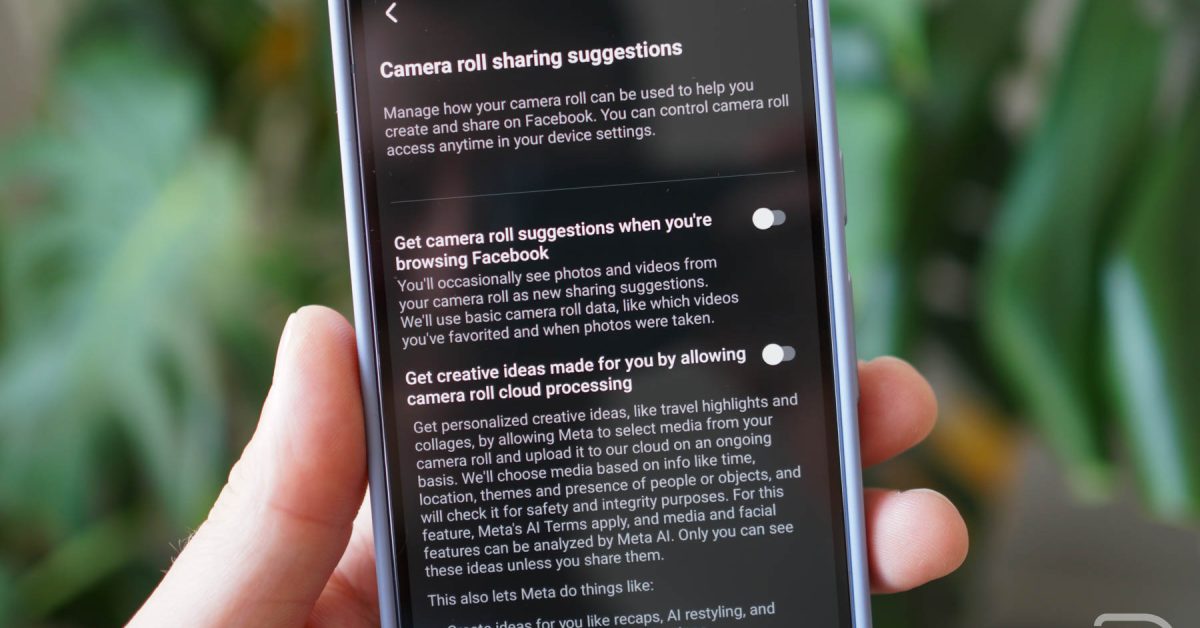
Facebook utilizes two primary settings that enable this photo scanning functionality.Both need to be disabled to fully protect your privacy:
“Get camera roll suggestions when you’re browsing Facebook”: This setting suggests tagging friends in photos based on your camera roll. While seemingly innocuous, it still grants Facebook access to your images.
“Get creative ideas made for you by allowing camera roll cloud processing”: This is the more concerning setting. enabling this allows Meta to continuously upload and analyze photos from your phone, using information like time, location, and content to generate “creative ideas.” This ongoing access is what privacy advocates are warning against.
The core issue isn’t just that Facebook is looking at your photos, but the ongoing and largely unacknowledged nature of the data collection.
How to Disable facebook’s Photo Scanning: A Step-by-Step Guide
Protecting your privacy is straightforward. Follow these steps to disable the problematic settings:
- Open the Facebook App: Launch the Facebook submission on your smartphone.
- Access the Menu: Tap the menu icon (typically three horizontal lines) located in the bottom-right corner (iOS) or top-right corner (Android).
- Navigate to Settings & Privacy: Scroll down and tap on “Settings & Privacy.”
- Open Settings: select ”Settings” from the expanded menu.
- Find “Camera Roll Sharing Suggestions”: Scroll down until you locate the section labeled “Camera roll sharing suggestions.”
- Disable Both Features: Toggle both “Get camera roll suggestions when you’re browsing Facebook” and “Get creative ideas made for you by allowing camera roll cloud processing” to the off position.
That’s it! You’ve successfully prevented Facebook from continuously scanning your photos.
Pro Tip: Regularly review your Facebook privacy settings. Meta frequently updates its policies and features, so it’s essential to stay informed and adjust your settings accordingly.
Beyond Facebook: Broader Privacy Considerations
While disabling these Facebook settings is a crucial step, it’s vital to adopt a holistic approach to online privacy. Consider these additional measures:
Review App Permissions: Regularly check the permissions granted to all apps on your smartphone.Revoke access to sensitive data (like photos, location, and contacts) for apps that don’t genuinely need it.
Use Privacy-Focused Browsers: Consider switching to a privacy-focused browser like Brave or DuckDuckGo, which block trackers and protect your browsing data.
Limit Data Sharing: Be mindful of the information you share online. avoid oversharing personal details on social media platforms.
Utilize Privacy Tools: Explore privacy-enhancing tools like VPNs (Virtual Private Networks) and ad