
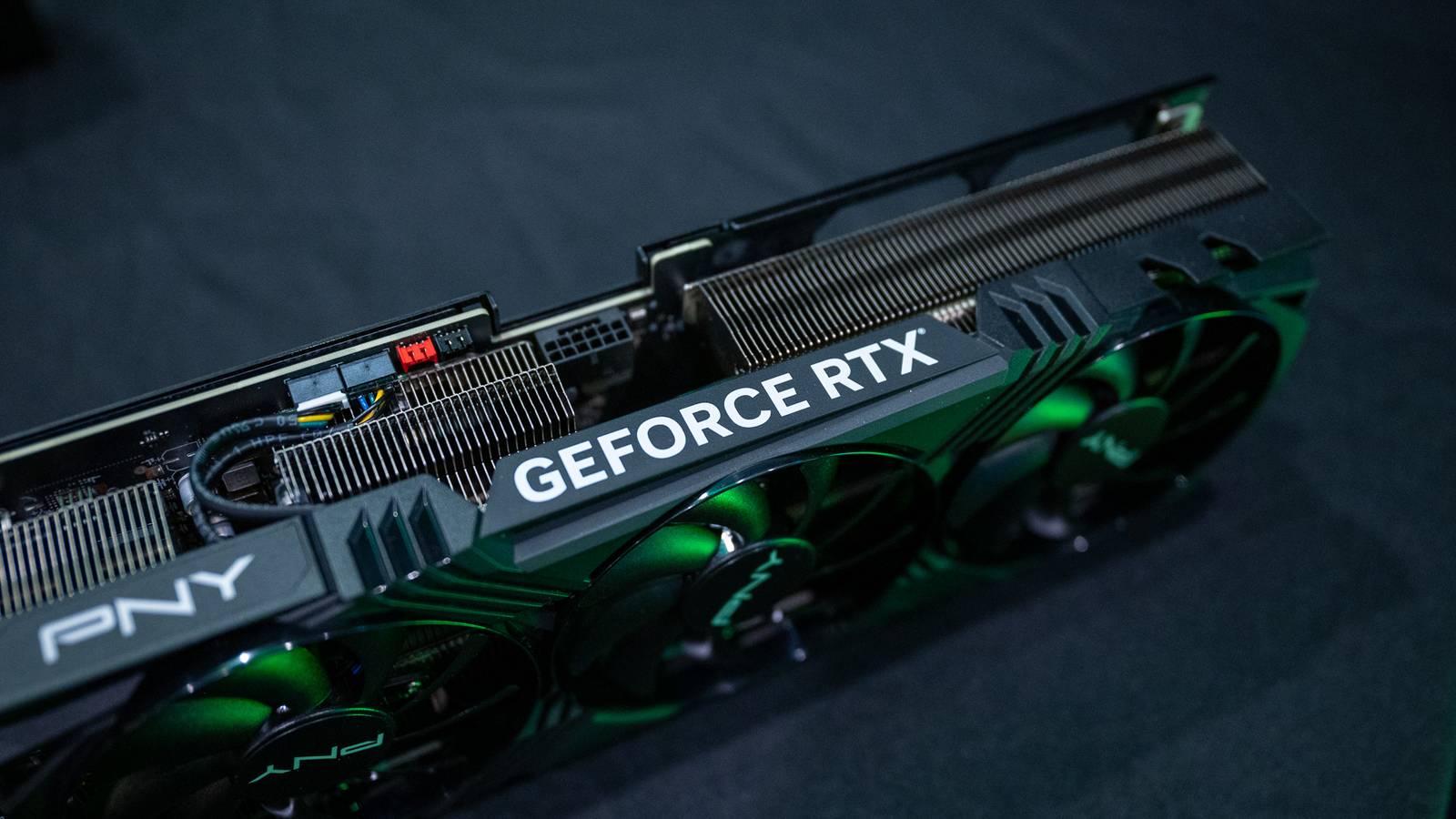
Is Your Graphics Card Failing? Here’s How to Tell
your graphics card (GPU) is the engine driving the visuals on your computer. It’s responsible for everything from smooth gameplay to crisp video editing. but like any hardware component,GPUs can experience issues and eventually fail. Recognizing the signs of a failing GPU is crucial for preventing data loss and minimizing downtime.
Common Signs of a Failing GPU
Several symptoms can indicate your graphics card is on its way out. Here’s what to look for:
* visual Artifacts: strange glitches, distorted textures, or flickering on your screen are often early warning signs. These can manifest as colorful squares, lines, or other unexpected shapes.
* Frequent Crashes: if your computer crashes unexpectedly, especially during graphically demanding tasks like gaming, your GPU coudl be the culprit.
* Blue Screen of Death (BSOD): A BSOD is a critical system error, and a failing GPU is a common cause.
* Overheating: Excessive heat is a major enemy of GPUs. If your card consistently runs hot, even with adequate cooling, it could be a sign of impending failure.
* Performance Drops: Noticeably slower frame rates in games or sluggish performance in graphics-intensive applications suggest your GPU isn’t functioning optimally.
* Fan noise: Loud or erratic fan noise can indicate the GPU is working harder to compensate for internal issues.
* No Display output: In severe cases, your computer might not display anything at all.
Diagnosing the Problem: Software Tools
Fortunately, several software tools can help you pinpoint the source of the problem.
* Device Manager: This built-in Windows tool lets you check for driver errors or hardware conflicts. Right-click the start button, select “device Manager,” and expand “Display adapters.” Look for any devices with a yellow exclamation mark.
* HWiNFO64: this comprehensive system information tool provides detailed data about your GPU’s temperature, clock speeds, and voltage. I’ve found that monitoring these metrics under load can reveal potential issues.
* FurMark: A stress test utility, FurMark pushes your GPU to its limits, helping you identify overheating or instability.Run it for about 30 minutes and monitor temperatures closely.
* MSI Afterburner: Primarily an overclocking tool, MSI Afterburner also offers monitoring capabilities and can definitely help you track GPU performance.
What to Do If You Suspect a Failing GPU
If you’ve identified signs of a failing GPU, here are your options:
- Update Your Drivers: Outdated drivers can sometimes cause instability. Download and install the latest drivers from the GPU manufacturer’s website (NVIDIA, AMD, or Intel).
- Check Your Power Supply: A weak or failing power supply can starve your GPU of power, leading to crashes or instability. Ensure your PSU meets the GPU’s power requirements.
- Clean Your GPU: Dust buildup can cause overheating. Carefully clean the GPU’s heatsink and fans with compressed air.
- Re-seat the GPU: Sometimes, a loose connection can cause problems. Power down your computer, unplug it, and carefully re-seat the GPU in its PCI-e slot.
- Consider a Replacement: If none of the above steps resolve the issue, your GPU is likely failing and needs to be replaced.
Upgrading Your Graphics Card
If you find that your GPU is not meeting your needs because it is old or underpowered, it is pretty easy to install a new GPU. You just need the graphics card, a small set of screwdrivers, and a bit of patience.
Ultimately, recognizing the signs of a failing GPU and taking prompt action can save you headaches and ensure a smooth computing experience. Don’t ignore the warning signs – address them before a minor issue becomes a major problem.








![Literary Trivia Quiz: Test Your Book Knowledge | [Your Brand/Site Name]](https://i0.wp.com/static01.nyt.com/images/2025/12/22/opinion/22Quiz-Literary-Trivia/22Quiz-Literary-Trivia-facebookJumbo.png?resize=150%2C100&ssl=1 "Literary Trivia Quiz: Test Your Book Knowledge | [Your Brand/Site Name]")
