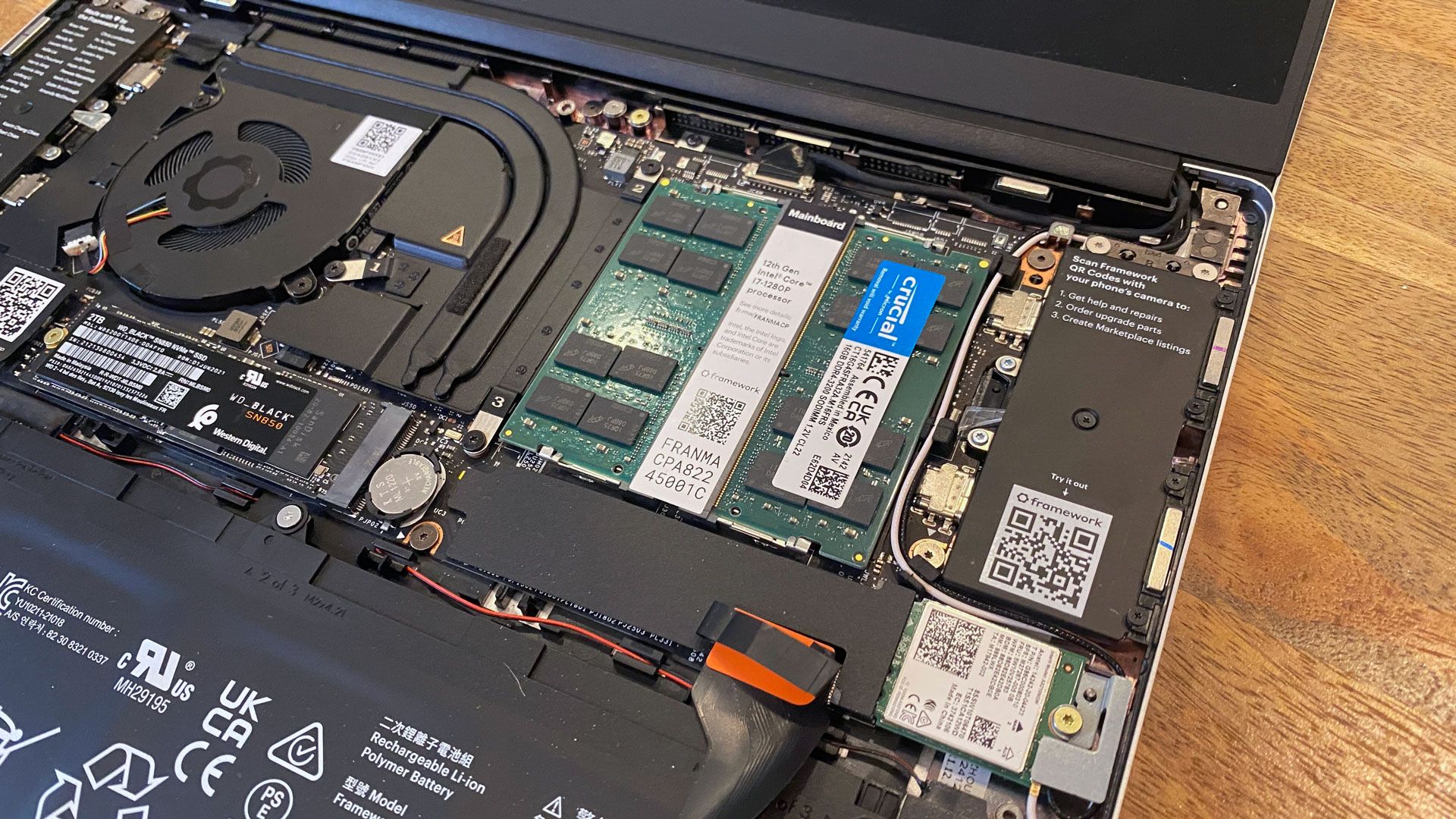
Maximizing Your PC’s Potential: A Deep Dive into RAM Speed and Timings
Are you looking to squeeze every ounce of performance out of your gaming PC or workstation? Then understanding RAM – Random Access Memory – is crucial. It’s not just about how much RAM you have, but also how fast it is and how efficiently it operates.let’s break down the world of RAM speed and timings, and how they impact your system.
Why RAM speed matters
Essentially, RAM speed dictates how quickly your processor can access data. Faster RAM means quicker loading times for applications, smoother multitasking, and, crucially, higher frame rates in games. Think of it like this: your CPU is a brilliant chef, and RAM is the countertop where ingredients are prepped. A larger, faster countertop allows the chef to work more efficiently.
However,it’s not a simple linear relationship. Doubling the RAM speed doesn’t necessarily double performance. The benefits depend on your CPU, motherboard, and the tasks you’re performing.
Understanding RAM Timings
Beyond speed (measured in MHz), RAM performance is heavily influenced by timings. These are a series of numbers – often represented as something like 16-18-18-38 – that define the delays in the RAM’s operation.
* CAS Latency (CL): This is the most significant timing. It represents the delay between when the memory controller requests data and when the RAM delivers it.Lower CL numbers are better.
* tRCD (RAS to CAS Delay): This timing governs the delay between activating a row and accessing a column within that row.
* tRP (RAS Precharge Time): This dictates the time it takes to deactivate a row before accessing another.
* tRAS (Row Active Time): This specifies the minimum time a row must be active before it can be precharged.
Generally, tighter timings (lower numbers) result in faster performance. However, achieving tighter timings often requires more voltage and can impact stability.
How to Find Your RAM’s speed and Timings
Determining your current RAM specifications is straightforward. Here’s how:
- Windows Task Manager: Open Task Manager (Ctrl+Shift+Esc), go to the “performance” tab, and select “Memory.” You’ll see the RAM speed listed there.
- CPU-Z: This free utility provides detailed information about your system hardware, including RAM speed, timings, and manufacturer. It’s a go-to tool for enthusiasts.
- BIOS/UEFI: Your motherboard’s BIOS/UEFI setup utility will also display RAM information.
Matching RAM to Your System
Selecting the right RAM involves considering several factors.
* Motherboard Compatibility: Your motherboard has a maximum supported RAM speed. Check the manufacturer’s specifications before purchasing.
* CPU Compatibility: Processors also have a “memory controller” with a maximum supported speed. AMD Ryzen processors, such as, often benefit considerably from faster RAM.
* Dual-Channel vs. Quad-Channel: Utilizing dual-channel or quad-channel memory configurations (depending on your motherboard) can dramatically increase bandwidth. Ensure you install RAM modules in the correct slots to enable these modes.
* XMP/EXPO Profiles: Most RAM modules come with XMP (Intel Extreme Memory Profile) or EXPO (AMD Extended Profiles for overclocking) profiles. These are pre-configured settings that automatically optimize RAM speed and timings in your BIOS.Enabling these profiles is usually the easiest way to get the most out of your RAM.
Overclocking RAM: Proceed with Caution
While XMP/EXPO profiles are a safe way to boost performance, manually overclocking RAM can yield even greater gains. However,it