Afam Onyimadu
2026-01-21 22:01:00
The default Windows setup is complete enough for most workflows. You get a browser, media player, and capable system tools that help you navigate your daily work demands. The OS pushes additional Microsoft products and tools that make Windows even more capable. Overall, you get both freemium and paid apps that are sufficient for most tasks.
However, I decided to rebuild my Windows setup using only free open-source apps. The goal wasn’t simply to find Microsoft 365 alternatives. I was building a different system and trying to break free from the Microsoft ecosystem to whatever extent possible, while still using Windows 11.
I stopped letting Windows decide how I work
Replacing default behaviors instead of tweaking them
There are many areas of Windows that people try to fix. For me, the first point that had to change was how I interact with my files; I’ve always felt the built-in search could be better, smarter, and faster. Also, Windows File Explorer favors clicking and browsing, but it isn’t the best when you need a fast-paced workflow.
voidtools’ Everything app was an instant upgrade to Windows search. Everything is perfect for lightning-fast searches. If I needed to locate a file, it didn’t matter where it was; the tool would instantly surface it. But it’s also minimalist in philosophy and resource footprint, using about 14MB of RAM on a fresh Windows install.
Double Commander instantly took the place of File Explorer. Its dual panes transformed my everyday file management, making work faster and easier. I was no longer switching between tabs because I needed to compare file content. Double Commander also allows keyboard-driven control, making it the faster option for my workflow. More importantly, it offers advanced controls that you still don’t find in File Explorer. For instance, I can rename hundreds of files simultaneously using its Multi-Rename Tool. This tool supports regex and includes counters and real-time previews, putting it way ahead of File Explorer.
These two additions (Everything and Double Commander) were the foundation that changed how responsive my system felt for daily tasks.
Notes, passwords, and sync without a central account
For someone who takes a lot of notes, OneNote feels like the easy option, especially if you use OneDrive or other Microsoft products. Windows also nudges you toward these Microsoft cloud-first options. This makes you extremely reliant on accounts for daily work, and over time, it begins to feel fragile and inefficient for real productivity.
So, the first productivity switch I made was Joplin. Switching to it as my note app meant all my notes and files are stored locally, but more importantly, sync isn’t forced. I could configure it however and whenever I wanted. It also uses Markdown, meaning notes are essentially files that I can export and use anywhere needed. That removes any fear of lock-in I might have harbored.
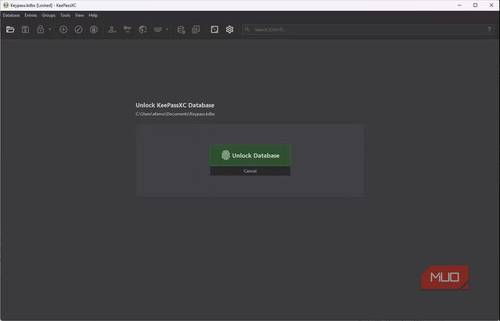
For password and credential security, KeePassXC was the offline password manager I turned to. Just like Joplin, KeePassXC is fully under my control and doesn’t phone home. My credential vault is encrypted and portable.
However, Syncthing is what tied my productivity setup together. Since I often have to work on different devices, it helps me unify my setup by syncing only what I dictate. Rather than uploading to OneDrive, I share what’s important across devices with Syncthing. Combining these three tools gives me a resilient setup that works even when there are internet outages.
Creative work didn’t need Adobe — just clearer limits
Choosing tools that do one job extremely well

Windows encourages a suite-based approach, with Microsoft 365 and Adobe Creative Cloud being easy favorites. These suites bundle a lot and are versatile. However, I find them more distracting and bloated than efficient. So for creativity, I prefer specialized open-source options over suites.
My setup includes GIMP for raster image editing, Inkscape for vector graphics, and Audacity for audio. Each focuses on a single core task, which is what makes them efficient.
Audacity is the industry standard for open-source audio, but you may prefer Tenacity if you have privacy concerns due to Audacity’s acquisition by Muse Group.
However, what truly mattered to me was file compatibility. All three of these creative open-source tools use open standards that don’t lock you into a particular app. Since each tool has a clear boundary, my creative sessions were more focused and productive.
Hardening the foundation
Backups, media, and utilities that don’t interrupt your day
Only long-term setups are worthwhile, and this is where backup makes all the difference. Windows naturally nudges you toward the subscription-based silos of OneDrive for file and data backup.
You can likely tell I’m not a big fan of OneDrive. I learned the hard way after I synced my entire desktop with OneDrive. I switched to Duplicati as a backup option. If your goal is simply backing up important documents and files, it works perfectly and requires little attention.
I used VLC and 7-Zip in place of Windows defaults, like the codec-restricted Media Player and the rudimentary Extract All utility found in File Explorer. These tools work regardless of the files I throw at them. 7-Zip is especially invaluable because I also use it for file encryption.
Total ownership: the freedom of a frictionless system
There are several free tools you can use alongside Windows. But open source is more than freeware; it’s about control. My Windows setup, comprising open-source tools, made Windows start to feel more like a system I owned.
It still didn’t give me Linux-level ownership, but at least it’s a great start for anyone who depends on Windows for a large part of their workflow.