
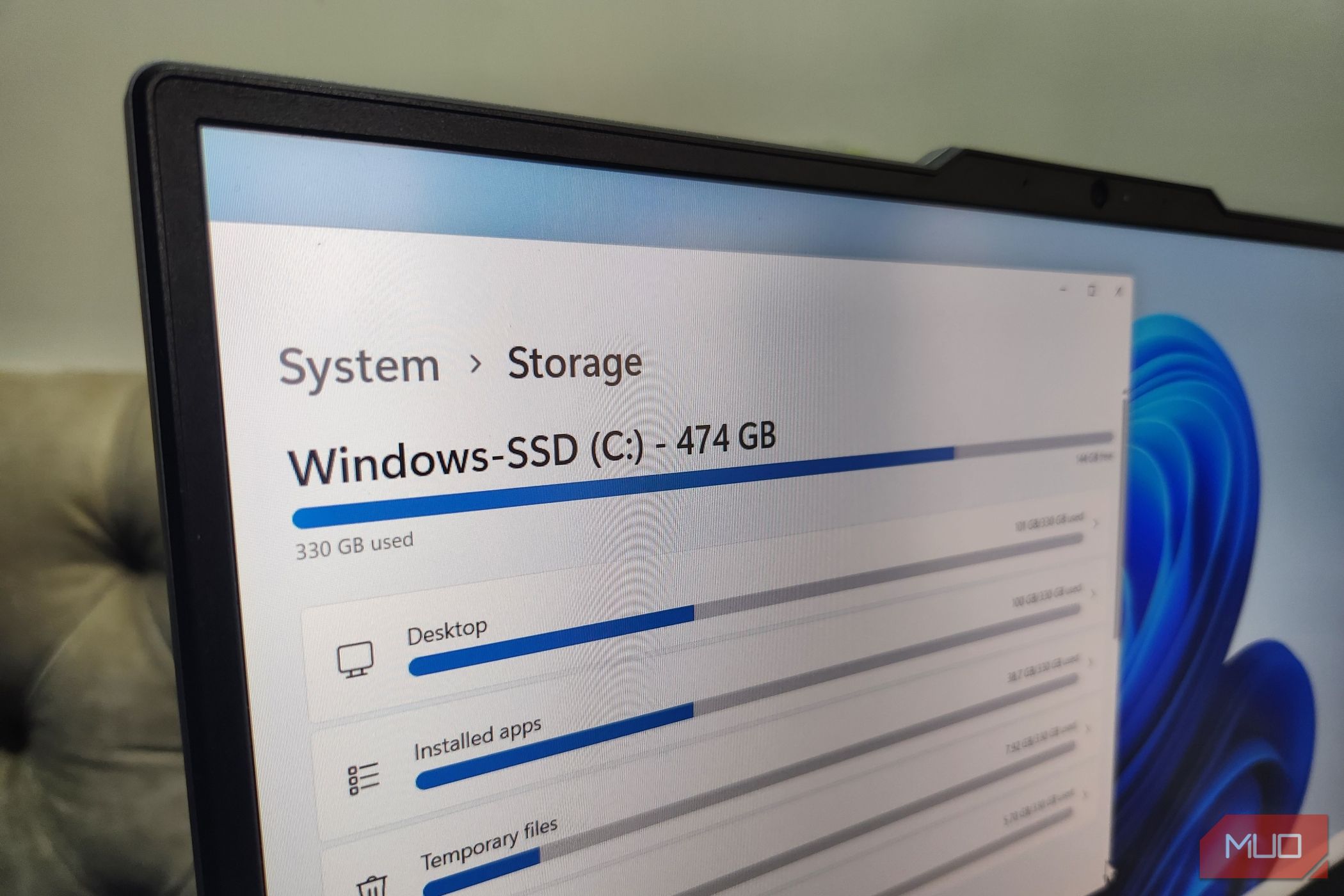
A sluggish Windows 11 experience is often tied to dwindling storage space. Fortunately, reclaiming gigabytes doesn’t require sacrificing your essential files or applications.Here’s a breakdown of effective strategies to optimize your system’s storage and boost performance.
First, let’s tackle temporary files. These accumulate over time and can consume significant space. You can easily clear them through Windows Settings. Simply navigate to System > storage, then click on “Temporary files.”
Next, consider the Storage Sense feature. this automatically frees up space by deleting temporary files and managing content in your recycle Bin. To enable it,go to System > Storage and toggle Storage Sense on. You can also customize its settings to run automatically at specific intervals.
Here are some additional steps you can take:
- Uninstall unused apps. Review your installed applications and remove those you no longer use. This is a swift win for freeing up significant space.
- Empty the Recycle Bin regularly. Don’t let deleted files linger indefinitely. Make it a habit to empty the Recycle Bin frequently.
- Utilize OneDrive Files On-Demand. If you use OneDrive, this feature allows you to access your files without downloading them all to your device.
- Compress old files. For files you need to keep but rarely access,consider compressing them into ZIP archives.
- Delete duplicate files. Duplicate files are a common culprit for wasted space. Several free tools can help you identify and remove them.
- Review your Downloads folder. This folder often becomes a dumping ground for unnecessary files. Take a moment to clear out anything you don’t need.
I’ve found that managing your user accounts can also make a difference. If you have multiple user accounts on your system,and some are no longer active,consider deleting them. This will free up the space allocated to those accounts.
Furthermore, disk cleanup is a classic but effective method. search for “Disk Cleanup” in the Windows search bar and run the tool. Select the drive you want to clean and let it scan for files you can safely remove.
Here’s what works best for maintaining optimal storage: schedule regular cleanup sessions. Don’t wait until your drive is nearly full to take action.A proactive approach will keep your system running smoothly.
consider analyzing your disk usage to identify the largest space consumers.Windows Settings > System > Storage provides a visual breakdown of how your storage is being used. This data can definitely help you pinpoint areas where you can make the most significant impact.
A lack of storage space can negatively impact your Windows 11 experience. The tips above should help you reclaim several gigabytes of space and give your system the breathing room it needs. But more importantly, they’ll do it without forcing you to sacrifice vital files or apps.





