
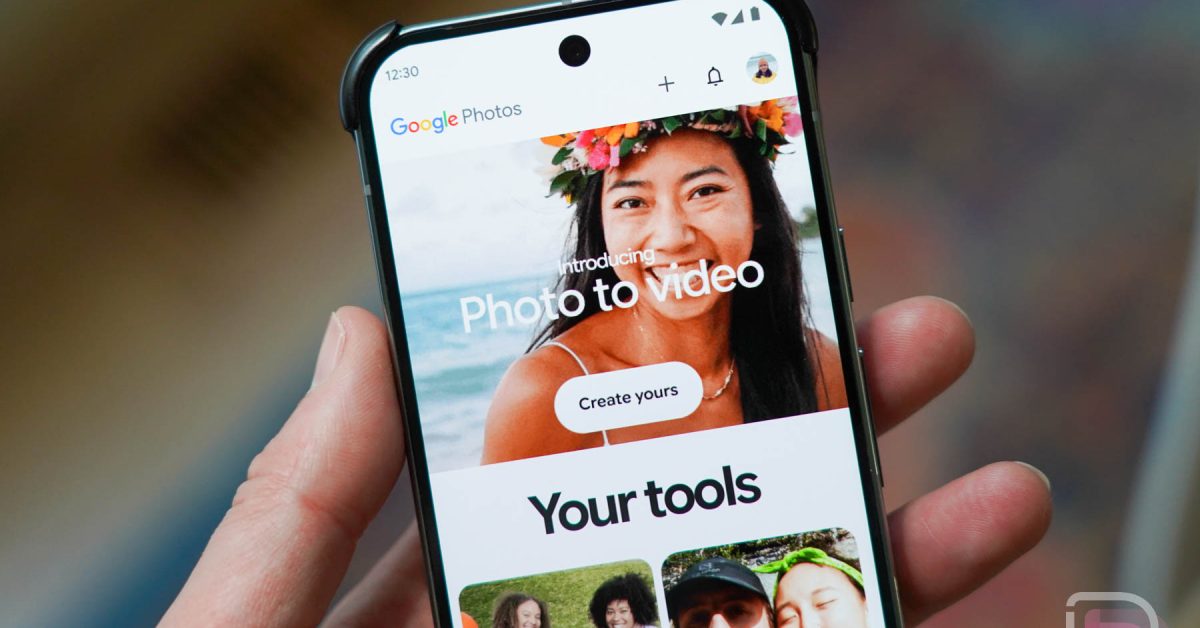
Google Photos Collages Just Got a Major Upgrade: What You Need to Know
Frustrated with google Photos’ collage maker? You’re not alone. Many users found the previous iteration clunky and restrictive. Thankfully, Google has listened to feedback and is rolling out a notable update designed to make creating stunning photo collages faster, easier, and more flexible. this isn’t just a minor tweak; it’s a basic overhaul of the experience.
This article dives deep into the changes, offering practical insights and explaining how these updates will benefit you. We’ll cover everything from the new editing controls to the streamlined sharing process, ensuring you can create and share memorable collages with ease.
What’s Changing with Google Photos Collages?
Google has addressed key pain points with five major improvements. These changes focus on giving you more control and inspiration throughout the collage creation process. Here’s a detailed breakdown:
* No More Starting From scratch: Previously, choosing the wrong layout meant re-selecting all your photos.Now,you can add or remove images directly within the editor without losing your progress. This saves significant time and frustration.
* Template First, Photos Second: The guesswork is gone. you’ll now land directly in the collage editor, browsing available templates before selecting your photos. This allows you to find the perfect style and then choose images that fit, rather then the other way around.
* Fresh, Modern Templates: Google is expanding its template library with new, clean designs. Expect options tailored for various events and aesthetics, providing more inspiration for your storytelling.
* One-Tap Sharing: Say goodbye to extra steps. A new “share” button within the editor lets you instantly send your collage to friends via apps like Instagram, WhatsApp, or directly through your contacts.
* Built-In Guidance & Feedback: Google is actively seeking your input. A new “Getting Started” guide (accessible via the three-dot menu) walks you through the features, and a direct feedback option allows you to share your thoughts with the development team.
These updates represent a commitment to user experience and a responsiveness to community feedback.Google is clearly aiming to make collage creation a joyful, rather than frustrating, experience.
Why These Changes Matter: A Deeper Look
These aren’t just cosmetic improvements. They address fundamental usability issues. The ability to edit photos within the layout is a game-changer.It eliminates the biggest source of frustration for many users.
The “template first” approach is also smart. it encourages creative exploration and helps users visualize the final product before committing to specific photos. This is particularly helpful for those who struggle with design or layout choices.
Recent data from Statista shows that over 5 billion photos are uploaded to Google Photos every day. https://www.statista.com/statistics/1124784/google-photos-monthly-active-users/ With such a massive user base,even small improvements to core features like collage creation can have a significant impact.
How to Use the New Google Photos Collage Maker: A Step-by-Step Guide
- Open Google Photos: Launch the Google Photos app on your Android or iOS device, or access it through your web browser.
- Select Photos: Choose the photos you want to include in your collage.
- Tap the “+” Icon: Tap the “+” icon at the top of the screen, then select “Collage.”
- Browse Templates: You’ll now be presented with a range of collage templates. Scroll through and choose the one that best suits your style and the number of photos you’ve selected.
- Adjust & Edit: Add or remove photos as needed directly within the editor. Rearrange photos,zoom,and pan to achieve the perfect layout.
- Share Your Creation: Tap the new “Share” button to instantly share your collage with friends and family.
- Provide Feedback: Don’t forget to explore the three-dot menu for the “Getting Started” guide and the feedback option.
Troubleshooting Common Collage Issues
Even with the updates, you might encounter occasional issues. Here are a few common problems and how to resolve them:
* App Not Updating: Ensure you have the latest version of the Google Photos app installed. Check the Google Play Store (Android) or App Store (





