
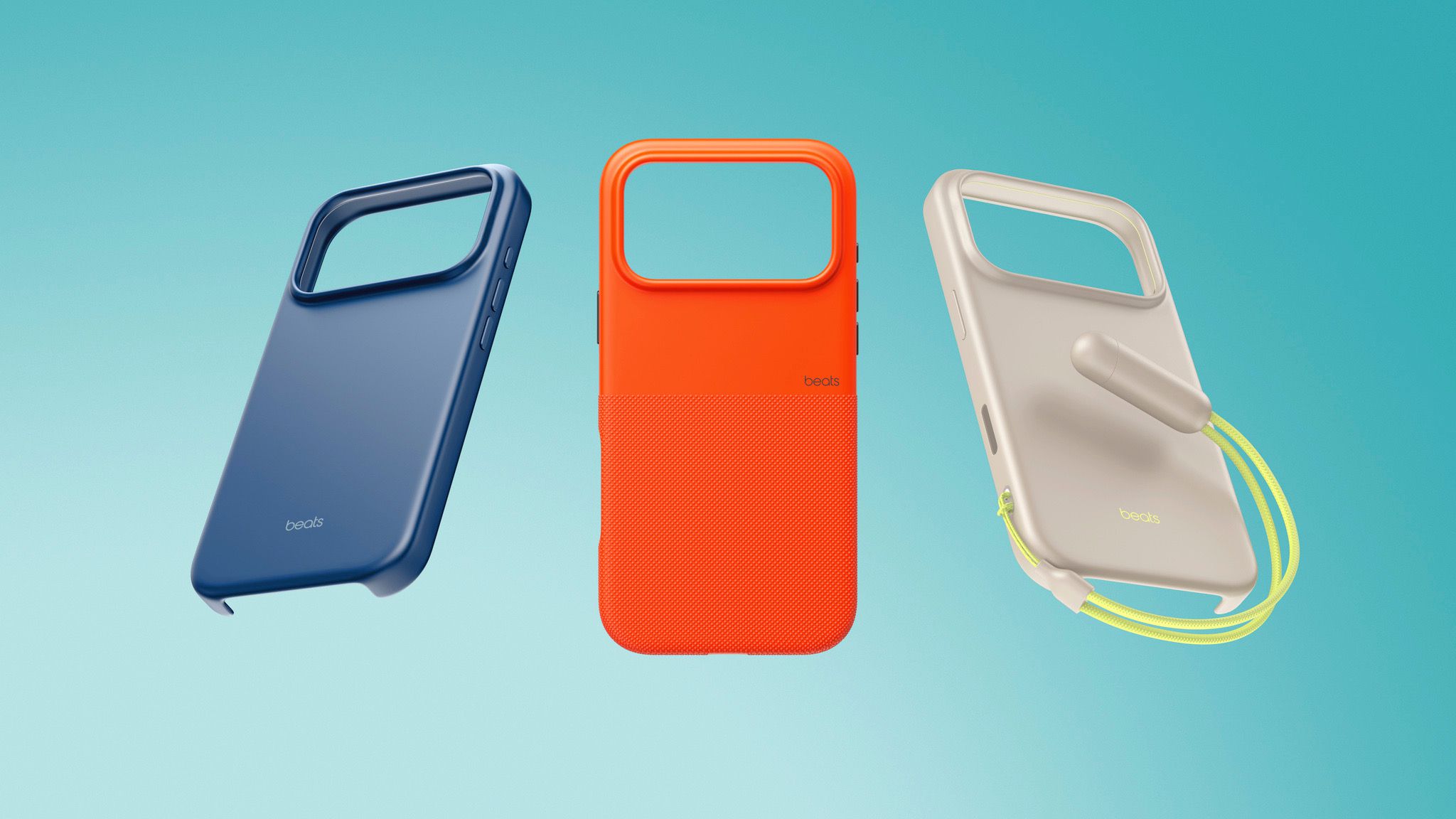
iOS 26: perfectly Match Your App Icons to Your iPhone Case Color
Apple continues to refine the personalization options within iOS,and the latest iteration – iOS 26 - introduces a compelling new feature for Home Screen customization.Now, you can dynamically tint your app icons to precisely match the color of your iPhone’s case.This builds upon the tinted icon functionality first introduced in iOS 18, offering an even more cohesive and visually appealing aesthetic.
This guide will walk you through the process, ensuring your Home Screen reflects your individual style.
Understanding the Color-Matching Technology
The key to this feature lies in apple’s official MagSafe cases. Thes cases are equipped with a small NFC chip that communicates the specific color variant to your iPhone. This allows iOS 26 to accurately determine the case’s hue and apply a corresponding tint to your app icons, widgets, and system UI elements.
However, the color-matching functionality only works with official Apple MagSafe cases. If you’re using a third-party case, don’t worry! iOS 26 still offers alternative tinting options, allowing you to match your icons to the color of your iPhone itself.
How to Tint App Icons to Match Your iPhone case
Here’s a step-by-step guide to achieving a perfectly color-coordinated Home Screen:
- Access Customization Mode: On your Home Screen, firmly press and hold an empty space between your app icons.
- Enter Edit Mode: Tap the “Edit” button located in the top-left corner. then, select ”Customize” from the pop-up menu.
- Choose Tinted Icons: Within the customization options, select ”Tinted.” This will reveal a panel with color sliders and preset options.
- Select iPhone Case Color: Tap the “iPhone case” button – it’s the second option from the left, positioned beneath the color sliders.
- Choose Your mode: Select your preferred mode: “Light,” “Dark,” or “Auto.” This determines how the tint interacts with the icon graphics.
* Light Mode: Icons adopt the full selected color with white graphics.
* Dark Mode: Backgrounds are a darker shade of the chosen color, but not entirely black.
* Auto: iOS intelligently adjusts the tint based on your system-wide appearance settings.
The system intelligently adjusts brightness, saturation, and contrast to ensure your icons remain legible while beautifully reflecting your case’s tone.
iOS 26 Tinted Icons: A Visual Evolution
Tinted icons have come a long way since their introduction in iOS 18. Previously, icons featured a black background with colored graphics. Now, in iOS 26, the entire icon is infused with the selected color, creating a more immersive and modern look. This change substantially enhances the visual harmony of your Home Screen.
Beyond Case Matching: Alternative Tinting Options
Even without an official Apple MagSafe case, you can still personalize your app icons. iOS 26 provides a range of alternative tinting options:
* Color Sliders: Fine-tune the hue and intensity of the tint using the horizontal color sliders.
* Color Palette: Choose from a curated selection of pre-defined colors.
* Match iPhone Color: Select this option to tint your icons based on the color of your iPhone itself.
Experiment with these options to discover a look that perfectly suits your preferences.
Troubleshooting & Considerations
* Case Compatibility: Remember, the automatic case-matching feature only works with official Apple MagSafe cases containing the NFC chip.
* Legibility: While the tinting effect is visually appealing, prioritize legibility. Adjust the brightness and saturation as needed to ensure icons remain easily identifiable.
* Widget Integration: The tinting effect extends to your Home Screen widgets, creating a unified aesthetic.
* System UI Elements: System UI elements,such as folder backgrounds,will also reflect the chosen tint.
Evergreen Insights: The Power of Personalization
Apple’s commitment to personalization isn’t just about aesthetics. It’s about empowering you to create a device that truly reflects your individual style and preferences. A thoughtfully customized Home Screen can enhance your daily interaction with your iPhone, making it a more enjoyable and intuitive experience. The ability




![Emerging Tech Leaders: 10 Innovators to Watch in [Year]](https://i0.wp.com/media.assettype.com/analyticsinsight%2F2025-12-26%2Fvsgcf2gh%2FTop-10-Emerging-Tech-Leaders-Who-Redefined-Innovation-in-2025.jpg?resize=330%2C220&ssl=1 "Emerging Tech Leaders: 10 Innovators to Watch in [Year]")


