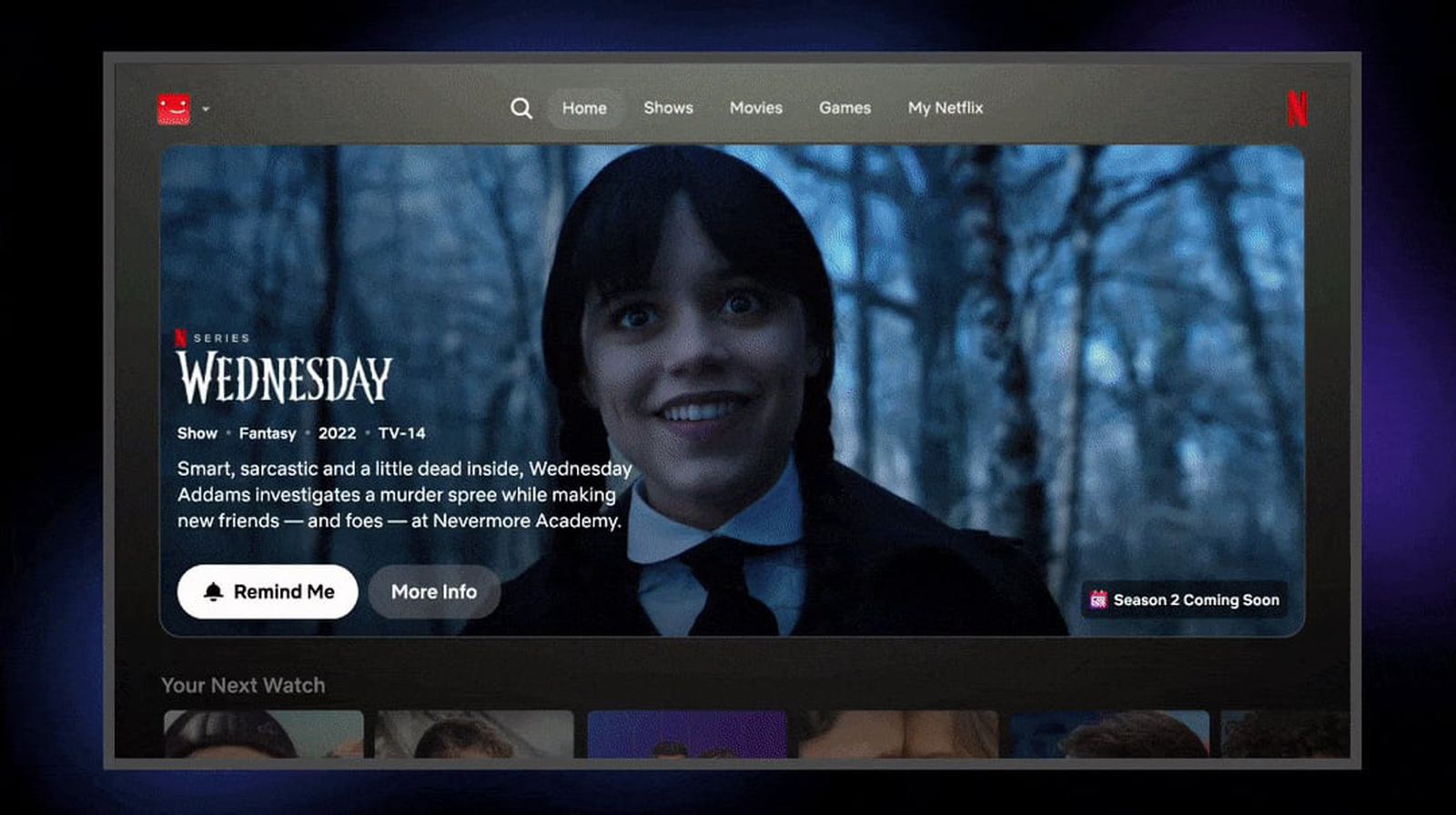
netflix’s Apple TV Redesign: A Complete Guide to the New Interface (2024/2025)
Are you a Netflix user with an Apple TV? Have you noticed a important change to the app’s look and feel recently? Netflix has finally completed its rollout of a redesigned interface for Apple TV (version 3.0), and it’s a significant update. This isn’t just a cosmetic refresh; it’s a fundamental shift in how you navigate and discover content. This guide will walk you through everything you need to know about the new Netflix Apple TV experience, from the key changes to how to get the update and what it means for your viewing habits.
What’s New? A Deep Dive into the Redesign
For months, netflix has been testing and gradually rolling out this redesigned TV app, starting with other platforms earlier in the year. Now, Apple TV users are joining the party. The update represents a significant departure from the interface Netflix has used since 2018, prioritizing a cleaner, more intuitive experience. Here’s a breakdown of the key changes:
Goodbye Sidebar, Hello Top Menu: The most immediately noticeable change is the removal of the left-hand sidebar navigation.In its place is a streamlined top menu bar. This bar provides quick access to core sections: Search, Home, Shows, Movies, Games, and My Netflix. This shift declutters the screen and puts the focus squarely on content.
Unified “My Netflix”: Netflix has cleverly merged “My List” and “My Netflix” into a single, unified section. This simplifies access to your saved shows and movies, making it easier to pick up where you left off.
Content-Focused Home Screen: The new home screen is designed to be more visually appealing and content-centric. Featured programs are prominently displayed in large, isolated cards, drawing your eye to what Netflix thinks you’ll enjoy. Dynamic Content Tiles: Say goodbye to static tiles! As you scroll through content, tiles now extend when your remote highlights them. This expansion reveals more information, like trailers and detailed descriptions, right at your fingertips. It’s a subtle but impactful change that enhances browsing.
Smarter Recommendations: Netflix has revamped its recommendation engine. Expect to see more relevant and personalized suggestions based on your viewing history. The algorithm is now designed to be more responsive to your “moods and interests in the moment,” offering a more dynamic and tailored experience.
contextual Labels: To further refine recommendations, Netflix is adding contextual labels. These labels, such as “Recent addition” and “No. 3 in movies,” provide valuable insight into why a particular title is being suggested. This transparency helps you understand the reasoning behind the recommendations and discover content you might otherwise miss.
Why the Change? Netflix’s Strategy Explained
This redesign isn’t arbitrary. Netflix is responding to user feedback and evolving viewing habits. The goal is to:
Improve Discoverability: The old interface could feel cluttered and overwhelming. The new design aims to make it easier to find something to watch, reducing the “paradox of choice.”
Enhance Personalization: Netflix relies heavily on its recommendation engine. By making recommendations more prominent and contextual, they hope to increase engagement and reduce churn.
Modernize the User Experience: The previous interface was starting to feel dated.The redesign brings Netflix’s Apple TV app in line with its other platforms and contemporary design trends.
Promote New Features: The streamlined interface provides a better platform for showcasing new features, like the ongoing experimentation with generative AI search (more on that below).
How to Get the New Netflix Apple TV Interface
The Netflix app for Apple TV version 3.0 is available now. However, the update doesn’t always roll out automatically. Here’s how to ensure you have the latest version:
- Open the App Store: On your Apple TV, navigate to the App Store.
- Search for Netflix: Type “Netflix” in the search bar.
- Check for Updates: If an update is available, you’ll see an “Update” button. Click it to download and install the latest version.
- Restart (If Necessary): In some cases, you may need to restart your Apple TV for the changes to take effect.
Important Note: The update requires tvOS 17 or later. Ensure your Apple TV is running the latest operating system for compatibility. You can check your tvOS version in Settings > General > software Updates.
Beyond Apple TV: What Else is Netflix Working On?
The Apple TV redesign is just one piece of the puzzle.