
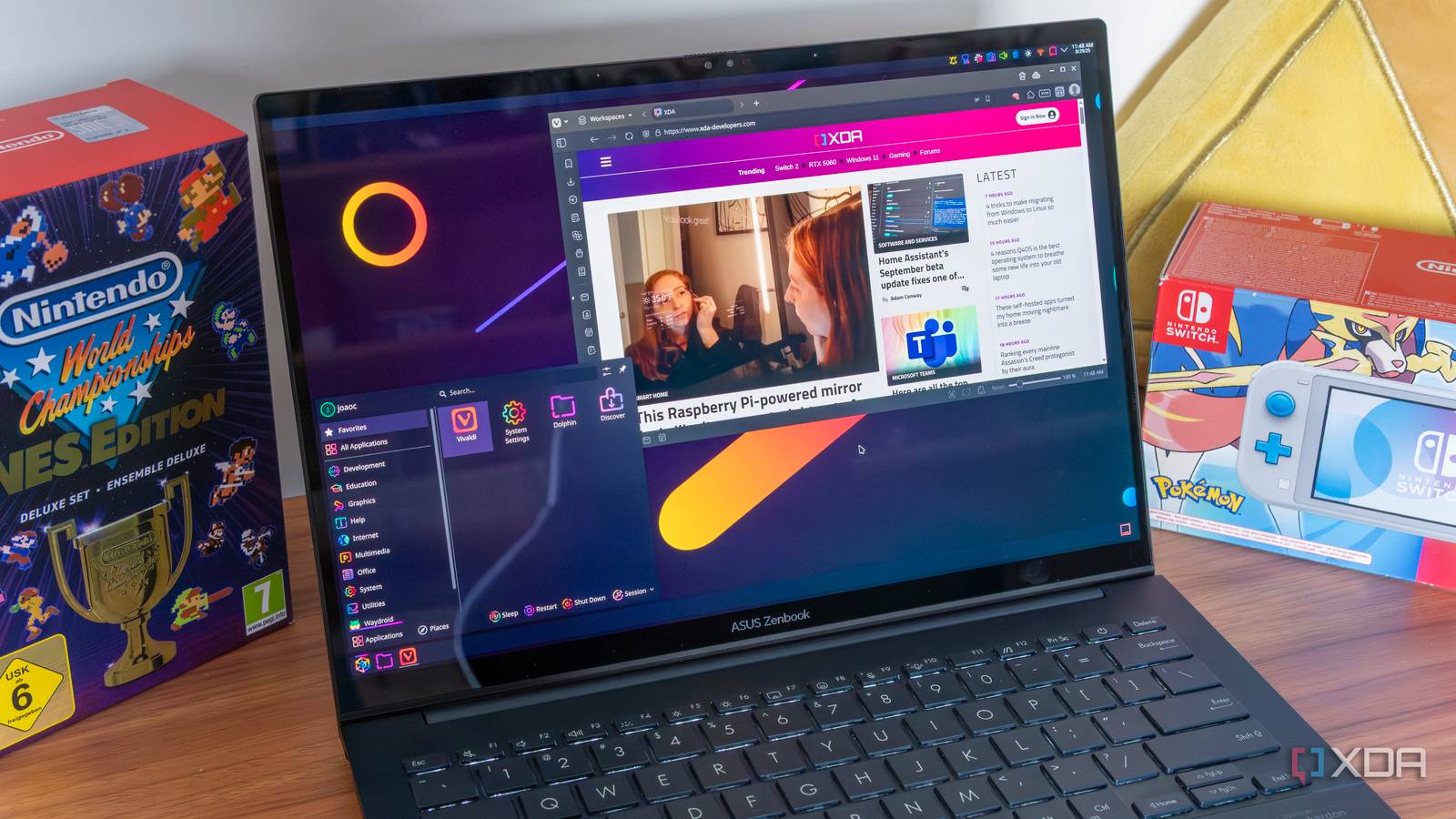
Unleashing the Power of a Remote Linux Desktop with proxmox and KDE Plasma
For those seeking the flexibility of Linux without the commitment of a full dual-boot or dedicated machine, a virtualized environment offers a compelling solution. I’ve found that combining Proxmox Virtual Environment with KDE Plasma delivers a surprisingly seamless and powerful remote desktop experience. This setup allows you to harness the benefits of Linux on virtually any device,even when your primary computer is powered down.
Why Virtualize Linux?
Traditionally, experiencing Linux meant partitioning your hard drive or booting from a live USB. While viable, these methods aren’t always ideal for everyday use. Virtualization, however, provides a clean, isolated environment with several key advantages:
* Accessibility: Access your Linux desktop from any device with an internet connection.
* Isolation: Keep your Linux environment completely separate from your host operating system, enhancing security and stability.
* Portability: Your virtual machine (VM) is a file you can easily back up, move, and restore.
* Resource Management: Allocate specific resources (CPU, RAM, storage) to your VM, ensuring optimal performance without impacting your host system.
Setting Up Your Remote Linux Desktop
Proxmox VE is a fantastic open-source virtualization platform.It’s robust, feature-rich, and free to use. here’s a breakdown of how to get started:
- Install Proxmox VE: Download the installation image from the Proxmox website and follow the straightforward installation guide.
- Create a New VM: Within the Proxmox web interface, create a new VM, allocating sufficient resources based on your intended use. I recommend at least 4GB of RAM and 30GB of storage for a agreeable desktop experience.
- Choose a Linux distribution: Ubuntu is a popular choice due to its wide support and ease of use. Install your preferred distribution within the VM.
- Install KDE Plasma: Once Ubuntu is installed, install the KDE Plasma desktop environment. This provides a modern, customizable, and visually appealing interface. You can install it via the terminal using
sudo apt update && sudo apt install kde-plasma-desktop. - Enable Remote Access: This is where things get really interesting. Tailscale is a fantastic solution for secure, zero-configuration remote access. It creates a secure mesh network between your devices, allowing you to connect to your VM as if it were on the same local network.
The “Plug and Play” Experience
What truly surprised me about this setup is how effortlessly it adapts to my primary monitor’s resolution. It simply “just works,” offering a native-feeling experience. This is a notable advantage over some other remote desktop solutions that can struggle with resolution scaling.
Furthermore, the performance is more than adequate for everyday tasks. I’ve found it perfectly capable of handling writng, research, and even light development work. It’s fast enough that I rarely notice I’m working within a virtualized environment.
Addressing the Challenges
Linux is often perceived as complex,and there can be a learning curve. I did encounter one minor hurdle: compiling an audio module. However,even this was surprisingly straightforward with a little research and guidance from online forums.
Why This Setup Works So Well
This combination of Proxmox and KDE Plasma offers a unique blend of power,flexibility,and convenience. It’s a solution that empowers you to experience the benefits of Linux without the customary complexities. It’s been incredibly useful for me, and I believe it can be for you too.
Ultimately, this setup provides a powerful, isolated, and accessible Linux environment that seamlessly integrates into your digital workflow. It’s a testament to the power of virtualization and the growing accessibility of linux.





![Wearable Tech & Frailty: Early Detection for Seniors | [Year]](https://i0.wp.com/www.futurity.org/wp/wp-content/uploads/2025/12/frailty-wearable-tech-elderly-care-1600.jpg?resize=150%2C100&ssl=1 "Wearable Tech & Frailty: Early Detection for Seniors | [Year]")


