
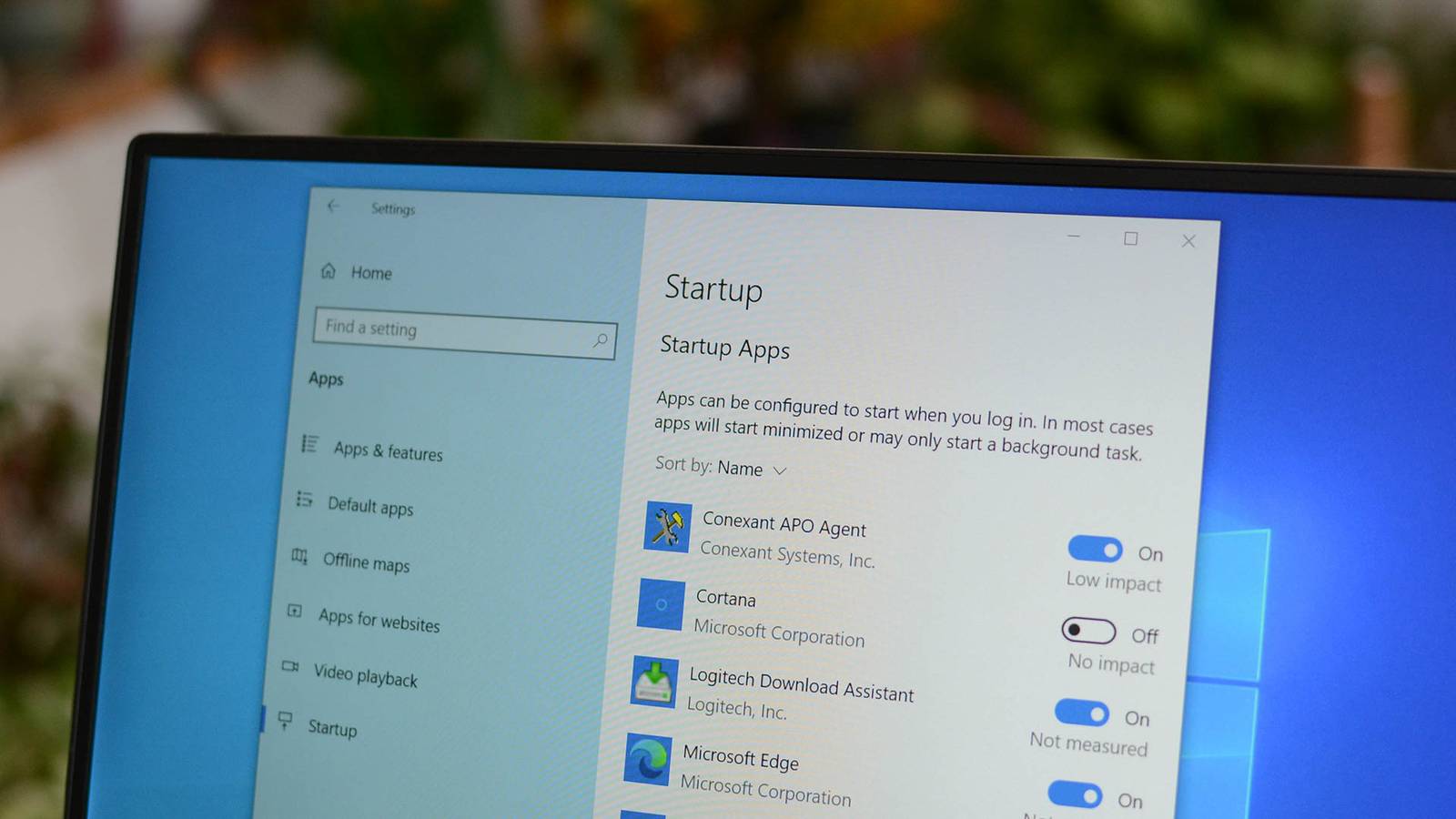
Take Control of Your Computer’s Startup: A Guide to Faster Boot Times
Is your computer taking forever to start up? you’re not alone. Many programs automatically launch when your computer boots, slowing down the process and consuming valuable system resources. Fortunately, you can easily manage these startup applications and reclaim control of your computer’s performance. Let’s walk through how to do it.
Understanding startup Programs
Startup programs are applications configured to launch automatically when you turn on your computer. While some are essential for core functionality, others are unneeded and contribute to a sluggish boot time.Identifying and disabling these non-essential programs can significantly improve your computer’s responsiveness.
accessing the Task Manager
The primary tool for managing startup programs is the Task Manager. Here’s how to open it:
- press Ctrl + Shift + Esc simultaneously.
- Alternatively, right-click on the taskbar and select “Task Manager.”
- If the Task Manager opens in a simplified view, click “More details” in the bottom-left corner.
Navigating to the Startup Tab
Once the Task Manager is open, you’ll find the Startup tab. Select this tab to view a list of applications configured to launch at startup. This list displays each program’s name, publisher, and its “Startup impact” – a measure of how much it affects your computer’s boot time.
Disabling Startup Programs
Disabling a startup program is straightforward. You have two options:
* Click “Disable”: Select the program you want to prevent from launching at startup, then click the “Disable” button in the bottom-right corner of the Task Manager window.
* Right-Click and Disable: Right-click on the program in the list and select “Disable” from the context menu.
A disabled program won’t launch automatically when you start your computer, but you can still open it manually whenever you need it.
Dealing with Persistent Programs
Sometimes, applications will re-add themselves to the startup list even after you disable them. This usually means the program has an internal setting to launch on startup.
* Check request Settings: Open the program’s settings or preferences and look for an option related to “Startup,” “Launch on Boot,” or similar wording. Disable this option to prevent the program from automatically launching.
Investigating task Scheduler
Occasionally, applications use the Task Scheduler to launch themselves automatically. This is a more advanced technique, but it’s vital to be aware of it.
* Open Task Scheduler: Search for “Task Scheduler” in the Windows search bar and open the application.
* Browse tasks: Explore the Task Scheduler Library to identify any tasks associated with the program you’re trying to prevent from launching.
* Disable Tasks: If you find a relevant task, right-click on it and select “Disable” to prevent it from running.
Monitoring Performance Improvements
After disabling unnecessary startup programs, restart your computer to see the difference. You should notice a faster boot time and improved overall system responsiveness. experiment with disabling different programs to find the optimal balance between functionality and performance.
I’ve found that regularly reviewing your startup programs is a great habit to maintain a smooth and efficient computing experience. Don’t be afraid to experiment and find what works best for your system.





