
Prarthana Gopal
2026-01-24 20:15:00
Turning off your smartphone is a great way to fix malfunctioning apps or apply setting changes.
While you may think there is only one way to turn off your Android phone or iPhone, there are multiple ways depending on the model and software.
We outline all the conventional methods for powering off your phone, whether you use an Android phone on Android 16, a Samsung device using One UI 8, or an iPhone with iOS 26.
Why should you turn off your smartphone?
Turning off your phone refreshes its memory. You’ll want to do this regularly to repair memory leaks and clear minor glitches.
Though restarting your device should fix most minor glitches, turning your phone off performs a complete system reset.
If you find that your phone runs slower than before, power down your device and then restart it.
Technically, turning off your phone also stops all background processes, which can conserve your battery in a pinch.
In more extreme situations, routinely powering down your device can also reduce the risk of unauthorized access to your data, as the device can no longer connect to networks or apps.
On many modern Android phones (especially Samsung Galaxy and Google Pixel), a long press of the power button might launch a voice assistant (like Bixby or Google Gemini) instead of the power menu.
You can often change this behavior in your phone’s settings under Side key, Gestures, or Power button settings.
How to turn off your Google Pixel smartphone
Your Google Pixel phone may launch Google Gemini or Google Assistant if you press and hold the power button.
If the power button hasn’t been set to show the Power menu, here’s what you’ll do to turn off the phone:
-
Press and hold the power button and volume up button for a couple of seconds.
-
When the pop-up appears, tap the Power off button to turn off your phone.
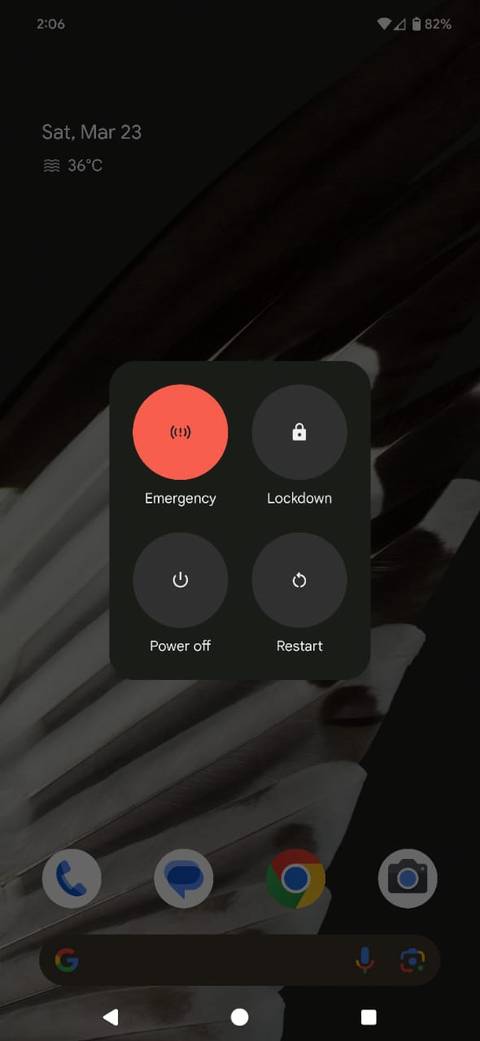



Alternatively, turn off your Google Pixel by swiping down twice from the top of the screen until the Quick Settings menu appears. Then select the power off icon at the bottom of the screen and follow the on-screen instructions.
The process is slightly different but still straightforward on older Google Pixel smartphones, such as the Pixel 5 and earlier models. Here’s what you’ll do:
-
Press and hold the power button until you see a pop-up on your screen.
-
Select the Power off icon to shut down your smartphone.
How to turn off your Samsung Galaxy smartphone
On a Samsung Galaxy smartphone, pressing the power button turns on Bixby. To turn off your phone, here’s what you’ll do:
-
Long press the power button and volume down button.
-
From the pop-up menu that appears on the screen, tap Power off to turn off your smartphone.
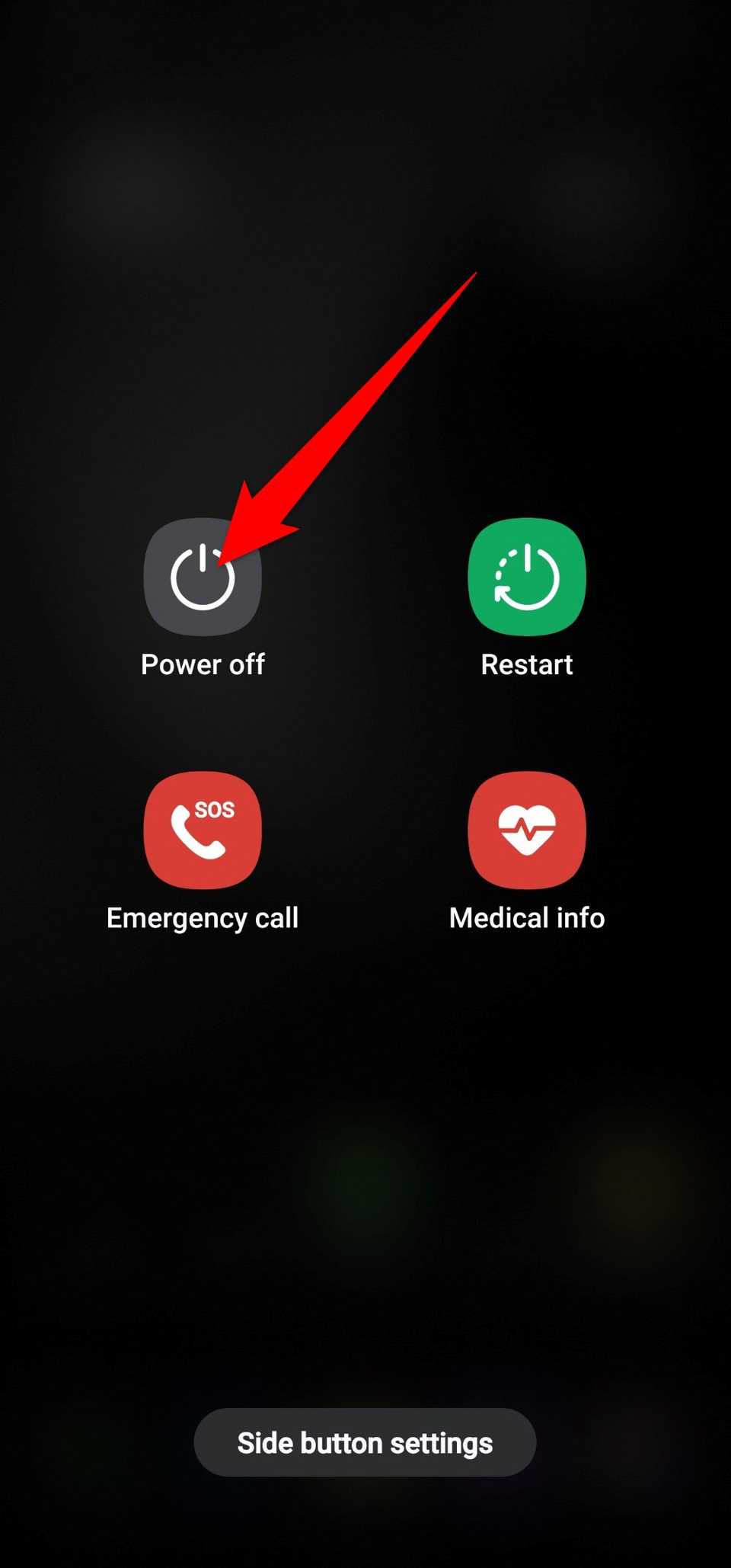

Another quick way to power off your Samsung phone is to swipe down twice from the top of the touchscreen. You’ll see the power off icon in the upper-right corner. Select it and follow the on-screen prompts to turn off your phone.


How to turn off your Motorola smartphone
Motorola smartphones are among the easiest to turn off. Here’s what you’ll do:
-
Press and hold the power and volume up buttons.
-
Select the Power off icon from the pop-up box to turn off your smartphone.
Alternatively, swipe down twice from the top of the home screen to see the power-off switch. Select it, then follow the instructions above to turn off your smartphone.
These instructions can help you turn off most mobile devices on the market. If you own a device from a different brand, here’s what you can try:
-
Hold the power button and the volume up or volume down button, and follow the on-screen instructions.
-
Press the power button alone and follow the on-screen instructions.
How to turn off a OnePlus smartphone
Similar to other devices, turning off your phone may prompt the digital assistant. Here’s how to turn it off without opening the digital assistant:
-
Press and hold the power button and volume up button.
-
Slide down to Power off.
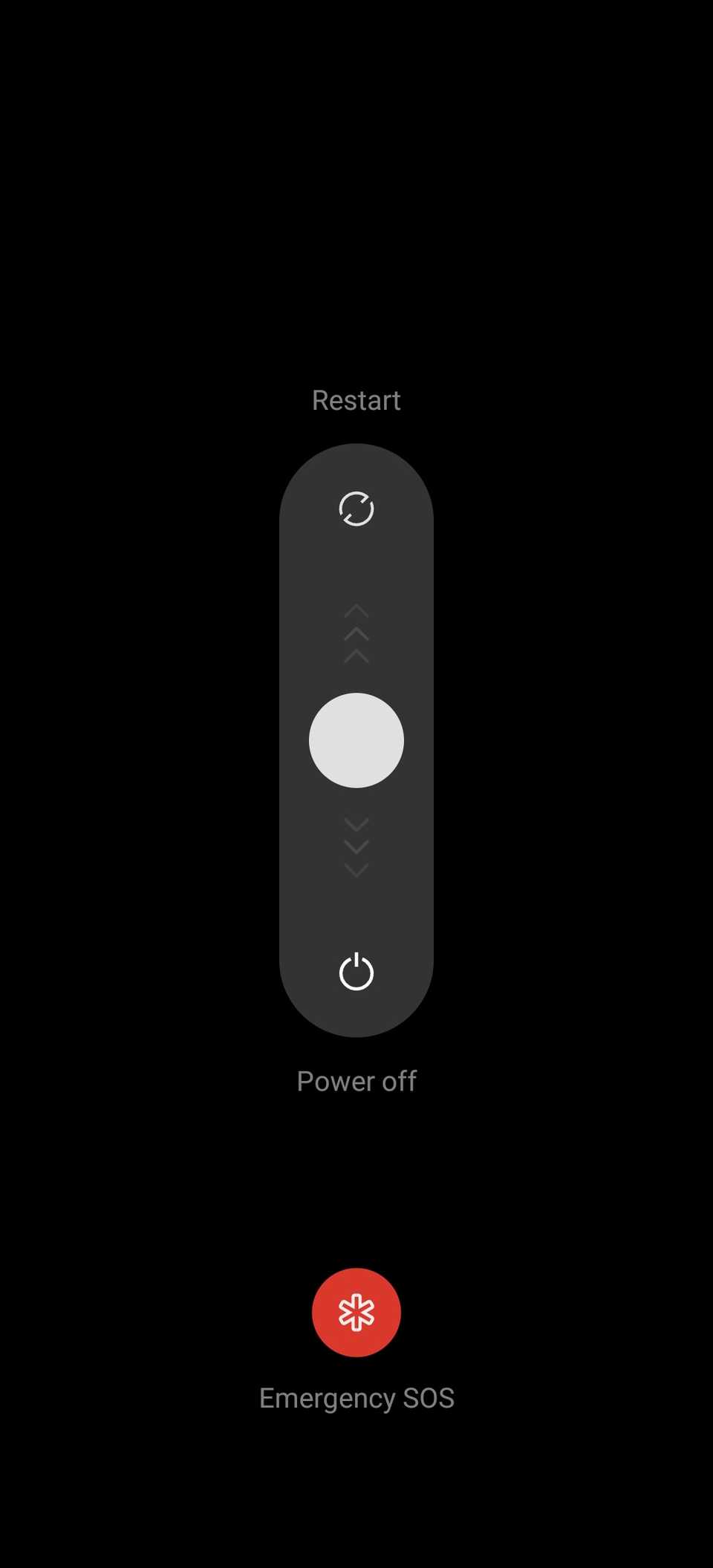

You can make it easier by turning off your OnePlus phone by replacing the digital assistant with the power menu. To do this:
-
Open your device’s Settings.
-
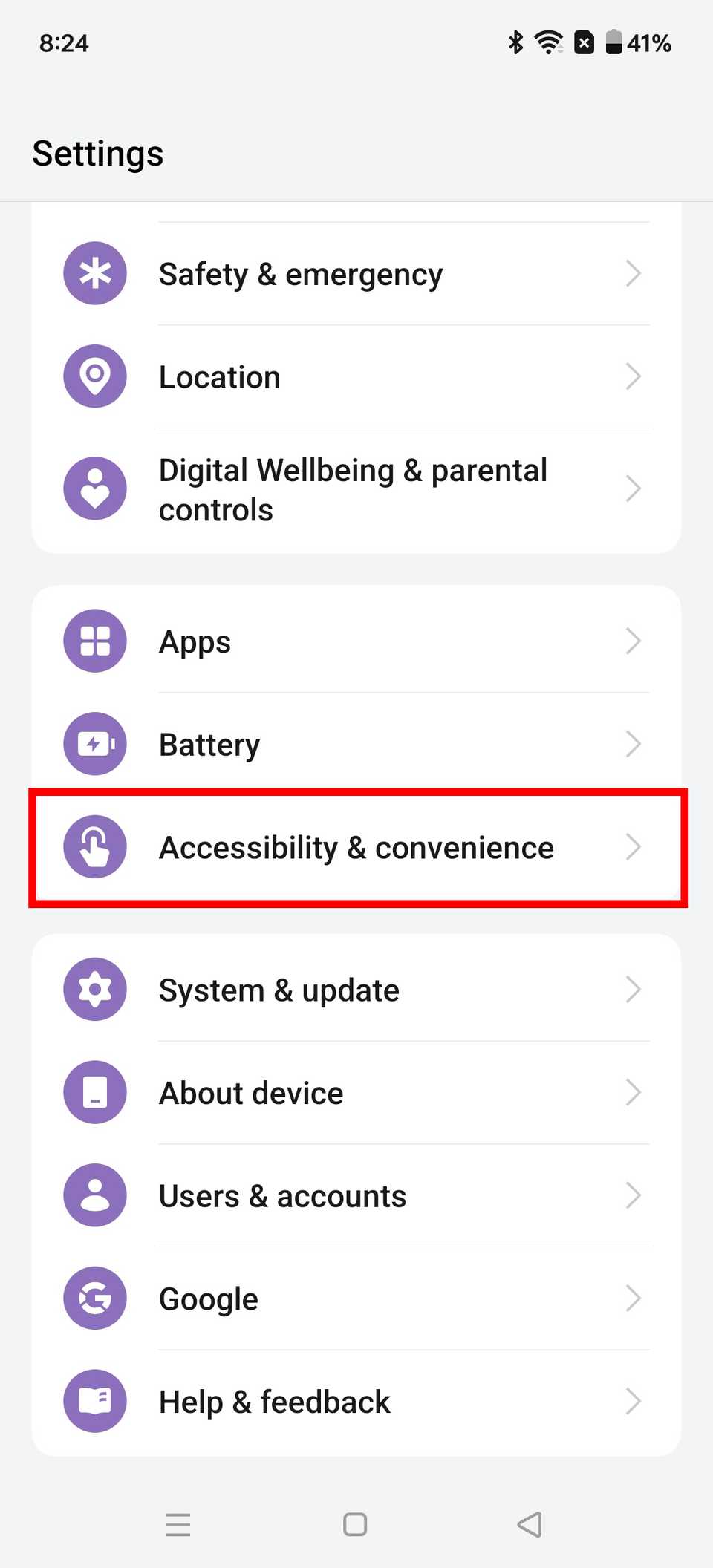
Tap Accessibility & convenience.
-
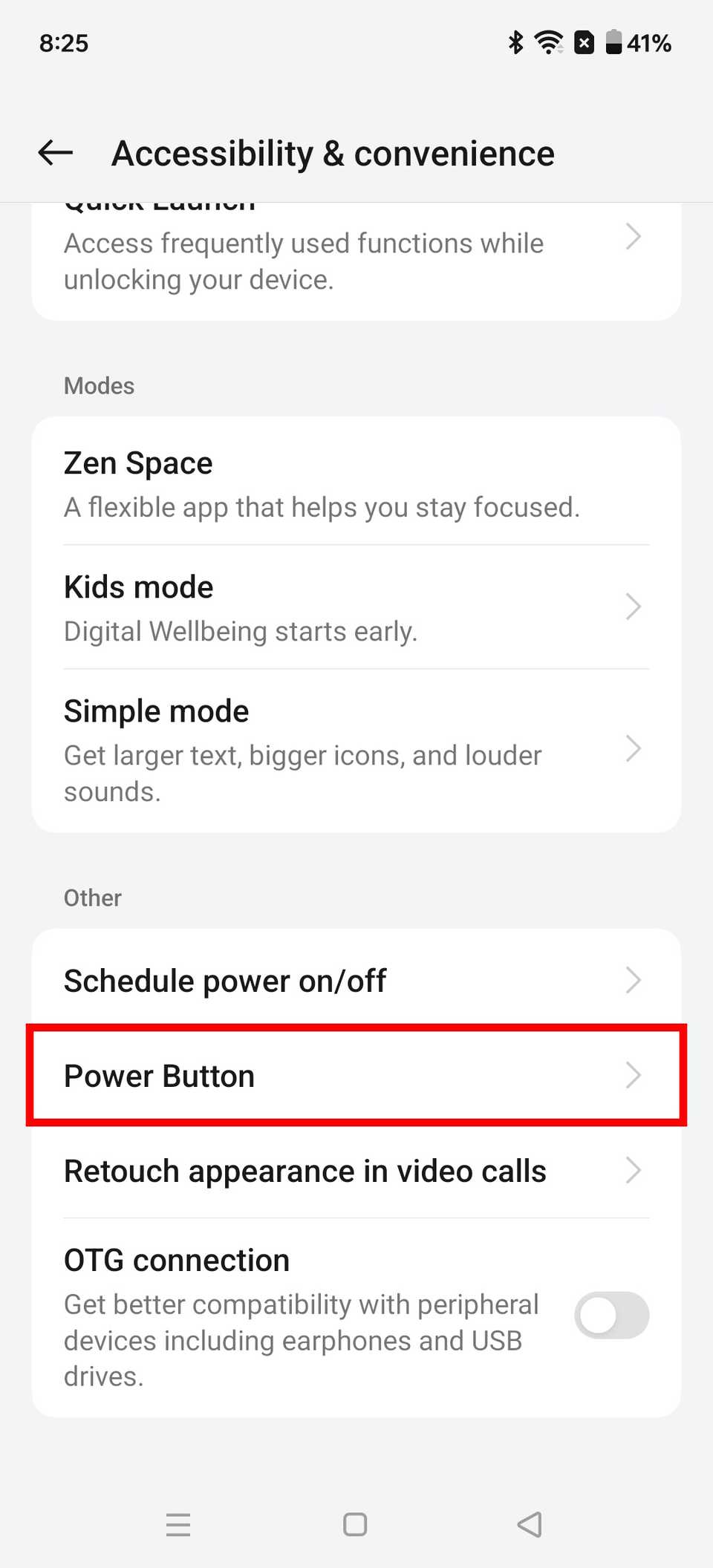
Scroll down to Other and select Power Button.
-
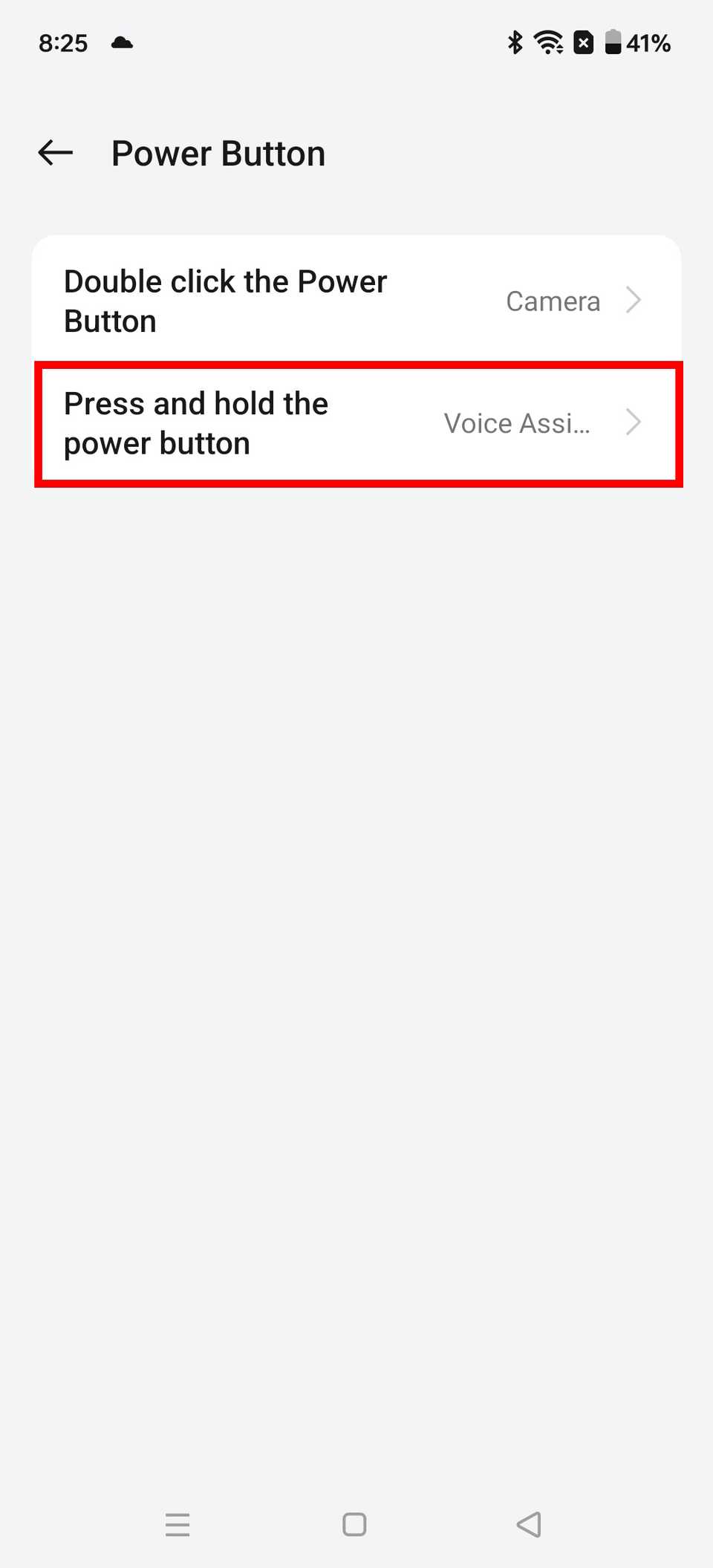
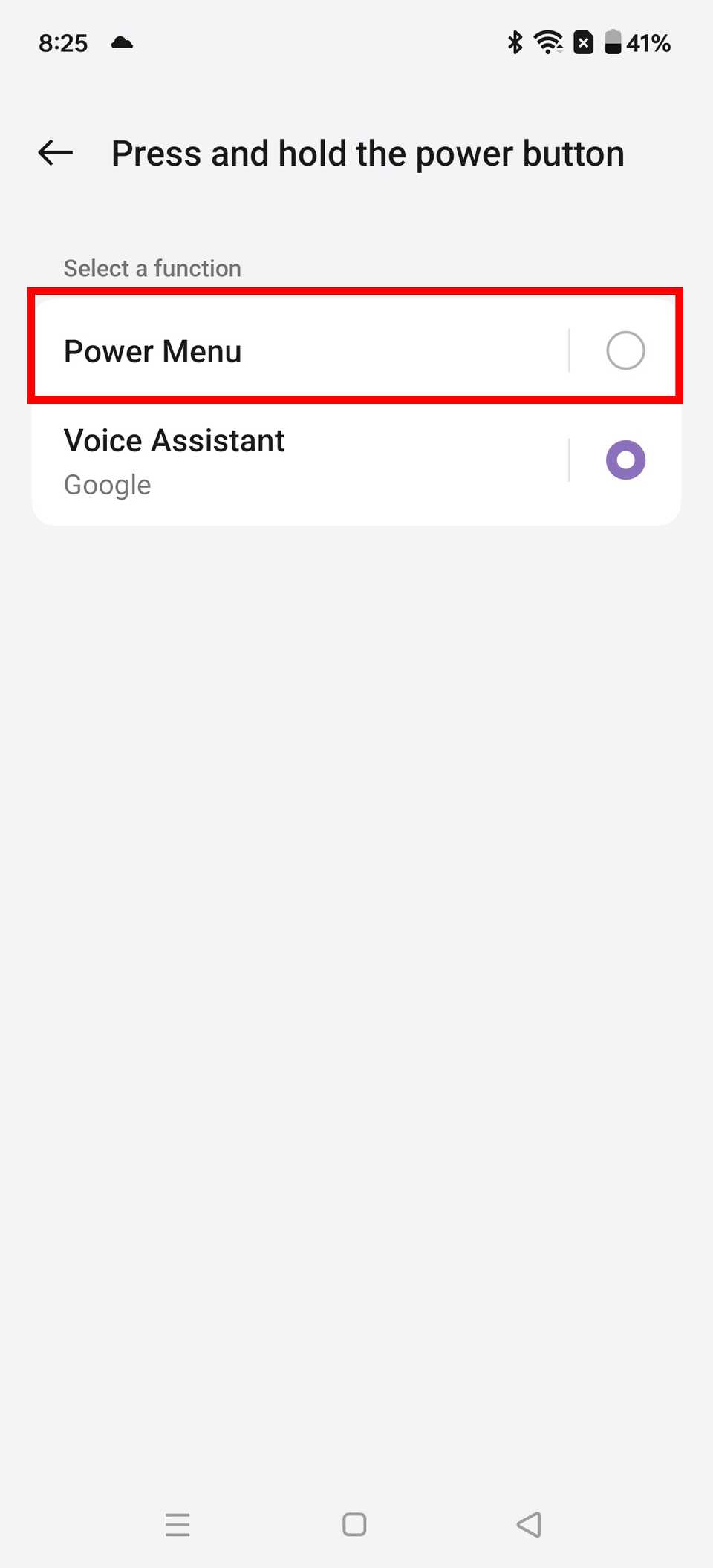
Tap Press and hold the power button > Power Menu. This will replace your digital assistant in the power menu when you hold down the power button.


How to turn off an iPhone
Turning off an iPhone is as straightforward as turning off Android devices. Here’s what you’ll do:
-
Press and hold the power button and the volume up button.
-
Slide your finger across the power off slider to turn your phone off.
If any of the physical buttons don’t work on your iPhone, here’s how to turn it off:
-
Navigate to the Settings app.
-
Select General.
-
Scroll down and select Shut Down.
-
Slide your finger across the power off slider.


Another way to turn off your Apple device is to ask Siri. After speaking your voice command, you’ll see a confirmation box on your screen. Respond with “Yes” to turn off your phone.
On iOS 18 and iOS 26, the Control Center lets you access the power button in the upper-right corner.
To access the Control Center, swipe down from the upper-right corner of the screen.
What to do if your device is damaged?
If your device is damaged, the best way to access your device’s power off feature is to use your Accessibility menu shortcuts or voice commands.
To do this, go to your device’s Settings and tap Accessibility to open the Accessibility menu. Alternatively, use voice commands to turn it off. For Google Assistant/Gemini, use “Hey Google, turn off my phone.”

When turning off your phone doesn’t help
Most phones, whether Android or iPhone, can be turned off using the methods above.
However, if turning off your phone doesn’t rectify the issue you’re experiencing, force restart your mobile phone or, as a last resort, factory reset your Android device or iOS device.




