
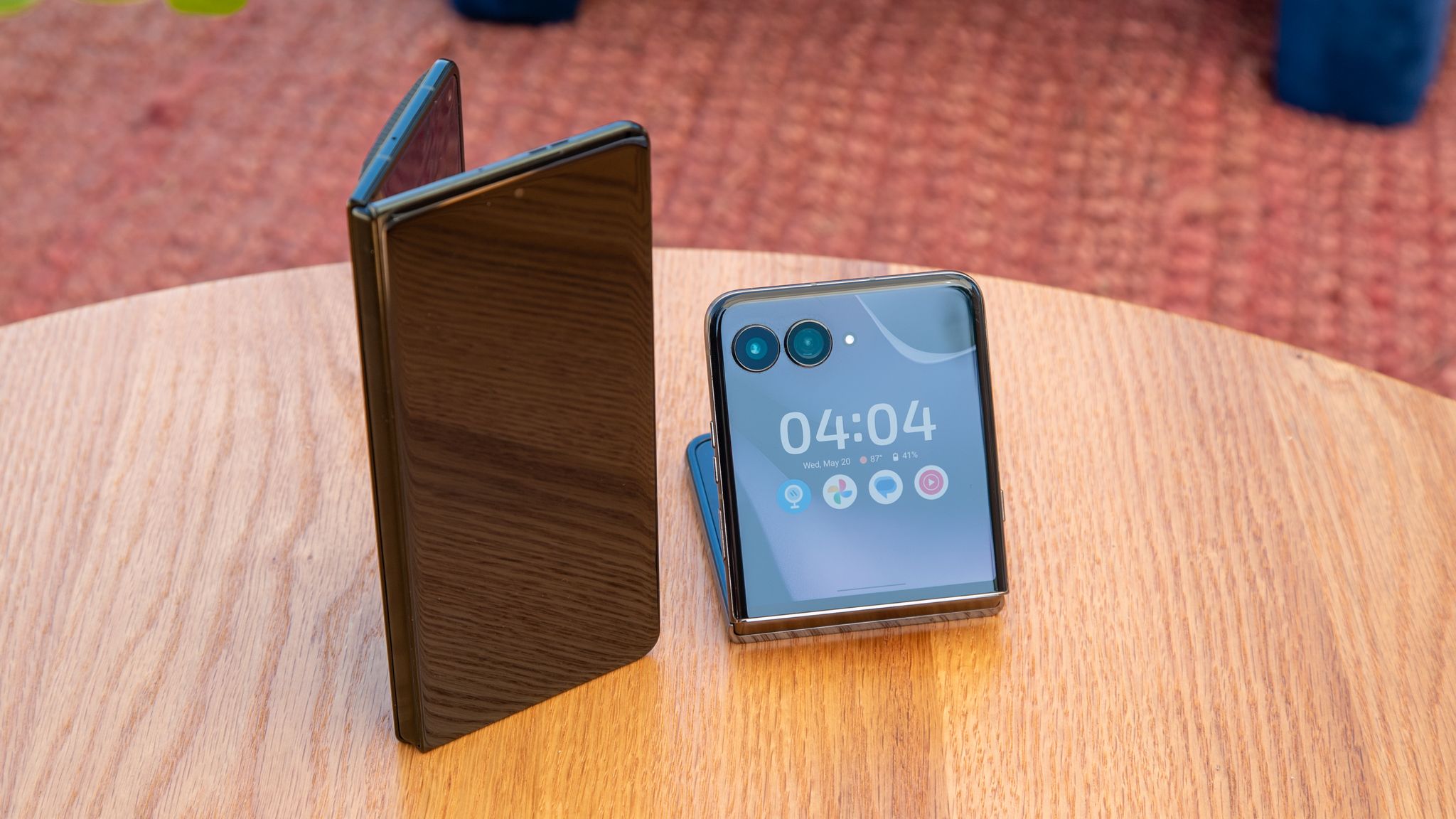
The 2026 Motorola Razr series, including the Razr and Razr+ models, utilizes advanced computational photography to manage its folding form factor, requiring specific user adjustments to maximize image output. By manually configuring software settings and utilizing the device’s unique hinge-based hardware, users can improve the consistency of their mobile photography. According to official Motorola product specifications, these devices integrate high-resolution main sensors and AI-driven image processing that perform best when users understand how to toggle specific modes for varying lighting environments.
As a technology editor who has spent years analyzing mobile optics, I have found that the Razr’s unique selling point—its ability to function as its own tripod—is often underutilized by casual photographers. Optimizing your 2026 Motorola Razr camera involves moving beyond the default “Auto” settings to leverage the device’s specific hardware capabilities. Below are eight practical adjustments to elevate your photography, based on the software interface and sensor architecture currently available on the 2026 lineup.
1. Utilize the Flex View for Long Exposure Photography
The defining feature of the 2026 Motorola Razr is the ability to fold the device at a 90-degree angle, which acts as a built-in tripod. To capture long-exposure shots—such as light trails or smooth water—access the “Pro Mode” within the camera interface. By lowering the ISO and increasing the shutter speed, you can keep the sensor open for several seconds without the blur associated with handheld shooting. Motorola’s official support documentation notes that this stability is essential for low-light performance where the sensor requires more time to gather photons.
2. Engage the High-Resolution Mode for Detail
While the camera defaults to “pixel binning”—a process that combines multiple pixels into one to improve low-light sensitivity—this often sacrifices raw detail. If you are shooting in bright daylight, navigate to the camera settings menu and select the full-resolution mode. This forces the sensor to use every individual pixel, providing significantly more detail for cropping or large-format printing. According to independent testing by DXOMARK, using the full sensor resolution on modern smartphone optics provides a noticeable increase in texture retention, provided the subject is well-lit.
3. Master the External Display Preview
The 2026 Razr series allows your subject to see themselves on the external cover screen while you take their photo. This is not just a novelty; it is a tool for better portraiture. By enabling the “Mirror Mode” on the external display, subjects can adjust their posture or expression in real-time. This reduces the number of retakes required and ensures that the composition is exactly what you intend. Professional portrait photographers often cite “subject comfort” as the primary factor in natural-looking photos, a hurdle this hardware integration helps to clear.
4. Calibrate Exposure Compensation Manually
Smartphone software often struggles with high-contrast scenes, such as a subject standing in front of a bright window. Instead of relying on the camera’s internal metering, tap the screen once to focus, then slide the sun icon up or down to adjust exposure compensation. Lowering the exposure slightly before taking the shot preserves detail in the highlights that would otherwise be “blown out” or turned into pure white. As reported in tech industry analysis, manual exposure control remains the single most effective way to improve the dynamic range of mobile images.
5. Optimize AI Scene Detection
Motorola’s AI engine automatically detects scenes like “Food,” “Landscape,” or “Night Vision.” While often helpful, these filters can sometimes over-saturate colors. If you prefer a more natural look, you can toggle specific AI enhancements off in the settings menu. For professional-grade editing later, I recommend keeping the AI features disabled to capture a “flatter” image file, which retains more data for post-processing in applications like Adobe Lightroom or Snapseed.

6. Use the Palm Gesture for Hands-Free Shots
To eliminate camera shake entirely, use the gesture-based shutter release. When the phone is propped up in Flex View, you can trigger the shutter by raising your palm toward the lens. This is particularly useful for group photos where the photographer wants to be included. By avoiding physical contact with the device at the moment of capture, you eliminate the micro-vibrations that can soften a photo, especially when using the digital zoom.
7. Clean the Lens Array Regularly
It sounds simple, but the folding nature of the Razr makes the lenses prone to smudges from fingers and pocket lint. Because the camera array is exposed when the phone is closed, the glass accumulates oils quickly. A clean lens is the most important factor in preventing “haze” or “flare” in photos taken toward a light source. Using a microfiber cloth rather than a shirt sleeve prevents micro-scratches on the lens coating, which can permanently degrade image sharpness over time.
8. Experiment with Burst Mode for Moving Subjects
For children, pets, or sports, the standard shutter speed is often too slow to freeze motion. Long-press the shutter button to activate Burst Mode. The 2026 Motorola Razr processor is capable of capturing a rapid sequence of frames, allowing you to select the precise moment where the subject’s eyes are open or their movement is at its peak. This ensures that you don’t miss the decisive moment, a technique used by photojournalists globally to ensure a high “keeper rate” in unpredictable environments.
These adjustments rely on the current software version available for the 2026 series. Motorola is expected to release further camera optimization updates via over-the-air (OTA) firmware patches throughout the product lifecycle. Users should check the “System Update” section in their device settings periodically to ensure they have the latest image processing algorithms. If you have specific tips that have worked for your device, or if you have questions about these settings, please share your experiences in the comments below.