In the fast-paced digital environment of 2026, managing an inbox has evolved from a simple administrative task into a strategic exercise in productivity. For many of us, Gmail serves as the central nervous system of our professional and personal lives. Yet, despite its ubiquity, many users rely on a fraction of the platform’s actual capability. By mastering 9 hidden Gmail features that can save you time, you can transform your relationship with your inbox from one of reactive stress to proactive control.
As a technology editor, I have spent years navigating the nuances of software design. The beauty of the modern Gmail interface lies in its layered utility—features that often hide in plain sight, waiting to be activated. Whether you are looking to streamline your workflow through automation or leverage the latest generative AI integrations, these tools are designed to reduce the cognitive load of digital communication.
the landscape of these tools is constantly shifting. As of March 2026, Google has transitioned its early-access programs, with “Google Workspace Labs” now officially rebranded as “Google Workspace Experiments.” This program allows users to test advanced generative AI features, such as the Gemini side panel, which can summarize lengthy threads and assist in drafting complex responses, according to official Google Workspace support documentation.
1. Mastering the Power of Advanced Search Operators
Searching for a specific email is often the first bottleneck in a productive morning. Instead of scrolling through thousands of messages, power users rely on search operators. By using specific modifiers—such as has:attachment, from:name, or after:YYYY/MM/DD—you can narrow your results to the exact file or conversation you need in seconds. This method is far more efficient than relying on keyword searches alone, which often return irrelevant results.
2. The Efficiency of Scheduled Send
We often work across different time zones or outside of standard business hours. The “Schedule Send” feature is an essential tool for maintaining professional boundaries. By clicking the arrow next to the “Send” button, you can choose a specific date and time for your message to be delivered. This ensures your communication arrives when the recipient is most likely to see it, rather than getting buried in an overnight flood of notifications.

3. Inbox Filtering and Automatic Categorization
An organized inbox is the foundation of a clear mind. Gmail’s filtering system allows you to create rules that automatically label, archive, or forward incoming messages based on specific criteria. By setting up filters for newsletters, project-specific updates, or automated alerts, you can ensure that your primary inbox remains dedicated only to high-priority communications that require your immediate attention.
4. Leveraging AI with Gemini for Workspace
Artificial intelligence has fundamentally changed how we interact with our inboxes. As of the updates provided in May 2024, users can access Gemini directly within the Workspace side panel to summarize long email threads, draft replies, or query their history for specific information, such as asking the AI to “Catch me up on Project Clover emails.” These features are part of a broader push to integrate generative AI into daily workflows, as detailed by Google’s official product blog.
5. Snoozing Messages for Later Action
Not every email requires an immediate response, but leaving it in your inbox can lead to clutter and anxiety. The “Snooze” feature allows you to temporarily remove an email from your inbox and have it reappear at a more convenient time. This is a powerful way to manage your to-do list, ensuring that items only surface when you are actually ready to address them.
6. Keyboard Shortcuts for Rapid Navigation
If you are serious about saving time, you should stop using your mouse for basic navigation. Gmail offers a robust set of keyboard shortcuts—such as ‘c’ to compose, ‘r’ to reply, and ‘e’ to archive. Once enabled in your settings, these shortcuts allow you to process your inbox with a level of speed that is impossible to achieve with a cursor. Mastering these commands is one of the most effective ways to reduce the time spent on repetitive tasks.
7. Templates for Repetitive Responses
Do you find yourself typing the same answers to common questions over and over? Gmail’s “Templates” feature allows you to save drafts and reuse them as needed. By creating a library of standardized responses, you can maintain a high volume of professional communication without sacrificing your time or mental energy. You can enable this feature in the “Advanced” tab of your Gmail settings.
8. Offline Access for Uninterrupted Work
Productivity shouldn’t be tethered to a stable internet connection. By enabling offline mode, you can read, reply, and search your emails even when you are traveling or experiencing connectivity issues. Once your connection is restored, Gmail automatically syncs your actions, ensuring that your work is never lost. This feature is particularly valuable for professionals who rely on mobile computing in varying environments.
9. The Smart Compose and Contextual Reply Advantage
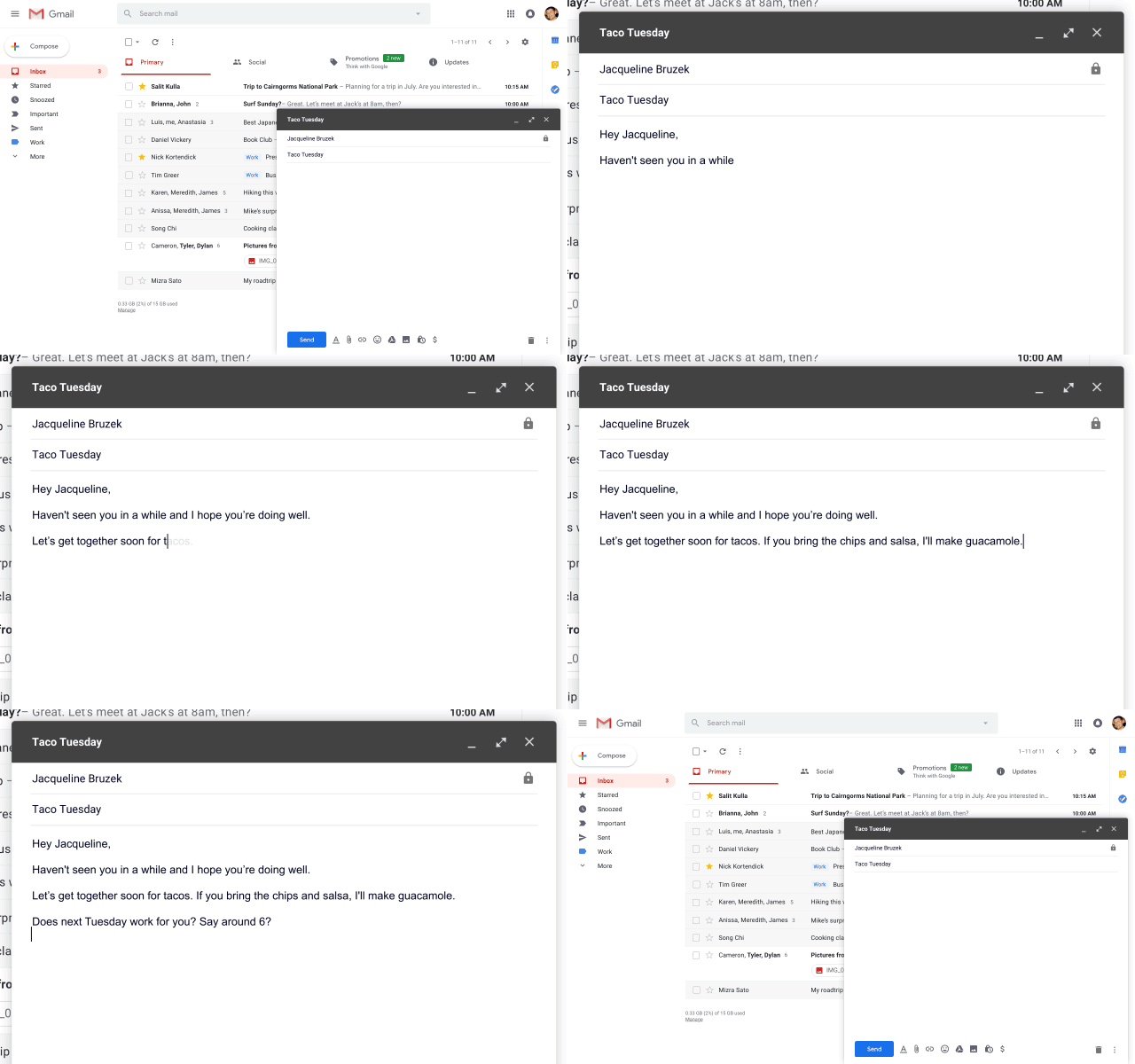
Even when you are writing from scratch, Gmail’s predictive text features can significantly speed up your output. “Smart Compose” learns your writing style and offers suggestions as you type, while contextual smart replies provide quick, relevant buttons to acknowledge messages without needing to draft a full response. These features are continuously refined through machine learning to better align with your individual communication patterns.
Implementing these nine features is not just about learning software tricks. We see about reclaiming the hours often lost to digital friction. By automating the mundane and leveraging the power of AI, you can focus your energy on the tasks that truly move the needle in your work and life. As Google continues to evolve these tools through the Workspace Experiments program, staying informed about these updates will remain a key component of digital literacy.
What is your favorite underutilized Gmail feature? I encourage you to share your experiences and tips in the comments below. For those looking to stay updated on the latest software enhancements, I recommend checking your Google Workspace settings periodically to see which new experimental features have been rolled out to your account.
Keep reading