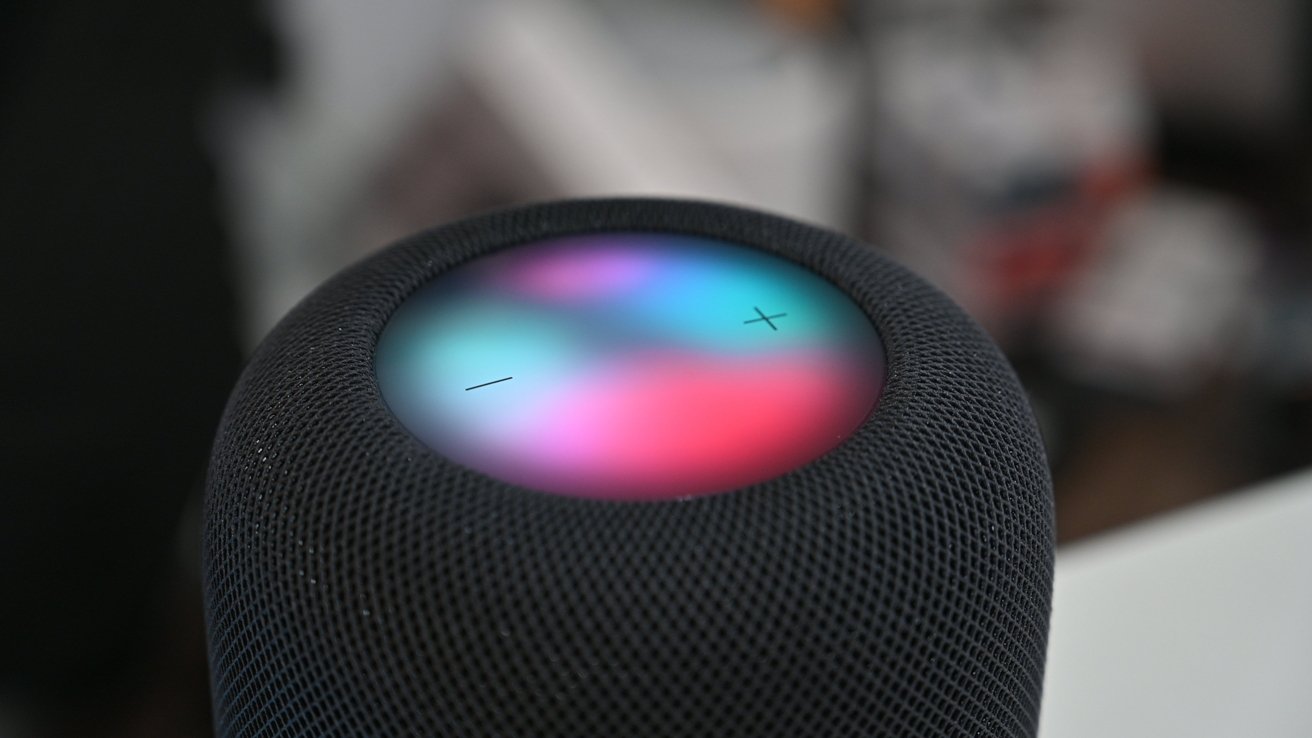
It is the kind of middle-of-the-night surprise no one wants: you are sound asleep, only to be jolted awake by the sudden, blaring volume of a podcast or a high-energy playlist triggered by your Apple HomePod. While these smart speakers are designed for seamless integration into the Apple ecosystem, some users have reported the frustrating phenomenon of “ghost touches”—where the device acts as if it has been tapped or swiped by an invisible hand.
For those experiencing these phantom inputs, the issue often stems from the capacitive touch surface located on the top of the device. Whether you are using the original HomePod or the more compact HomePod mini, this touch-sensitive display is engineered to respond to subtle electrical changes. Understanding how to address these ghost touches is essential for maintaining a peaceful home environment and ensuring your smart home technology functions as intended.
Understanding the HomePod Touch Interface
The HomePod and HomePod mini rely on a sophisticated capacitive touch panel to allow users to adjust volume, play or pause media, and manually summon Siri. Because this surface is highly sensitive, it can occasionally misinterpret environmental factors as deliberate user interaction. According to Apple’s official support documentation, the device is designed to be largely hands-free, utilizing voice commands and HomeKit automation for the majority of interactions, yet the physical interface remains a primary control point.

When the device registers an unintended tap, it may trigger music playback, pause your audio, or accidentally activate Siri. While software bugs can occasionally cause erratic behavior, the most common culprits for ghost touches are environmental. A buildup of dust, static electricity, or even extreme humidity can sometimes interfere with the sensors beneath the glass surface. If the HomePod is placed in a high-traffic area where debris may accumulate, the risk of phantom inputs increases.
Practical Steps to Resolve Ghost Touches
If your HomePod is acting up, a systematic troubleshooting approach is the best way to regain control. Before assuming a hardware failure, consider these verified steps to clean and calibrate your device’s interface:
- Perform a Gentle Cleaning: Use a soft, lint-free cloth to gently wipe the top touch surface. Avoid using abrasive cleaners or excessive moisture, which could damage the internal components. A dry microfiber cloth is usually sufficient to remove oils or dust particles that might be causing the capacitive sensors to trigger.
- Check the Power Source: Ensure your HomePod is plugged directly into a wall outlet. Using third-party power adapters or extension cables that do not meet the specific power requirements for the device can sometimes lead to unstable performance or erratic touch behavior.
- Reset the Device: If the issue persists, a factory reset is a reliable way to rule out software glitches. You can reset your HomePod through the Home app on your iPhone or iPad by removing the accessory and setting it up as new.
- Evaluate Environmental Factors: If your HomePod is located near an air conditioner vent, a radiator, or in a room with high humidity, try relocating it. Extreme temperature fluctuations can impact the sensitivity of the touch panel.
When to Seek Professional Support
If you have cleaned the device, performed a factory reset, and ensured it is powered correctly, but the ghost touches continue, there may be an underlying hardware fault. In such cases, it is advisable to check your warranty status. Apple provides a coverage lookup tool where you can enter your device’s serial number to see if your HomePod is still under the standard one-year limited warranty or covered by AppleCare+.
If the device is found to be defective, you can schedule an appointment at an Apple Authorized Service Provider or a local Apple Store. Avoid attempting to disassemble the HomePod yourself, as the internal components are tightly packed and non-serviceable by the end user. Opening the casing not only voids your warranty but can also lead to permanent damage to the speaker’s sensitive internal sensors.
Managing Your Smart Home Environment
Beyond hardware maintenance, you can mitigate the impact of ghost touches through software settings. Within the Home app, you can adjust the “Touch Accommodations” settings if available, or simply manage your media playback settings to ensure that accidental triggers do not disturb your household. Keeping your HomePod firmware updated is also critical; Apple frequently releases software patches that improve the device’s responsiveness and address known bugs.
To ensure you are running the latest software, open the Home app, tap the “Home” icon, select “Software Update,” and verify that your HomePod is running the most recent version of the Apple Home software. Keeping your devices updated is the single most effective way to ensure that your smart home remains secure and responsive.
Looking Ahead: Future Updates
Apple continues to refine the HomePod experience through regular iOS and HomePod software updates. While there is no specific “ghost touch” patch scheduled for a future release, the company regularly addresses sensor calibration and touch-sensitivity algorithms in its routine software cycles. For the latest official information regarding performance improvements, users are encouraged to monitor the Apple Support portal.
Have you encountered mysterious music playback on your HomePod? Share your experiences in the comments below, and let us know if these cleaning and reset steps helped resolve your device issues. Your feedback helps our community of tech enthusiasts stay informed and troubleshoot common smart home challenges more effectively.
Keep reading