
Modern Android smartphones include a suite of accessibility features designed to assist users with vision, hearing, and motor impairments. According to the official Android Accessibility Help center, tools such as Voice Access, Switch Access, and TalkBack allow users to operate their devices through voice commands, external switches, or screen readers, ensuring that hardware remains functional for a diverse range of users.
Understanding Android Accessibility Frameworks
The Android operating system maintains a unified accessibility framework that developers use to make applications compatible with assistive tools. As noted by Android Developers, this architecture relies on “Accessibility Services” that provide an interface to interact with the device’s user interface, such as reading text aloud or performing gestures on behalf of the user. By standardizing these inputs, Google ensures that third-party apps remain usable even when a user relies on specialized hardware or software overlays.
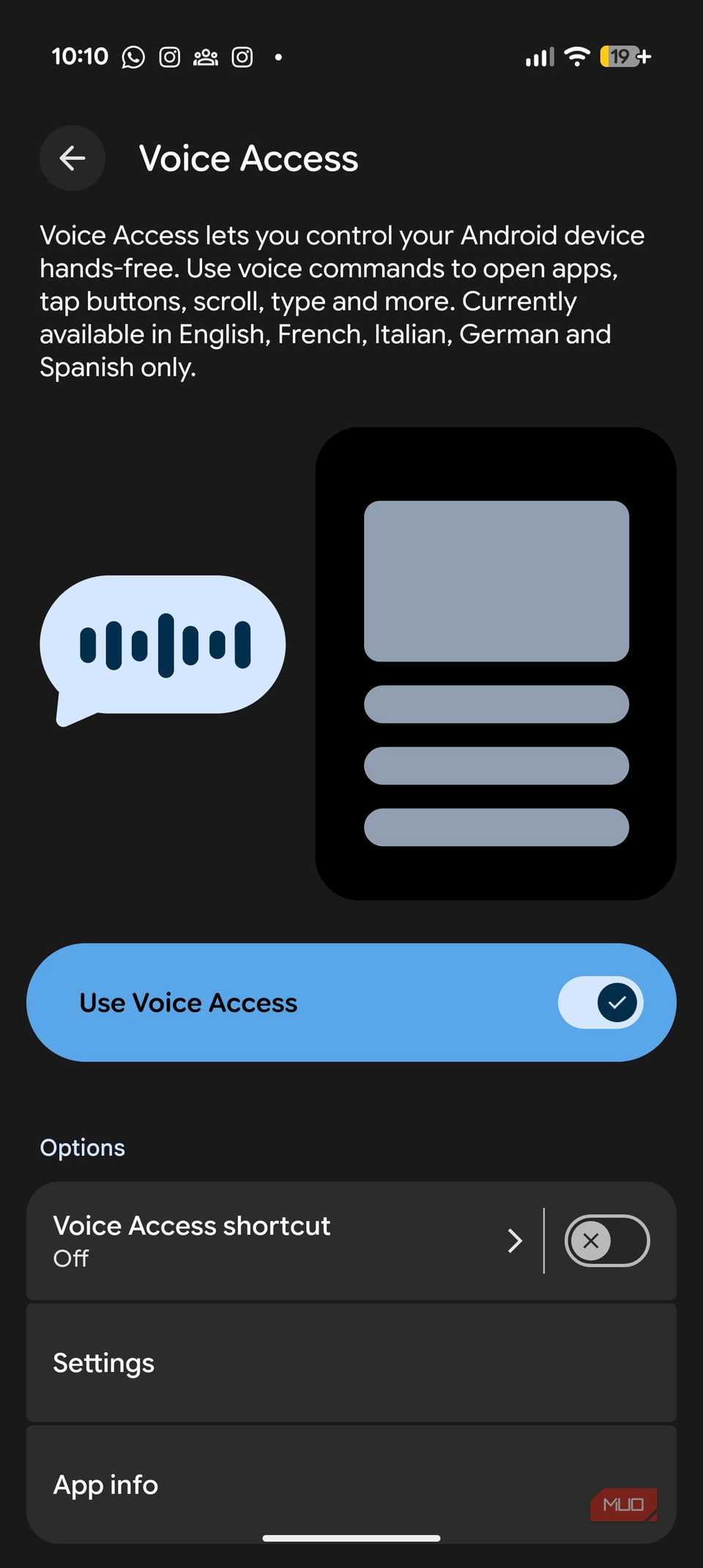
Voice Access, for example, allows users to control their phones entirely through spoken commands. This feature maps specific screen elements to numerical labels or verbal cues, enabling navigation without physical touch. Similarly, Switch Access provides a way for users with limited motor skills to interact with their device using one or more external buttons, which scan through screen items until the user triggers a selection.
The Evolution of TalkBack and Screen Reading
TalkBack is the primary screen reader integrated into Android devices. It provides spoken feedback so that users can navigate their phones without needing to see the screen. According to Google’s official accessibility announcements, recent updates to TalkBack have introduced more natural-sounding voices and gesture controls that simplify the way users move through menus and web content. These improvements are critical for users who are blind or have low vision, as they reduce the latency between a physical action and the system’s verbal response.
The integration of these tools into the core operating system marks a shift from third-party accessibility apps to a native, system-wide approach. Because these features are built directly into the Android framework, they generally offer better performance and security than standalone accessibility applications, which may lack the system-level permissions required to manipulate other apps.
Customization and Practical Applications
Beyond standard navigation, Android offers features like Live Caption and Live Transcribe. Live Caption automatically generates real-time captions for media playing on the device, including videos, podcasts, and phone calls. As documented in Google’s support documentation, this functionality uses on-device machine learning, meaning it does not require an active internet connection to process audio. This is a significant advancement for users who are deaf or hard of hearing, as it provides immediate access to audio content in environments where traditional captioning might be unavailable.
For users who prefer visual cues over auditory ones, Android also includes settings for high-contrast text, color correction, and magnification gestures. These settings can be adjusted in the “Accessibility” menu within the system settings app, allowing for a personalized experience that meets individual vision requirements.
Navigating the Settings Menu
To enable these features, users should navigate to the “Settings” menu on their Android device and select “Accessibility.” From this hub, users can toggle specific services on or off and configure advanced settings like “Accessibility Shortcut,” which allows for quick activation of a chosen service by pressing the volume keys. For those looking for the latest updates, Google frequently releases new accessibility enhancements via the Android Accessibility Suite on the Google Play Store, ensuring that even older devices can benefit from updated interface logic and bug fixes.

The current landscape of mobile accessibility is shaped by ongoing feedback from organizations like the American Foundation for the Blind, which frequently advocates for improved software standards. Users interested in contributing to the development of these features can participate in Google’s accessibility feedback programs, which are periodically announced on the company’s official blog.
For further information on specific device compatibility, users should check the documentation provided by their phone manufacturer, as some features may vary slightly depending on the version of the Android operating system installed. Future updates are expected to continue focusing on AI-driven improvements, particularly in the areas of image description and automated navigation, as outlined in recent industry reports from the World Wide Web Consortium (W3C).
Readers are encouraged to share their experiences with these tools in the comments section below. How have you customized your device to better fit your needs?