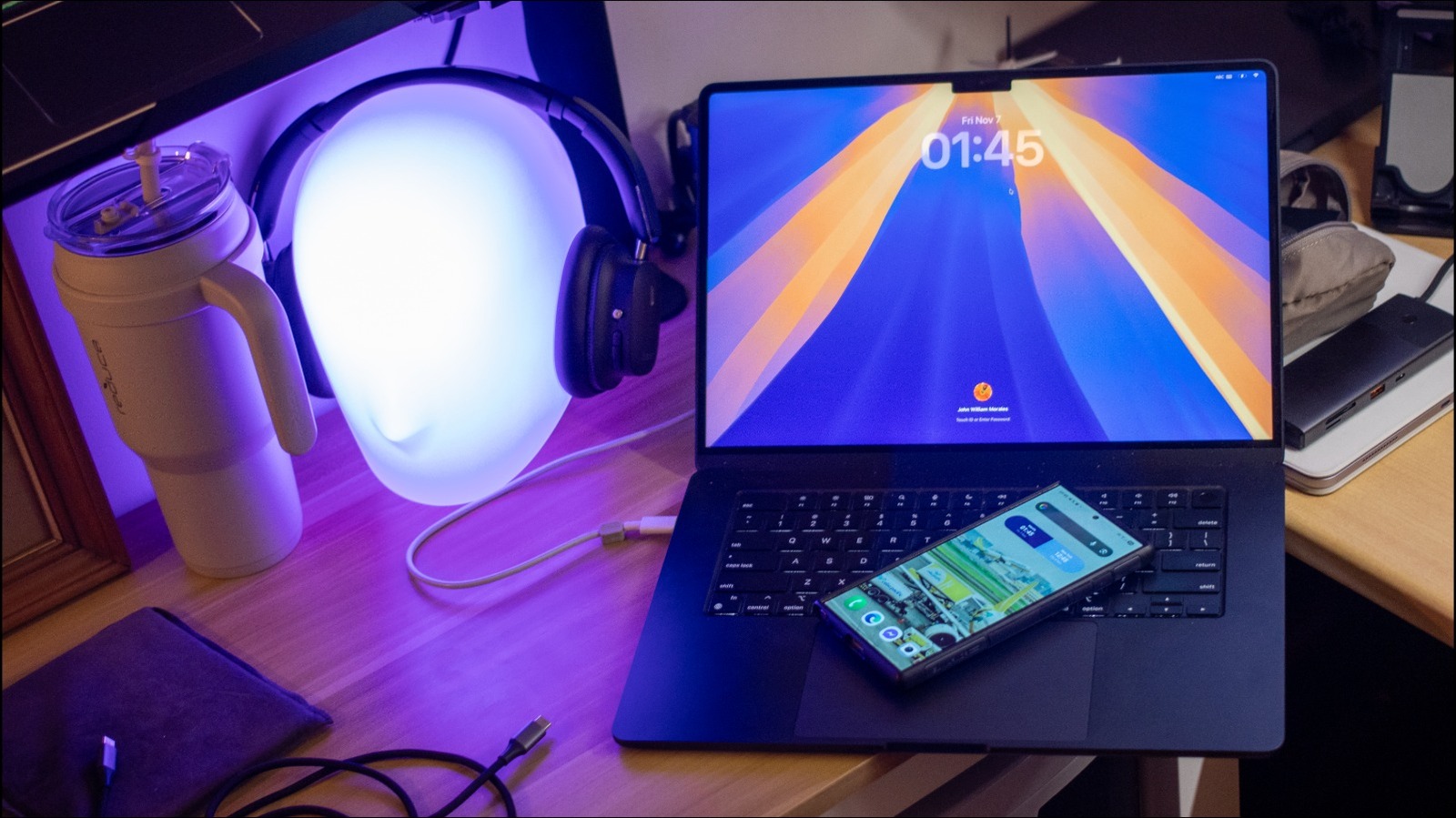
Bridging the Gap: Making Your Android Phone a Seamless Partner to Your MacBook
For years,the tech world has touted the effortless synergy between iPhones and MacBooks. but what if you’re committed to the Android ecosystem? You don’t have to sacrifice a streamlined experience. Integrating your Android phone wiht your MacBook is absolutely achievable,and can considerably boost your productivity. Here’s how I’ve made it work as a busy tech professional, focusing on practical solutions that deliver real results.
Beyond the Basics: extending Functionality
Many core functions work seamlessly out of the box. Bluetooth pairing handles file transfers and audio connections with ease.However, to truly unlock the potential, you need to go a little further. Let’s explore some key strategies.
1. Cloud Storage: Your Universal Hub
First, leverage cloud storage as the central nervous system for your digital life. Services like Google Drive, Dropbox, and OneDrive are readily available on both Android and macOS.
* Seamless Syncing: Automatically sync documents, photos, and videos across all your devices.
* Accessibility: Access your files from anywhere, on any platform.
* Collaboration: Easily share files with others, regardless of their operating system.
This eliminates the need for cables or manual transfers, keeping your workflow fluid.
2. Notification Management: Stay Connected, Your Way
Next, consider notification mirroring. While macOS doesn’t natively mirror Android notifications, several apps bridge this gap.
* Pushbullet: A popular choice, Pushbullet forwards SMS messages, app notifications, and even files to your MacBook.
* Join: Another excellent option, Join offers similar functionality with a focus on privacy and security.
These tools ensure you don’t miss crucial updates, even when you’re working on your laptop.
3. Wireless File Transfer: Ditch the Cables
Forget fumbling with USB cables. Several apps enable effortless wireless file transfer.
* Snapdrop: This web-based tool allows you to quickly share files between devices on the same Wi-Fi network. Simply open Snapdrop in your browser on both your phone and MacBook.
* AirDroid: A more thorough solution, AirDroid offers file transfer, remote access, and even the ability to manage your phone’s SMS messages from your MacBook.
4. Turning your Phone into a Webcam
Video conferencing is a staple of modern work. Fortunately, you can repurpose your Android phone as a high-quality webcam for your MacBook.
* DroidCam: A reliable and easy-to-use app, DroidCam streams video from your phone’s camera to your MacBook.
* iVCam: Another strong contender, iVCam offers higher resolution and more advanced features.
These apps provide a notable upgrade over built-in laptop webcams, especially on older models.
5. AirDroid: A Centralized Control Hub
AirDroid truly integrates your Samsung (or other Android) phone with your MacBook, creating a more unified experience.You’ll need to install the AirDroid app on your Android phone from the Google Play store and the corresponding support app for macOS, then set up both devices.
* Remote Control: Almost wholly control your phone from your laptop.
* Interaction: Make calls, send texts, and browse files wirelessly.
* Feature Mimicry: Offers features similar to Apple’s AirPlay and Continuity Camera.
While not as seamless as the Apple ecosystem, AirDroid provides a powerful set of capabilities without locking you in. It even includes a messaging system for easy copy-pasting between devices.
The bottom Line: A Powerful Combination
While the Android-MacBook pairing isn’t quite as polished as the Apple experience, it’s remarkably capable. By leveraging these tools and strategies, you can create a workflow that’s both efficient and enjoyable. You don’t need to compromise on your