Android smartphones begin to experience measurable performance degradation—often manifesting as interface lag, delayed app launches, and system instability—once internal storage reaches critical capacity, typically cited by industry experts as falling below 10% of total available space. While this “10% rule” has long circulated as common wisdom among power users, the underlying technical reality involves how the Android operating system manages NAND flash memory, wear leveling, and the necessity of free blocks for background processes.
For users nearing their storage limit, the impact is rarely subtle. When a device hits this threshold, the operating system struggles to execute routine maintenance tasks, such as clearing cache partitions or writing temporary files, which are essential for maintaining system responsiveness. According to official Android documentation regarding file system performance, the architecture relies on having sufficient free space to optimize write operations; without it, the system forces the storage controller to work significantly harder, leading to the sluggish behavior many users associate with an aging handset.
The Technical Mechanics Behind Storage Slowdowns
The primary reason your phone feels slower as it fills up is rooted in the way NAND flash memory functions. Unlike traditional hard drives, NAND storage requires a process called “garbage collection” to reclaim space. When you delete a file, the system does not immediately clear the physical cells. Instead, it marks them for erasure. When you need to write new data, the system must first find a block that is empty. If your storage is nearly full, the operating system must constantly perform complex, time-consuming operations to clear blocks before it can save even a small amount of data, according to technical standards outlined by the Storage Networking Industry Association (SNIA).


This process is compounded by the way Android handles virtual memory. When physical RAM is insufficient, the system uses a portion of the internal storage as “swap” or “z-RAM” space to keep active applications running. If that storage is already saturated with media, app data, and system logs, the phone cannot efficiently manage its memory paging. This results in the “stuttering” or unresponsive interface that often triggers users to consider a factory reset or a hardware upgrade, when the issue is fundamentally a lack of “breathing room” for the operating system.
Why the 10% Threshold Matters
The recommendation to keep 10% of your storage free is not merely a suggestion; it is a functional requirement for the TRIM command. TRIM is a command that allows an operating system to inform a solid-state drive which blocks of data are no longer considered in use and can be wiped internally. If a drive is almost entirely full, the TRIM command has no room to maneuver. As explained in Linux kernel documentation regarding the F2FS file system—which is standard on most modern Android devices—a high “over-provisioning” ratio is necessary to maintain high input/output (I/O) speeds. Without that buffer, the system’s background maintenance tasks are throttled, leading to the performance bottlenecks common in devices nearing their capacity.
Users who find themselves consistently hovering at 95% or higher utilization are effectively forcing their device into a permanent state of high-latency write cycles. This does not just affect the speed of opening an app; it can also lead to failed system updates, as the Android installer requires a significant temporary staging area to unpack and apply patches. If you cannot clear enough space, the device may refuse to update entirely, leaving the phone vulnerable to security risks that have been patched in newer firmware versions.
Practical Steps for Reclaiming Performance
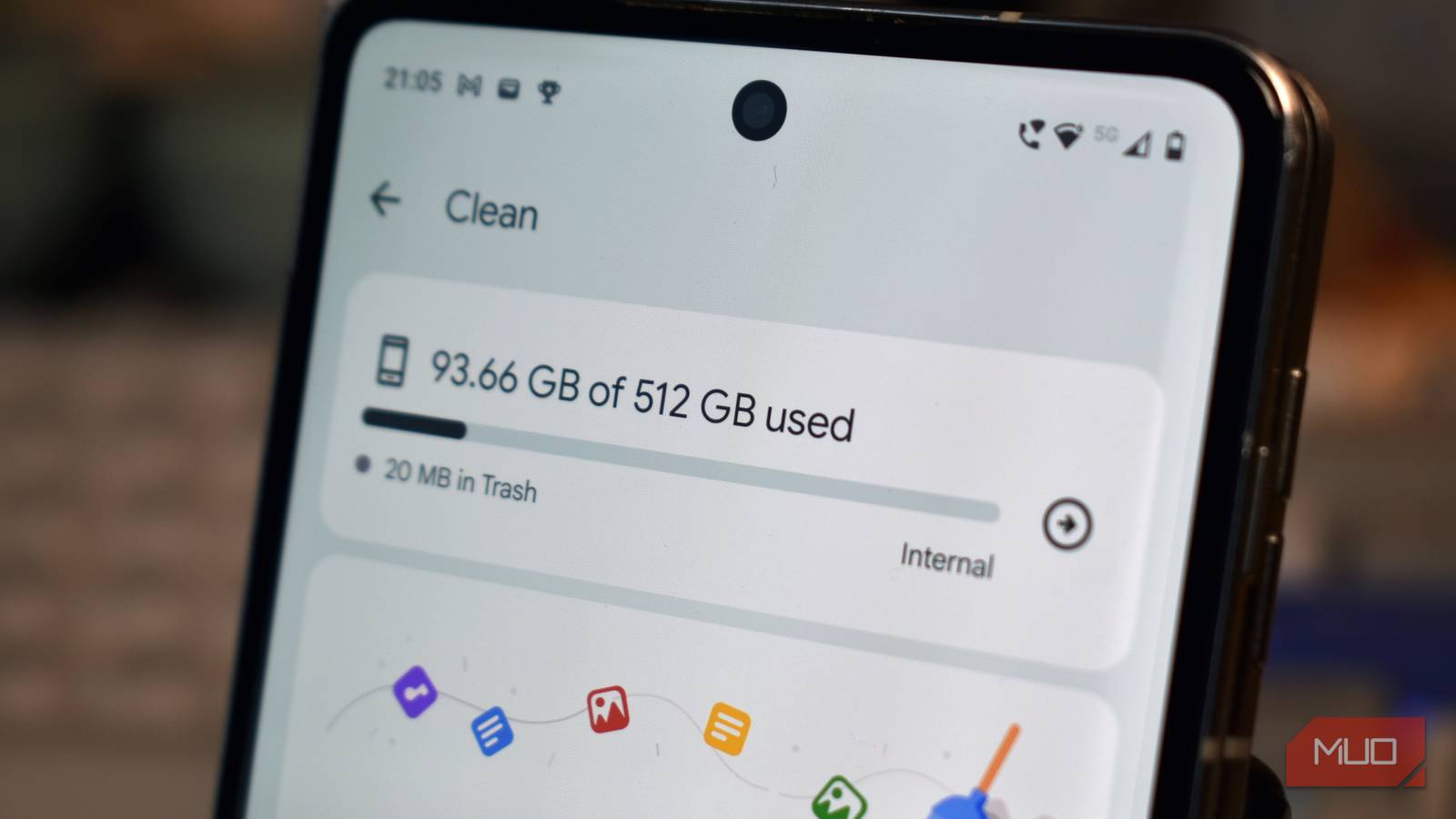
If your device is currently over the threshold, the most effective recovery method involves identifying the largest “hidden” consumers of space. Modern Android versions include built-in tools under Settings > Storage that categorize files into “Apps,” “Images,” “Videos,” and “Audio.” However, these tools often overlook cached data from streaming applications. Clearing the cache for high-usage apps like Spotify, Chrome, or social media platforms is often the quickest way to reclaim several gigabytes of space without deleting personal media.

Another often-overlooked culprit is the “Files by Google” application, which provides automated suggestions for deleting junk files, duplicate photos, and unused apps. According to Google’s official support documentation for the Files app, the software is designed to identify large files and “meme” images that accumulate over time. Regularly auditing these files can prevent the system from hitting the critical 10% wall, thereby extending the usable lifespan of the device before it requires a hardware replacement.
The next major checkpoint for storage management will occur as manufacturers continue to shift toward UFS 4.0 storage standards, which improve data throughput but remain sensitive to capacity-related bottlenecks. Monitoring your storage usage remains the most reliable way to ensure your hardware continues to perform as expected. Readers are encouraged to check their current storage capacity in the settings menu and share their experiences with system performance in the comments section below.