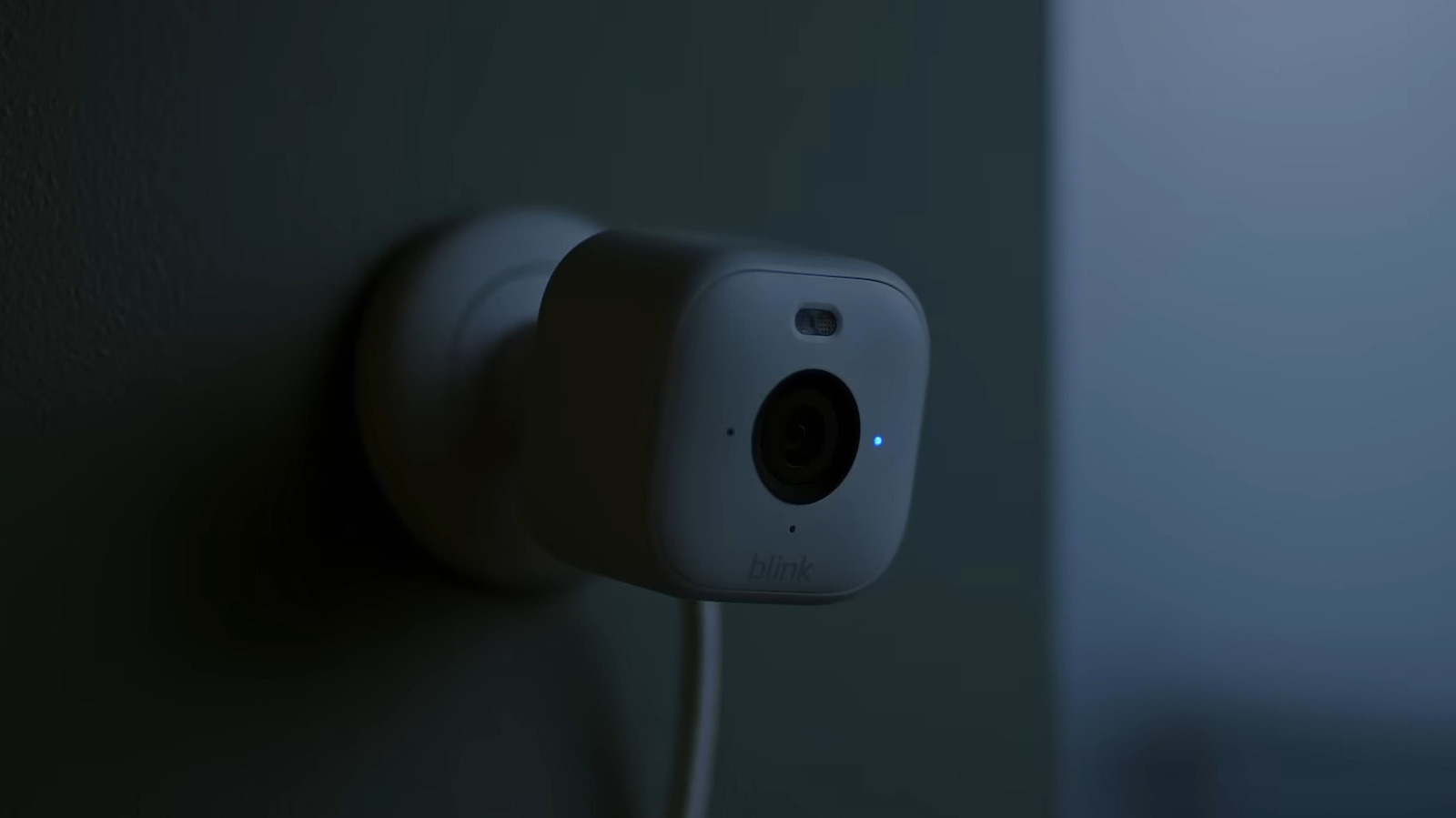
Troubleshooting Blink Camera Connectivity: A Complete guide
Is your Blink camera offline and refusing to connect? Don’t worry, you’re not alone. A frustratingly common issue, connectivity problems with Blink cameras can frequently enough be resolved with a systematic approach.This guide will walk you through the most effective troubleshooting steps, ensuring you get your security system back online quickly.
First: Verify your Home Network
Before diving into camera-specific fixes, it’s crucial to confirm your home Wi-Fi is functioning correctly. A stable internet connection is the foundation for any wireless device. Check other devices. Can your phone, laptop, or tablet connect to your Wi-Fi? if not, the problem likely lies with your internet service.
Restart your router. This simple step resolves many connectivity issues. Unplug your router for 30 seconds, then plug it back in. Allow a few minutes for it to fully reboot.
Consider router placement. The location of your router considerably impacts signal strength. Ensure it’s centrally located, within 20 feet of your Blink camera, and free from obstructions like large appliances, concrete walls, or metal objects. Glass and windows can also interfere with the signal.
Contact your internet service provider. If your Wi-Fi remains down after these steps, ther might be an outage in your area. Your provider can provide updates and estimated restoration times.
Addressing Blink camera & Sync Module Issues
If your home network is working perfectly, the issue likely resides with your Blink camera or Sync Module.Let’s explore solutions.
1. Power Cycle Your Device
Often, a simple restart can resolve temporary glitches.
Unplug your Blink camera or Sync Module from the power outlet.
Wait approximately 15 seconds.
Plug the device back in and allow it to power up.
Check if it automatically reconnects to the internet.
2. Update Wi-Fi credentials
Have you recently changed your wi-Fi password? Your Blink devices need to be updated with the new information. Here’s how:
For Blink Mini Cameras:
- open the Blink app and select “More” in the thumbnail view.
- Navigate to “Device Settings” then “General Settings.”
- Select “Change Wi-Fi.”
- Follow the on-screen prompts to connect to your network.
For Sync Module:
- In the Blink app, go to the “Home” page.
- Tap “Sync Module” at the bottom of the page.
- Select “Change Wi-Fi Network.”
- Follow the on-screen prompts to connect to your network.
3. Reset and Reconfigure (When Necessary)
If updating your Wi-Fi doesn’t work, a more thorough approach might be needed.
Long-press the reset button on your Sync Module.
Within the Blink app,tap “Discover Device.”
Select “Join” when prompted.
Choose your Wi-Fi network and enter the correct password.
* Tap “Join” to complete the process.
You should receive a confirmation message indicating your Blink camera’s Wi-Fi has been successfully updated.
4. Fresh Installation: A Last Resort
If all else fails, consider a fresh installation. This entirely removes the device from your account and allows you to set it up as new.
- In the Blink app home screen, select the “Camera offline” button.
- Press “Delete.”
- Confirm by choosing “Delete Device.”
- Unplug the camera or Sync Module for about 15 seconds.
- Follow the in-app instructions to set up the device again, connecting it to your home network as you did initially.
Proactive Steps for Reliable Connectivity
Preventing
Worth a look