
Reclaiming Yoru Peace: A Complete Guide to Silencing whatsapp Status Notifications
WhatsApp has become indispensable for staying connected, but its constant stream of notifications – especially regarding Status updates – can quickly become overwhelming. You’re not alone if you’re seeking a way to regain control of your attention. This guide provides a comprehensive look at what you lose by disabling Status notifications, and how to do it effectively, ensuring a clutter-free experience without completely disconnecting.
What You Lose when You Prioritize Silence
Before you adjust your settings, understanding the trade-offs is crucial. Turning off status notifications impacts how you interact with certain features. Let’s break down what you’ll miss:
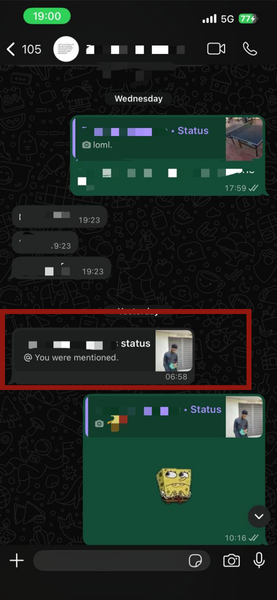
* Missed Mentions: You won’t receive alerts when someone tags you in a Status update. While WhatsApp now displays these mentions as in-text notices when you open the app (similar to a text message), you’ll only see them if you haven’t archived the chat.
* A Smarter Choice: If you still want to be aware of mentions from specific people, consider hiding their Status updates instead of disabling all notifications. This offers a targeted solution.
* Lost Reaction Alerts: You won’t be notified when someone reacts to your own Status with a like or other emoji.
* Unseen Shares: When someone reshared your Status to their own network, you won’t be alerted. This means you’ll be unaware of your content reaching a wider audience beyond your immediate contacts.
!WhatsApp Status Text Notifications
Taking Control: Disabling WhatsApp Notifications
If the constant alerts are truly disruptive,completely disabling notifications is the most reliable solution. This ensures WhatsApp can’t override your preferences. Here’s how to do it on both iOS and Android:
For iOS Users:
- Navigate to Settings on your iPhone.
- Tap Notifications.
- Select WhatsApp from the list of apps.
- Toggle Allow Notifications to the Off position.
For Android Users:
- Long-press the WhatsApp icon on your home screen or app drawer.
- Tap the “i” (App Info) icon that appears.
- Select Notifications.
- Toggle Allow Notifications to the Off position.
Important Consideration: Disabling all notifications is a drastic step. you won’t receive alerts for anything – calls, messages, or mentions. You’ll need to manually open the app to see new activity. Though, if constant mentions are the problem, this is the only way to achieve complete silence.
Why Archiving Isn’t Enough Anymore
Archiving chats used to be a reliable way to silence notifications, but WhatsApp has changed how it handles status mentions. Now,even archived chats can trigger in-text notifications. Therefore, directly managing your notification settings is essential for a truly clutter-free experience.
beyond Silence: Enhancing Your WhatsApp Experience
Once you’ve silenced the noise, you can focus on leveraging WhatsApp’s more powerful features. For example, did you know you can translate messages directly within the app? Learning how to use WhatsApp’s new in-app translation feature can make your conversations truly borderless.
Ultimately, controlling your WhatsApp notifications is about reclaiming your attention and using the app in a way that supports your well-being. By understanding the trade-offs and taking decisive action, you can enjoy the benefits of staying connected without feeling constantly overwhelmed.
Keep reading