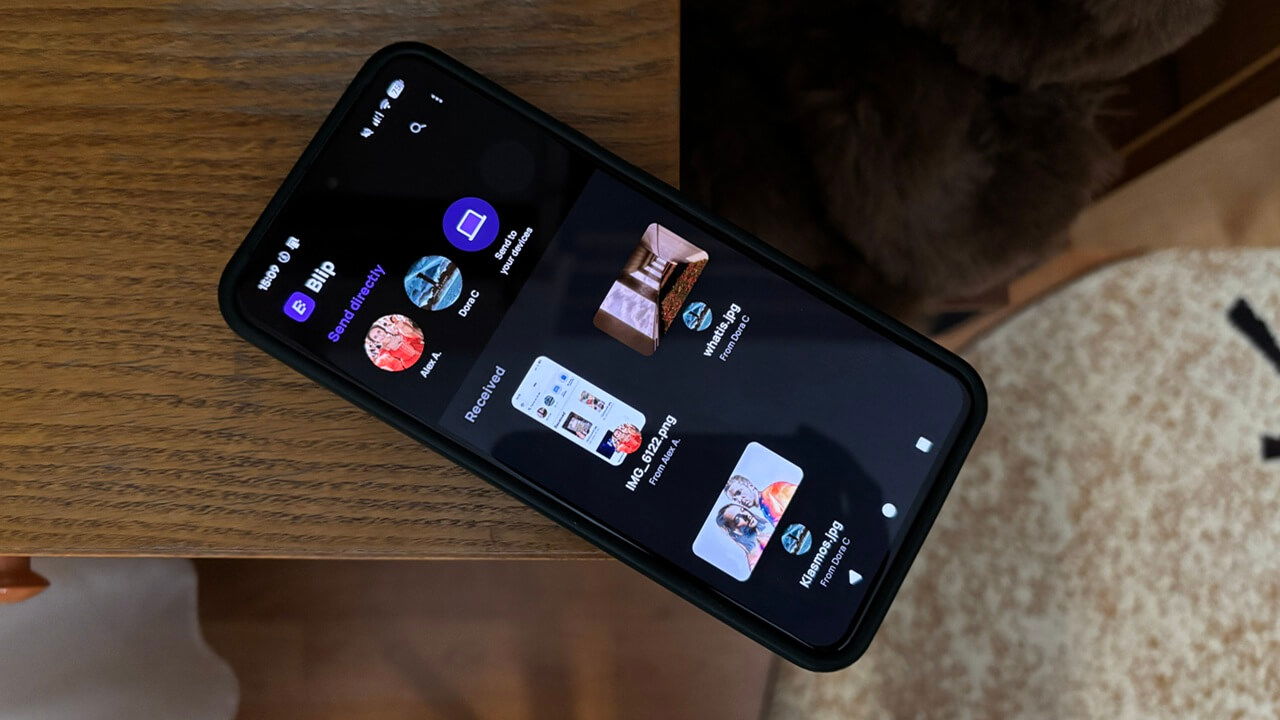
Blip: The Seamless Solution for Cross-Device File Transfers
Are you tired of juggling email attachments, cloud storage logins, and complicated file-sharing apps just to get files from your phone to your computer – or vice versa? There’s a better way. Blip offers a remarkably simple and efficient solution for transferring files between your devices,and it’s quickly becoming my go-to method.
Here’s a thorough look at how Blip works and why it might just revolutionize your digital workflow.
What is Blip and Why should You Use It?
Blip is a free, cross-platform file transfer tool designed for ease of use. It works over your local Wi-Fi network, making transfers fast and secure. Unlike many alternatives, it doesn’t require accounts, logins, or complicated setups. You simply install the app on your devices,and you’re ready to go.
consider these benefits:
* Simplicity: The interface is incredibly intuitive, requiring minimal technical knowledge.
* Speed: Transfers happen quickly over your Wi-fi network.
* Security: Files are transferred directly between your devices, enhancing privacy.
* Cross-Platform Compatibility: Blip works seamlessly on Windows,macOS,Android,and iOS.
* Resume Support: Interrupted transfers automatically resume when connectivity is restored.
Getting Started wiht Blip: A Step-by-Step Guide
Setting up Blip is straightforward. Here’s how to get started on each platform:
- Download and Install: Download the Blip app from the official website for your operating system. Installation is a standard process for each platform.
- Launch the App: Once installed, launch Blip on both the sending and receiving devices.
- No Account Needed: You’ll immediately see a simple interface – no login or account creation is required.
- Select Files: On the sending device, select the files you want to transfer.
- Choose the Recipient: Blip automatically detects other devices running the app on the same Wi-Fi network. Simply select the device you want to send the files to.
- Accept the Transfer: On the receiving device, you’ll receive a notification to accept the incoming transfer.
That’s it! The files will begin transferring immediately.
Managing your Received Files
Once you’ve shared files with a device, it will appear in Blip, making future transfers even faster.
* Mobile Apps (Android & iOS): All received files are conveniently displayed in the lower section of the screen within the app.
* PC (Windows & macOS): Blip automatically saves files to your downloads folder by default.
You can customize the default save location on your PC by navigating to Settings -> General -> Default Save location. This allows you to organize your files exactly how you prefer.
Handling Interrupted Transfers
Life happens, and sometimes your Wi-Fi connection might drop mid-transfer. Don’t worry. Blip intelligently remembers the transfer and automatically resumes it as soon as a stable connection is re-established. This ensures you never lose progress on large file transfers.
Blip vs. Alternatives: Is It right for You?
While Blip is a fantastic tool, it’s critically important to consider your needs.if you only occasionally transfer files, a built-in solution like Quick Share might suffice. However, if you frequently move files between devices, Blip offers a significant advantage in terms of convenience and efficiency.
The primary requirement for Blip is installation on your devices. For those who constantly share files,this small step is well worth the benefits.
Elevate Your File Transfer Experience
Blip is more than just a file transfer tool; it’s a productivity enhancer.It streamlines a common task, saving you time and frustration. If you’re looking for a reliable, secure, and easy-to-use solution for cross-device file transfers, I highly reccommend giving Bl
Keep reading
- Master Night Photography with Your iPhone: Pro Tips & Tricks
- Cisco and AMD Partner to Secure and Manage Distributed Enterprise AI with Ryzen AI Halo
- Real Madrid Target Rodri Amid Multi-Club Transfer Battle (newsdirectory3.com)
- Man Utd Eye Blockbuster Midfield Signings Amid Real Madrid Transfer Links (archynewsy.com)