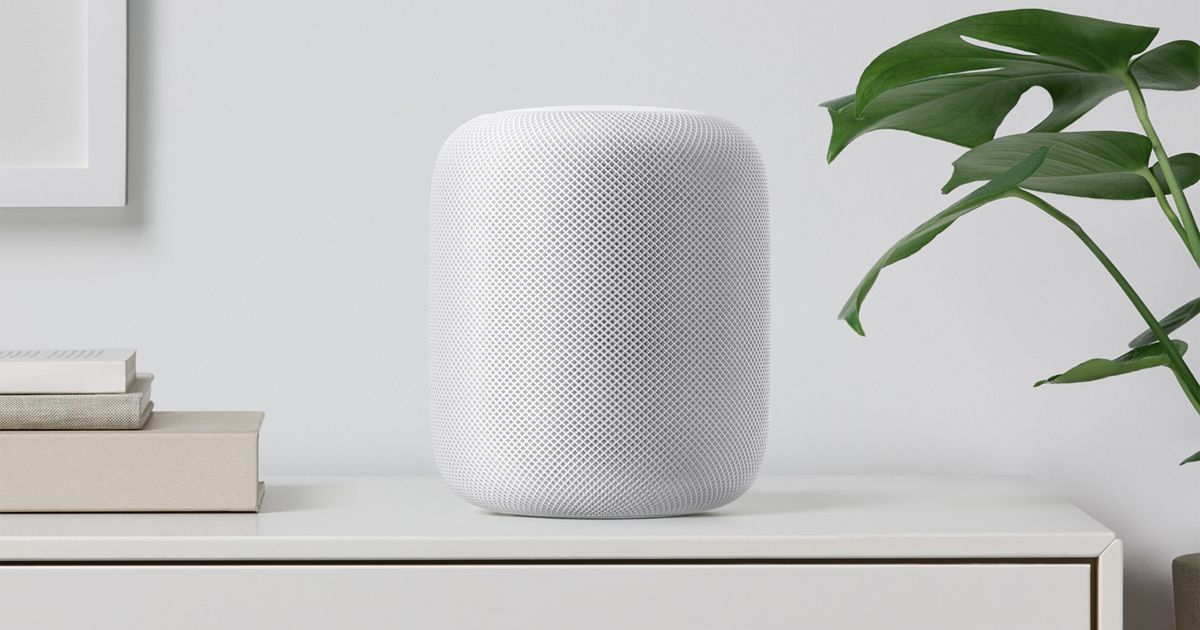
For many users, the Apple HomePod functions as little more than a glorified voice assistant—a convenient way to set kitchen timers or check the weather during a morning routine. However, beneath its sleek, fabric-wrapped exterior lies a sophisticated piece of computational audio engineering that, when utilized correctly, transforms from a simple smart speaker into a high-fidelity centerpiece for your home audio ecosystem.
As someone who has spent years analyzing the intersection of software engineering and consumer electronics, I have found that the true value of Apple’s hardware often lies in the nuances of its software integration. The HomePod is not just a speaker; it is an extension of the Apple ecosystem, designed to leverage the seamless connectivity of your iPhone, iPad, and Apple Music subscription. To get the most out of your investment, you need to look beyond basic voice commands.
In this deep dive, we will explore five underrated controls and features that can fundamentally enhance your music experience, moving you from casual listening to an immersive, professional-grade auditory environment. Whether you are using the full-sized HomePod or the compact HomePod mini, these optimizations are essential for any audiophile or tech enthusiast.
1. The Seamless Transition: Mastering Handoff
One of the most intuitive yet underutilized features in the Apple ecosystem is Handoff. We have all experienced the frustration of starting a playlist on a mobile device only to have the experience interrupted by a phone call or the need to move to another room. Handoff solves this by allowing you to physically “transfer” your audio stream from your iPhone or iPad directly to the HomePod with a single gesture.
To use this, simply ensure that your iPhone is close to your HomePod and that Bluetooth and Wi-Fi are enabled. As you bring your device near the top of the speaker, an animation will appear on your iPhone screen, indicating that the audio is being transferred. Here’s not merely a digital hand-off; it is a synchronized transition that maintains your playback position, volume levels, and even the specific song progress. It eliminates the need to manually search for the track on the speaker via voice, providing a tactile, almost magical sense of control over your soundscape.
For a detailed walkthrough on ensuring your devices are configured for this feature, you can refer to Apple’s official guide on Handoff.
2. Expanding the Soundstage: Stereo Pairing and Spatial Audio
If you are currently using a single HomePod, you are only hearing a fraction of what the hardware is capable of. To achieve a true high-fidelity experience, Consider consider creating a stereo pair. By pairing two identical HomePod units—either two full-sized models or two HomePod minis—you can create a much wider and more accurate soundstage.
When configured as a stereo pair through the Home app, the two speakers work in tandem to separate left and right audio channels. This reduces “sonic crowding” and allows for better instrument separation, which is critical for complex musical arrangements. But the real magic happens when you combine stereo pairing with Spatial Audio.
Spatial Audio, powered by Dolby Atmos, uses computational audio to create a three-dimensional sound environment. Instead of the sound feeling like it is coming from a single point in front of you, it feels as though the music is surrounding you, with instruments positioned at specific heights and depths. The HomePod uses internal microphones to analyze the acoustic properties of your room, adjusting its beamforming capabilities to bounce sound off your walls and ceiling, effectively “tuning” the music to your specific living space.
You can learn more about how to set up your speakers for this immersive experience via Apple’s instructions on stereo pairing.
3. Orchestrating the Atmosphere: Multi-Room Audio
The HomePod’s utility extends far beyond the confines of a single room. Through the Home app and AirPlay 2 technology, you can orchestrate a multi-room audio experience that synchronizes playback across every HomePod in your house. This is particularly useful for creating a consistent “vibe” during social gatherings or for following your favorite podcast from the kitchen to the living room.

To set this up, you don’t need to play music on each speaker individually. Instead, you can group your speakers within the Home app. Once grouped, a single command—such as “Hey Siri, play some jazz in the whole house”—will trigger a perfectly synchronized playback across all connected units. This synchronization is handled with incredibly low latency, ensuring that you don’t encounter the distracting “echo” effect often found in cheaper multi-room systems.
This feature effectively turns your entire home into a single, cohesive audio environment, allowing for a level of atmospheric control that traditional standalone speakers simply cannot match.
4. Precision Control via Advanced Siri Commands
While many users limit their interactions with Siri to “Play music,” the natural language processing capabilities of the HomePod allow for much more granular control. To truly enhance your music experience, you should move toward descriptive and mood-based commands. This leverages Apple’s ability to interpret intent rather than just literal keywords.
Instead of asking for a specific artist, try commands like:
- “Hey Siri, play something upbeat for a workout.”
- “Hey Siri, play some chill lo-fi beats.”
- “Hey Siri, play 90s hip-hop.”
- “Hey Siri, play music that matches the mood of this room.”
By using these descriptive phrases, you are tapping into the machine learning algorithms that analyze your listening habits and the metadata within Apple Music to curate a customized experience. This transforms the HomePod from a passive player into an active curator of your auditory environment.
5. Remote Mastery: The Home App and Automation
The final, and perhaps most underrated, way to control your music is through the Home app and the creation of custom automations. Most people view the Home app as a way to turn off lights, but it is also a powerful tool for audio management. You can set up “Scenes” that trigger multiple actions simultaneously.
For example, you could create a “Movie Night” scene. With a single tap (or a voice command), your lights can dim, your smart blinds can close, and your HomePod can begin playing a specific cinematic soundtrack. This level of integration ensures that your music is not just an afterthought, but a core component of your home’s ambiance.
using the Home app allows you to manage volume levels and playback across different rooms without ever having to touch a physical device or even speak a command, providing a level of stealthy, elegant control that is perfect for hosting guests.
Technical Comparison: HomePod vs. HomePod mini
Understanding which device fits your specific musical needs is crucial. While both utilize the same ecosystem, their hardware capabilities differ significantly.

| Feature | HomePod (Full-size) | HomePod mini |
|---|---|---|
| Primary Use Case | High-fidelity music, home theater immersion | Background music, smart home hub, small rooms |
| Acoustic Profile | Deep bass, wide soundstage, high volume | Clear mids/highs, compact footprint |
| Spatial Audio | Full immersive experience | Supported, but limited by driver size |
| Room Sensing | Advanced computational audio tuning | Standard acoustic calibration |
Key Takeaways for HomePod Users
- Use Handoff: Move music from your iPhone to your HomePod instantly by bringing them close together.
- Go Stereo: Pair two HomePods to unlock a wider soundstage and better instrument separation.
- Embrace Spatial Audio: Enable Dolby Atmos to experience a three-dimensional, immersive soundscape.
- Sync Your Home: Use the Home app to group speakers for seamless multi-room audio.
- Be Descriptive: Use mood-based Siri commands to let AI curate your perfect playlist.
Frequently Asked Questions
Q: Can I pair a HomePod with a HomePod mini?
A: No. For a stereo pair to function correctly and maintain phase alignment, you must use two identical models (e.g., two full-size HomePods or two HomePod minis).
Q: Do I need an Apple Music subscription for Spatial Audio?
A: While Spatial Audio works with other services via AirPlay, the most seamless and high-quality Dolby Atmos experience is optimized through the Apple Music catalog.
Q: Why is my HomePod not recognizing Handoff?
A: Ensure that both your iPhone and HomePod are on the same Wi-Fi network, Bluetooth is enabled on your iPhone, and that “Handoff” is toggled on in your iPhone’s General settings.
As Apple continues to refine its computational audio algorithms through software updates, the capabilities of the HomePod are likely to expand. We will be watching closely for the next major iOS and HomePod OS updates to see how Apple further integrates AI into the listening experience.
What is your favorite “hidden” HomePod trick? Have you found a specific Siri command that works better than others? Let us know in the comments below and share this article with your fellow tech enthusiasts!
Related reading
- Ctrl-Alt-Speech: Putting Some Meat On The Bans
- Disney World: un visiteur succombe à une crise cardiaque dans une attraction – 20 Minuten
- Samsung Freestyle+ Portable Projector Launched: Features, Price, and Specs (archyde.com)
- Apple unseats Nvidia to become world’s most valuable company as AI bets shift (archyworldys.com)