
For many professionals, the home office is less of a dedicated sanctuary and more of a tactical compromise. Whether it is a corner of a bedroom or a converted dining area, the “mixed-use” room presents a unique set of challenges—none more frustrating than the battle against poor video quality during high-stakes Zoom calls. It is a common cycle: you notice you look washed out or shrouded in shadow, so you invest in a high-end 4K webcam, only to find that the image remains grainy or poorly exposed.
The reality is that image quality is not a product of the camera alone, but a partnership between the sensor and the light hitting it. Even the most advanced sensors in 2026 struggle when forced to compensate for extreme contrast or insufficient illumination. When you are backlit by a bright window or lit by a single, harsh overhead bulb, you are fighting the laws of physics, not the limitations of your hardware.
To truly fix webcam lighting for Zoom calls, you have to stop thinking about the camera and start thinking about the environment. By understanding the basics of light positioning, diffusion, and color temperature, anyone can transform a makeshift office into a professional-grade studio, regardless of the room’s size or purpose.
The Backlighting Trap: Why Your Windows Are Your Worst Enemy
The most frequent mistake in home office setups is placing the desk directly in front of a window. While natural light is the gold standard for quality, positioning it behind you creates a “silhouette effect.” In this scenario, the webcam sensor detects the intense brightness of the outdoors and automatically lowers the exposure to prevent the image from blowing out. The result is that your face becomes a dark, underexposed void.
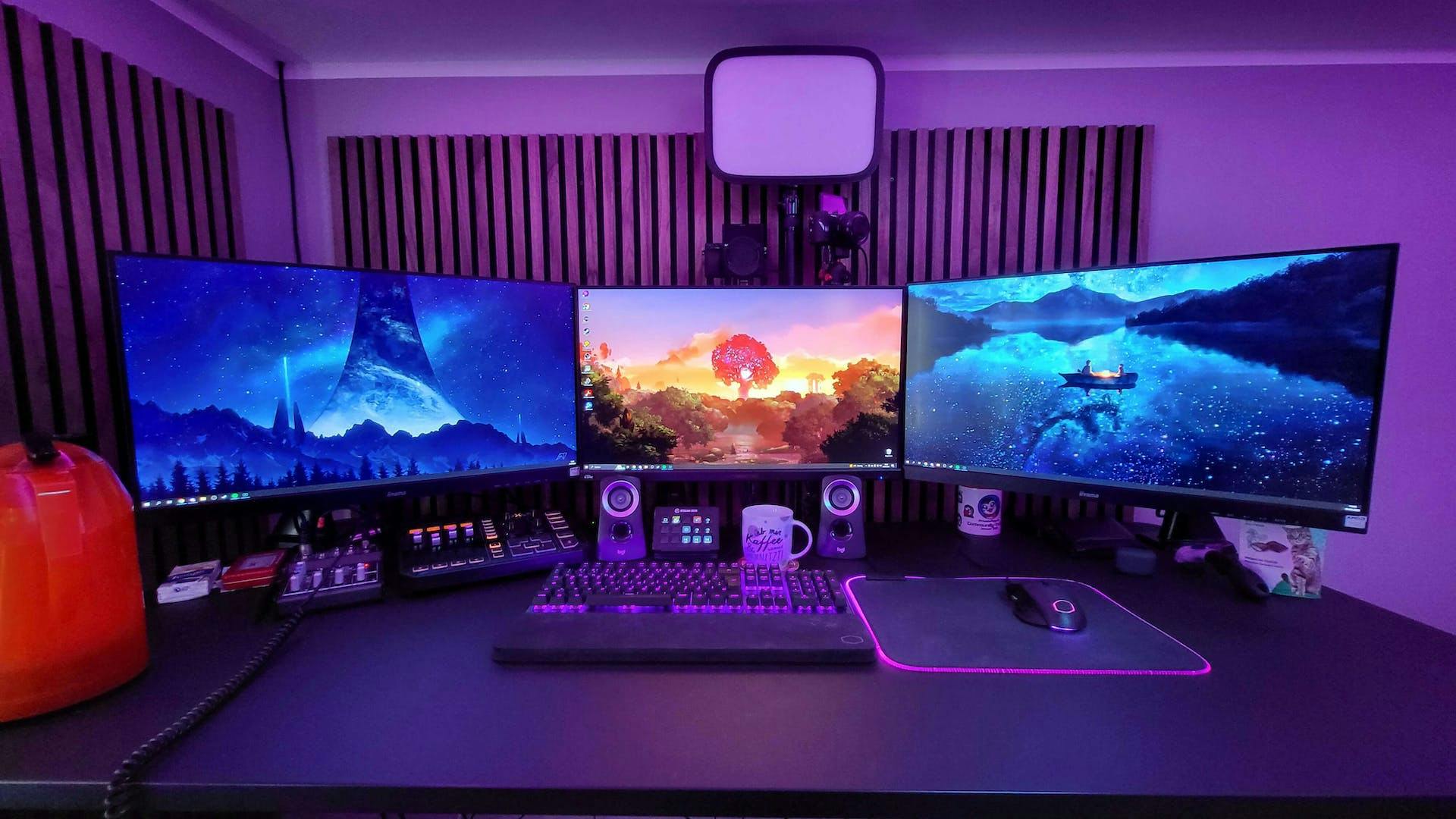
The solution is a simple shift in geometry. To leverage natural light, your face should be oriented toward the light source. Positioning your desk so the window is in front of you—or slightly to the side—allows the light to fill in the contours of your face, reducing shadows and providing a natural, healthy glow. If you cannot move your furniture, using sheer curtains can help diffuse the light, reducing the extreme contrast that confuses your camera’s auto-exposure settings.
For those working in rooms with limited windows, the goal is to replicate this “soft” light. Direct light creates harsh shadows under the eyes and nose, which can make you look tired or severe. Diffused light, which is light that has been scattered by a material like frosted plastic or fabric, wraps around the subject and creates a more flattering, professional appearance.
Mastering the Three-Point Lighting System
Professional videographers and streamers use a technique called three-point lighting to create depth and dimension. While you do not need a full studio rig to achieve this, applying the principles can significantly elevate your presence on screen. This system relies on three distinct light sources: the key light, the fill light, and the back light.
The Key Light
The key light is your primary source of illumination. It should be the strongest light in your setup and placed roughly 45 degrees to one side of your camera. This creates a slight shadow on the opposite side of your face, which adds a sense of three-dimensionality and prevents you from looking “flat.” For the best results, use a softbox or a ring light with a diffuser to ensure the light is soft and even.

The Fill Light
To prevent the shadows created by the key light from becoming too deep or distracting, a fill light is placed on the opposite side of the camera. The fill light should be softer and less intense than the key light—often just a reflected light or a lower-wattage LED panel. Its sole purpose is to “fill in” the shadows, ensuring that while there is still dimension, no part of your face is completely lost to darkness.
The Back Light (or Rim Light)
The final touch is the back light, positioned behind you and slightly above your head. This light creates a subtle rim of illumination around your shoulders and hair, which physically separates you from your background. This represents particularly important in mixed-use rooms where your background might be a neutral-colored wall or a cluttered shelf. the rim light provides the visual contrast necessary to make you “pop” from the environment.
Choosing the Right Hardware for Your Space
When selecting lighting hardware, it is easy to be overwhelmed by technical specifications. However, for most Zoom users, there are three primary options that balance cost and effectiveness.
- Ring Lights: Ideal for those with very limited space. Because the light source circles the camera, it provides an even, front-facing glow that minimizes shadows. They are excellent for clarity but can sometimes look “flat” and may leave distinct circular reflections in eyeglasses.
- LED Panels with Diffusers: These offer more control than ring lights. Most modern panels allow you to adjust the brightness and the color temperature. They are generally more powerful and can be mounted on stands or clamped to the edge of a desk, making them a better choice for those who want a more “cinematic” look.
- Smart Desk Lamps: For a minimalist setup, a high-CRI (Color Rendering Index) desk lamp can serve as a makeshift key light. By bouncing the lamp off a white wall in front of you, you can create a large, soft light source without needing professional equipment.
A critical technical detail to consider is color temperature, measured in Kelvin (K). Warm light (around 2,700K to 3,000K) is cozy but can make you look yellow or sallow on camera. Cool light (5,000K to 6,500K) mimics daylight and is generally more professional, though too much can look clinical or blue. The ideal setup usually involves “neutral” white light around 4,000K to 4,500K, which provides a clean look that suits most skin tones. You can find detailed specifications on light spectrums and CRI ratings through industry standards provided by the Illuminating Engineering Society.
The Software Fix: Fine-Tuning Your Feed
Even with perfect lighting, software can sometimes over-process your image. Most videoconferencing apps, including Zoom, have built-in settings to help manage lighting. In the video settings menu, look for “Adjust for low light.” While this can be helpful in a pinch, it often introduces “noise” or graininess into the image because it is digitally amplifying the signal.
If you have invested in decent physical lighting, it is often better to turn off these automatic adjustments and manually set your brightness and contrast. This prevents the software from “hunting” for the correct exposure every time you move your head or a cloud passes over the sun, resulting in a stable, flicker-free image.
For those using high-end webcams or DSLR cameras via a capture card, using third-party software to lock the white balance is highly recommended. Locking the white balance ensures that the color of your skin remains consistent throughout the call, regardless of changes in the ambient light of your room.
Practical Tips for Mixed-Use Rooms
Designing a professional lighting setup in a room that also serves as a bedroom or living area requires some creativity. Here are a few ways to maintain a professional look without turning your home into a film set:
- Use Clamp-on Mounts: Instead of bulky tripods, use C-clamps to attach LED panels to the edge of your desk. This saves floor space and keeps cables tucked away.
- The “White Wall” Trick: If you don’t have a softbox, point a powerful lamp at a white wall or ceiling in front of you. The wall acts as a massive diffuser, reflecting a soft, even light back onto your face.
- Manage Your Background: Lighting isn’t just about you; it’s about what’s behind you. A small, warm lamp in the background (often called a “practical light”) can add depth and make the room feel more inviting without distracting from the main subject.
- Avoid Overhead Fluorescents: Standard ceiling lights often cast harsh shadows downward, creating dark circles under the eyes. If possible, turn off the overhead light and rely entirely on your positioned lamps.
Summary of Lighting Configurations
Depending on your available space and budget, you can choose a setup that fits your specific needs. The following table summarizes the most effective configurations for different home office scenarios.
| Scenario | Recommended Setup | Primary Benefit | Difficulty |
|---|---|---|---|
| Zero Budget | Face a window + White wall bounce | Free and natural | Low |
| Small/Cramped Space | Desktop Ring Light | Even lighting, low footprint | Very Low |
| Professional/Executive | Three-Point LED Panel System | Depth, dimension, and control | Medium |
| Variable Light Room | Adjustable LED + Sheer Curtains | Consistency throughout the day | Medium |
Improving your video presence is not about owning the most expensive gear; it is about controlling the light. By moving away from the window, layering your light sources, and choosing a neutral color temperature, you remove the technical distractions from your calls. This allows your audience to focus on your message and your expertise, rather than your lighting struggles.
As remote and hybrid work models continue to evolve, the “digital first impression” has become a critical component of professional branding. Investing a few hours into optimizing your environment can yield significant dividends in how you are perceived by colleagues and clients globally.
The next major update for most videoconferencing platforms is expected to integrate more advanced AI-driven “virtual relighting,” which may further assist those in difficult spaces. However, these tools are supplements to—not replacements for—good physical lighting.
Do you have a unique hack for fixing your home office lighting? Share your setup in the comments below or share this guide with a colleague who is still a “ghostly silhouette” on your weekly calls.