
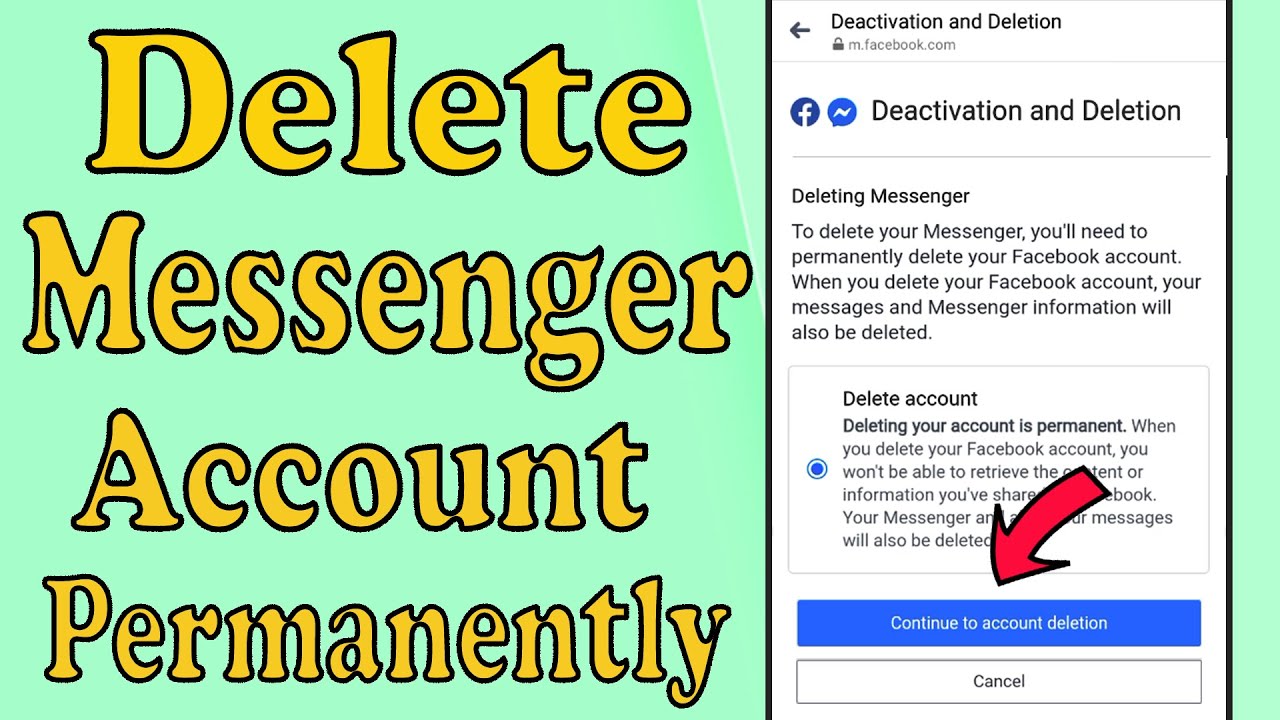
In an era of constant connectivity, the desire to reclaim digital headspace has become a priority for millions of smartphone users. Whether it is a quest for better mental health, a shift in privacy preferences, or simply a desire to move away from the Meta ecosystem, knowing how to delete a Messenger account from an iPhone is a common technical hurdle. For many, the process is not as intuitive as it should be, primarily since of how Meta integrates its various platforms.
As a technology editor with a background in software engineering, I have observed a recurring point of confusion: the symbiotic relationship between Facebook and Messenger. Unlike standalone apps like WhatsApp or Signal, Messenger is fundamentally an extension of a Facebook profile. This architecture means that you cannot simply “delete” your Messenger account in isolation while keeping your Facebook presence intact. To fully remove the Messenger account, one must navigate the broader Meta Account Center.
For iPhone users, the process is streamlined through the iOS interface, but it requires a specific sequence of steps within the app settings to ensure that data is handled correctly and that the user understands the difference between deactivating an account and deleting it permanently. Understanding these nuances is critical to avoiding the accidental loss of years of conversations or the frustration of finding an account still active when it was intended to be gone.
Navigating these settings requires a steady hand and a clear understanding of Meta’s current account management policies. In this guide, we will walk through the precise steps to remove your presence from the platform, the implications of your choice, and how to secure your data before you hit the final button.
The Fundamental Distinction: Deactivation vs. Deletion
Before diving into the technical steps, it is essential to understand what happens behind the scenes when you request an account change. Meta provides two distinct paths: deactivation and deletion. Choosing the wrong one can lead to permanent data loss or a profile that remains visible to others when you intended it to be hidden.
Deactivation is essentially a “pause” button. When you deactivate your account, your profile is hidden from other users, and your name may be removed from some areas of the platform. However, your data remains on Meta’s servers. Crucially, in some configurations, you may still be able to use Messenger even if your main Facebook profile is deactivated, though this depends on the specific version of the app and the region’s privacy laws. Deactivation is reversible; logging back in typically reactivates the entire suite of services.
Deletion, is the “nuclear option.” This is a permanent request to remove your account and all associated information from Meta’s systems. Once the deletion process is complete, there is no way to recover your messages, photos, or contacts. Meta typically provides a grace period—usually 30 days—during which you can cancel the deletion request by logging back in. After this window closes, the data is purged from their active databases according to their Data Policy.
Step-by-Step: How to Delete a Messenger Account from an iPhone
Because Messenger is tied to your Facebook identity, the deletion process must be handled through the Account Center. Follow these steps to ensure a complete and permanent removal of your account from your iPhone.

- Open the Messenger App: Launch Messenger on your iPhone and tap the three horizontal lines (the “hamburger” menu) in the top left corner of the screen.
- Access Settings: Tap the gear icon (Settings) located in the top right of the menu drawer.
- Navigate to the Account Center: Scroll to the bottom of the Settings menu and tap on “See more in Accounts Center.” This is the unified hub where Meta manages identities across Facebook and Instagram.
- Personal Details: Within the Account Center, gaze for the “Account settings” section and select “Personal details.”
- Account Ownership and Control: Tap on “Account ownership and control.” This is where the critical options for deactivation and deletion reside.
- Select Deactivation or Deletion: Choose the “Deactivation or deletion” option. You will be prompted to select which account you wish to manage (if you have both Instagram and Facebook linked). Select your Facebook/Messenger account.
- Confirm Permanent Deletion: You will be presented with two choices: “Deactivate account” or “Delete account.” Select “Delete account” and tap “Continue.”
- Provide a Reason (Optional): Meta will request why you are leaving. You can select a reason or simply skip this step and tap “Continue.”
- Final Security Check: For security purposes, you will be asked to enter your password. This ensures that an unauthorized person cannot delete your account from your device.
- Confirm Deletion: Tap “Delete Account” one last time to finalize the request.
Once these steps are completed, you should sign out of the app and uninstall it from your iPhone to prevent accidental reactivation during the 30-day grace period.
Alternative: Removing the App vs. Deleting the Account
A common mistake iPhone users make is confusing the removal of the application with the deletion of the account. Deleting the app from your home screen does nothing to your data or your visibility on the platform. Your account remains active, your messages continue to be delivered (though you won’t see them), and your profile remains searchable.
To simply remove the app from your device without affecting your account, follow these steps:
- Find the Messenger icon on your home screen.
- Press and hold the icon until a menu appears.
- Tap “Remove App.”
- Select “Delete App” to remove the software and its documents from your iPhone storage.
This method is ideal for those who are taking a temporary break from social media but wish to preserve their chat history and contacts for future use. However, if your goal is privacy and data removal, the Account Center method detailed above is the only effective solution.
Securing Your Data Before Departure
Before you proceed with a permanent deletion, it is highly recommended that you back up your data. Once the 30-day window expires, your conversations—which may contain years of memories, important addresses, or professional contacts—are gone forever.

Meta allows users to download a copy of their information. To do this on an iPhone:
- Go to the Account Center (as described in the deletion steps).
- Select Your information and permissions.
- Tap Download your information.
- Follow the prompts to select the specific data you wish (e.g., just messages) and the format (HTML is generally the most readable).
- Request the download. Meta will notify you via email once the file is ready for download to your device.
Taking this step ensures that you have a local archive of your digital interactions, providing peace of mind before you sever your ties with the platform.
Common Troubleshooting and FAQs
During the process of deleting a Messenger account, users often encounter specific roadblocks. Here are the most common issues and their solutions.
Can I preserve Facebook but delete only Messenger?
Technically, no. Because Messenger is a feature of the Facebook account, you cannot permanently delete the Messenger “account” while keeping the Facebook profile active. You can, however, uninstall the Messenger app and disable notifications, which effectively removes the service from your daily life while keeping your social profile intact.
What happens to my group chats after I delete my account?
When you delete your account, your name will be replaced by “Facebook User” in existing group chats. Your previous messages will still be visible to other members of the group, but you will no longer be able to send new messages or be added to new groups.
I forgot my password; can I still delete my account?
No. For security reasons, Meta requires password verification to authorize account deletion. If you have forgotten your password, you must first go through the “Forgot Password” recovery process using your registered email or phone number before you can access the Account Center to delete the profile.
How long does the deletion actually take?
The process begins immediately upon your request, but the full deletion of your data from Meta’s backup systems can take up to 90 days. However, your profile is hidden from other users almost instantly. As noted, you have a 30-day window to cancel the request by logging back in.

| Action | Visibility | Data Status | Reversibility |
|---|---|---|---|
| Uninstall App | Fully Visible | Preserved on Server | Instant (Reinstall) |
| Deactivation | Hidden/Limited | Preserved on Server | Easy (Log in) |
| Deletion | Removed | Purged after 30-90 days | Possible within 30 days |
The Broader Context: Digital Well-being and Privacy
The trend of “digital minimalism” has grown significantly as users become more aware of the impact of algorithmic feeds and constant notifications on mental health. The complexity of deleting an account—often referred to as “dark patterns” in user experience design—is a frequent topic of criticism among privacy advocates. By making the deletion process multi-stepped and burying it within an “Account Center,” platforms can reduce churn rates.
From a technical perspective, the move toward a unified Account Center is an attempt by Meta to streamline management across Facebook, Instagram, and Threads. While this makes it easier to sync profiles, it as well centralizes the point of failure; if a user loses access to their primary authentication method, they may lose access to all linked services simultaneously.
For those concerned about privacy, deleting the account is the most effective step, but it should be paired with a review of other linked third-party applications. Many users have “Logged in with Facebook” on various websites and apps. Deleting your Facebook account may revoke access to those third-party services, potentially locking you out of other accounts. It is advisable to change those login methods to a standard email and password before finalizing the deletion.
Final Checkpoints
Before you commit to the final step, run through this checklist:
- Data Backup: Have you requested and downloaded your information archive?
- Third-Party Apps: Have you updated login methods for apps that use Facebook authentication?
- Important Contacts: Have you saved the phone numbers or email addresses of people you only communicate with via Messenger?
- Grace Period: Are you aware that logging back in within 30 days will automatically cancel the deletion?
The next official update regarding Meta’s account management tools is expected to align with their ongoing updates to the Account Center, which continues to integrate more privacy controls to comply with evolving global regulations such as the GDPR in Europe and the CCPA in California. Users should keep an eye on the Meta Newsroom for official announcements regarding changes to account ownership and data portability.
Taking control of your digital footprint is a powerful step toward a more intentional relationship with technology. If you found this guide helpful, please share it with others who may be navigating their own digital detox, and leave a comment below if you encountered any unexpected hurdles during the process.