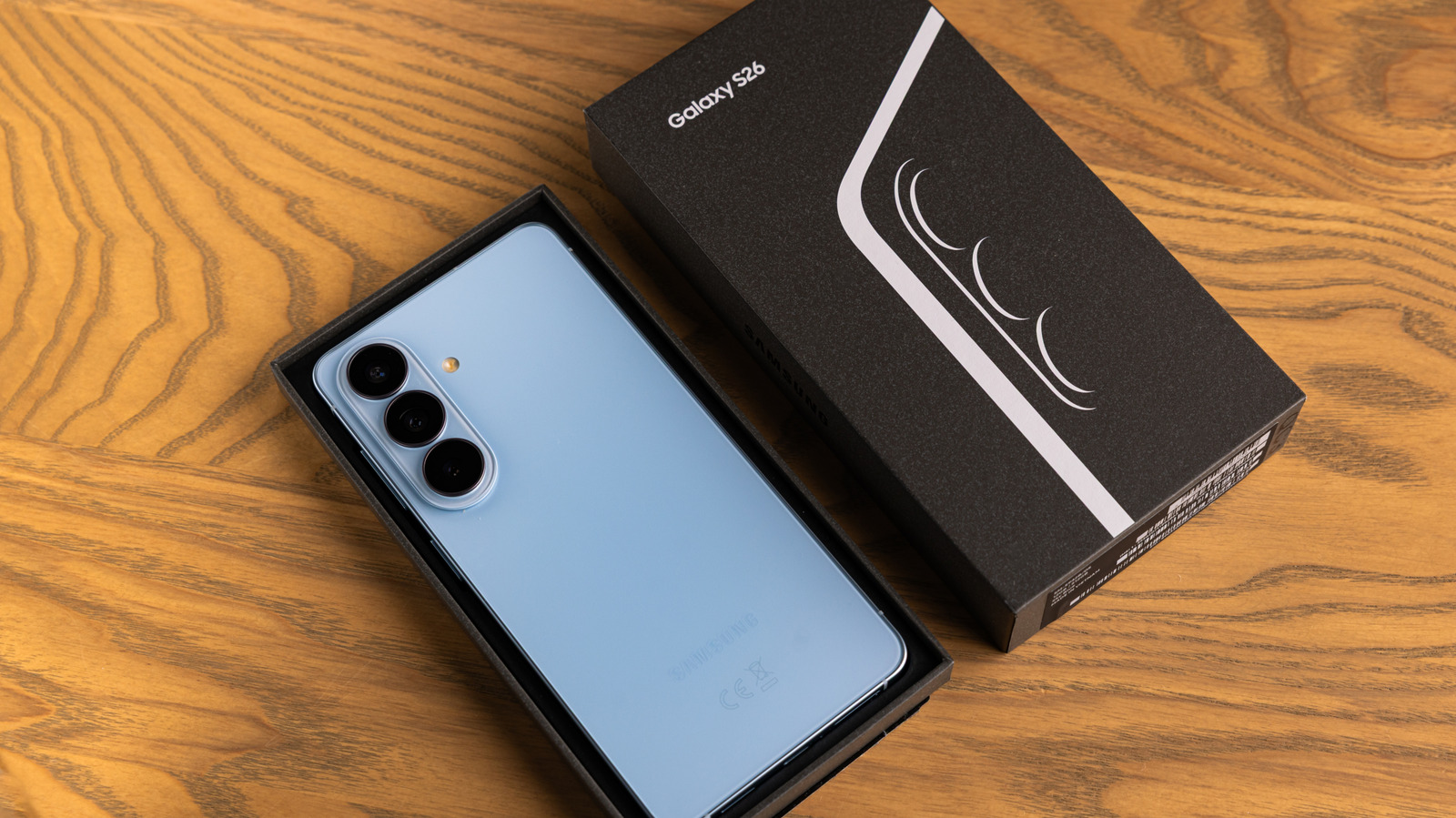
When a Samsung Galaxy S26 suddenly displays an “Emergency Calls Only” notification, users are often left disconnected from cellular data and standard mobile networks without an obvious reason. Software glitches, misconfigured access point names, or temporary carrier outages typically trigger this sudden loss of service on modern Android devices. Finding a working fix requires moving systematically through network resets and SIM verification steps rather than guessing at random device settings.
As mobile technology editors note when troubleshooting flagship hardware, baseband firmware bugs and corrupted radio interface layer caches frequently cause smartphones to drop their cellular registration. Software updates released by manufacturers like Samsung often require a clean cache partition wipe or a complete network settings reset to clear lingering connectivity anomalies. Understanding the root cause helps owners bypass unnecessary hardware repairs and restore normal voice and data services quickly.
Before diving into advanced software remedies, users should check basic environmental and carrier factors. Network congestion, local cell tower maintenance, or a deactivated account will instantly restrict a phone to emergency-only routing. Verifying service status with another phone on the same carrier or checking local provider outage trackers saves valuable time before altering deep system configurations on a brand-new device.
Restart and Reseat the SIM Card
The fastest and most reliable initial troubleshooting step involves performing a hard restart followed by reseating the physical SIM card or refreshing the electronic SIM (eSIM) profile. Powering down the Galaxy S26 completely clears the radio frequency processor memory and forces the operating system to re-establish a fresh handshake with nearby cell towers upon booting back up.
If the device uses a physical nano-SIM card, power off the phone entirely, use the provided ejector tool to pop out the SIM tray, and inspect the gold contact pins for dust or debris. Wipe the card gently with a clean microfiber cloth before reinserting it securely. For devices running on an eSIM profile, navigate to the device connection settings, toggle the cellular profile off for thirty seconds, and then turn it back on to force a fresh network registration.
Reset Network Settings and Clear System Caches
When a simple restart fails to clear the restriction, resetting the network configuration on the Galaxy S26 typically resolves deeper routing conflicts. This action deletes all saved Wi-Fi networks, Bluetooth pairings, and custom cellular access point names, returning the radio firmware to its factory default state. Users can locate this utility by navigating to the general management settings menu and selecting the network reset option.
According to Android software documentation, clearing the system cache partition through the recovery menu can also eliminate corrupt temporary files that interfere with modem communication. To access recovery mode on modern Samsung devices, power off the phone completely, connect it to a computer via USB-C, and hold the volume up and power buttons simultaneously until the system menu appears. Selecting the wipe cache option removes residual data without touching personal files, photos, or installed applications.
Check APN Settings and Carrier Updates
Incorrect Access Point Names (APNs) will frequently trap a Galaxy S26 in emergency-only mode, especially after swapping carriers or installing major security patches. Mobile operators rely on precise APN profiles to route data and voice packets correctly. Users should verify these parameters by navigating to mobile networks within the settings app and confirming that the carrier profile matches official network specifications.
Carriers occasionally push silent carrier configuration updates that require a manual installation to maintain stable connectivity. Checking for software updates under the system settings menu ensures that the device modem firmware remains fully synchronized with the host network infrastructure. If these manual adjustments do not restore full service, contacting customer support for a remote account refresh or a replacement SIM card remains the definitive next step.
Keep reading