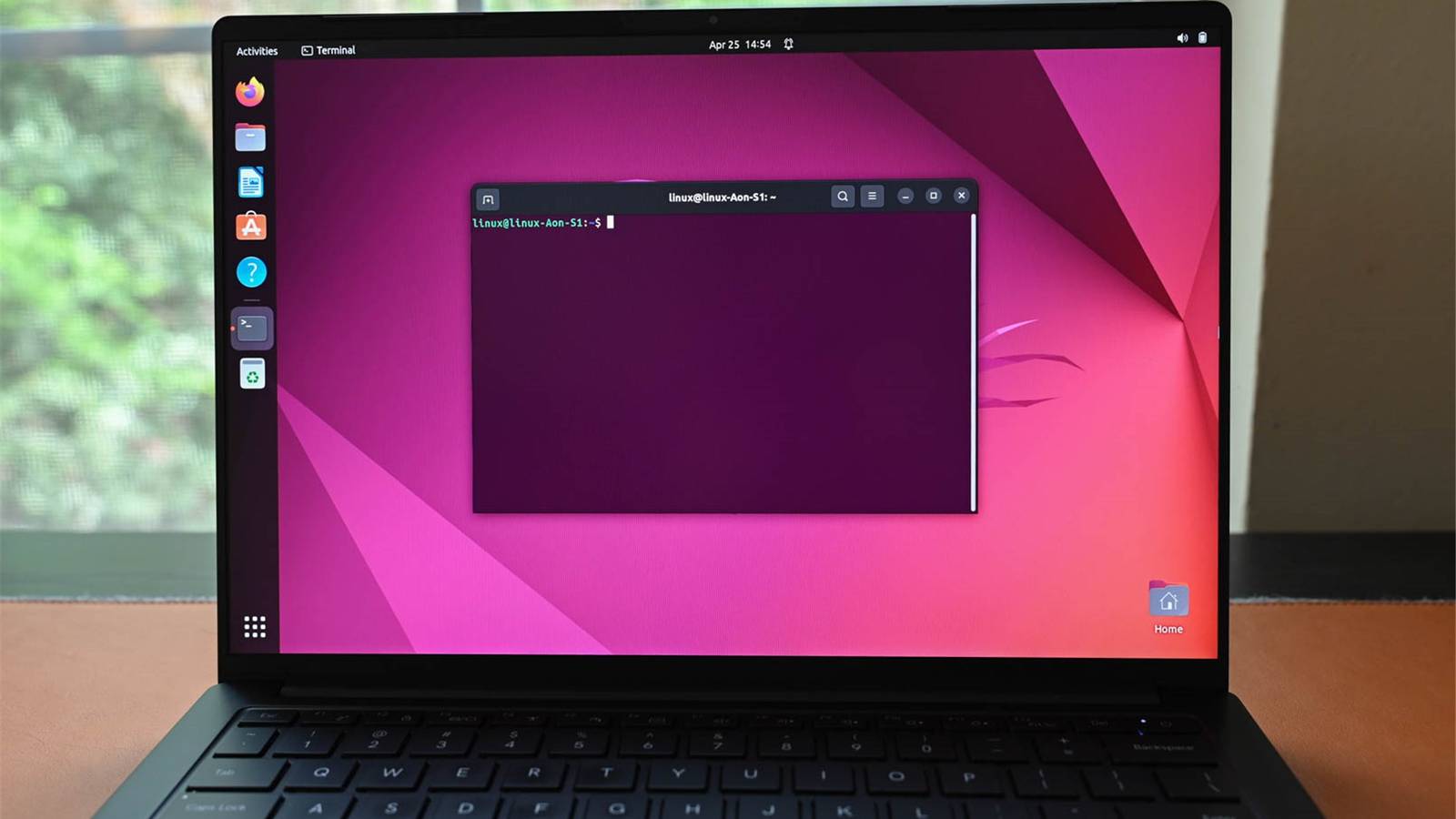
Mastering the Linux command line is a fundamental skill for developers and system administrators, and it can be made more approachable through structured practice and the use of modern terminal tools. While the interface often appears intimidating to newcomers due to its text-heavy nature and lack of visual cues, breaking the learning process into manageable, logical segments allows users to build proficiency systematically. According to documentation from the Linux Foundation, the command line remains the most efficient way to interact with server environments and manage software infrastructure.
For those beginning their journey, the primary goal is to shift from viewing the terminal as an obstacle to seeing it as a powerful, versatile tool for automation and system control. By focusing on specific, repeatable strategies, users can overcome the initial learning curve and gain confidence in navigating Unix-like file systems.
Leverage Interactive Learning Platforms
The most effective way to learn is by doing, and several interactive platforms allow users to execute commands in a sandboxed, web-based environment without the risk of breaking their local operating system. Sites such as Linux Journey provide structured, step-by-step paths that guide beginners from basic navigation to advanced permissions and shell scripting. These platforms are designed to mirror real-world scenarios, ensuring that the commands learned are immediately applicable to actual Linux distributions like Ubuntu, Debian, or Fedora.
Interactive tutorials remove the barrier of installation, allowing users to focus entirely on syntax and the logic behind various commands. This approach is widely recommended by educators as it provides instant feedback, helping users identify errors in real-time before they form bad habits in their own terminal sessions.
Prioritize Essential Navigation Commands
Instead of attempting to memorize every available command, beginners should start by mastering the “Big Four” of navigation: ls (list directory contents), cd (change directory), pwd (print working directory), and mkdir (make directory). Understanding how to move through the file system is the prerequisite for all other administrative tasks.
Once navigation feels natural, users should progress to file manipulation commands, specifically cp (copy), mv (move or rename), and rm (remove). A critical best practice, as noted in the GNU Bash Reference Manual, is to always use the --help flag or the man (manual) command before running potentially destructive commands like rm -rf, which can permanently delete files without a confirmation prompt.
Customize the Shell Environment
The default terminal experience can be visually stark, but it is highly customizable. Installing modern shell alternatives, such as Oh My Zsh, can significantly improve the user experience by adding features like syntax highlighting, auto-suggestions, and themeable prompts. These visual aids make it easier to spot typos and understand where a command ends and the output begins.
Customizing the shell is not merely about aesthetics; it is about reducing cognitive load. By configuring aliases—shortcuts for long or frequently used commands—users can streamline their workflow. For example, creating an alias that maps a complex log-checking command to a simple two-letter shortcut saves time and minimizes the chance of syntax errors during daily operations.
Master the Power of Pipes and Redirection
One of the most transformative concepts in Linux is the ability to connect commands using pipes (|) and redirection operators (>, >>, <). The pipe operator allows the output of one command to serve as the input for another, enabling users to chain simple tools together to perform complex data processing tasks.
For instance, combining cat, grep, and sort allows a user to extract specific information from a massive log file in seconds. Understanding this modular philosophy is what separates a casual user from a proficient power user. The Linux Kernel documentation emphasizes that the strength of the command line lies in its composition, where small, specialized tools work in concert to solve large-scale system problems.
Adopt a Documentation-First Mindset
No expert knows every flag for every command by heart. The ability to effectively search and read technical documentation is arguably the most important skill for a Linux user. The man command is the standard repository for information on almost every utility installed on a system. If a manual page is too dense, many modern distributions offer the tldr (Too Long; Didn't Read) tool, which provides community-driven, simplified examples for common commands.
Developing the habit of checking documentation first prevents the common pitfall of running unverified commands found in online forums. Always verifying the purpose of a command through official manual pages or trusted documentation ensures the stability and security of the system.
Practice Consistent Repetition in a Sandbox
Skills in the terminal are perishable. Setting up a dedicated sandbox—either a virtual machine or a secondary partition running a lightweight Linux distribution—provides a safe space for experimentation. Regularly performing tasks such as managing users, installing packages, or editing configuration files with text editors like nano or vim will build muscle memory.
Consistency is more important than duration. Spending 15 minutes a day practicing specific command sequences is more effective for long-term retention than an infrequent, multi-hour study session. As users become more comfortable, they should challenge themselves to perform routine tasks, such as file backups or system updates, exclusively through the command line rather than the graphical user interface.
Join the Linux Community
The Linux ecosystem is supported by a vast, global community. Engaging with forums like Ask Ubuntu or official mailing lists can provide support when encountering complex errors. Observing how experienced users solve problems helps beginners understand the logic behind various troubleshooting approaches.
Participating in the community also provides access to the latest best practices and security advisories. Whether a user is working on personal projects or enterprise infrastructure, the collective knowledge of the Linux community serves as an invaluable resource for continuous learning and professional growth. Readers are encouraged to share their own terminal tips in the comments section below.