
Windows users looking to streamline their operating system can now utilize various open-source debloating utilities to remove pre-installed applications, disable telemetry, and restrict background data tracking. These software tools, often developed by independent contributors, target non-essential components that Microsoft includes by default in Windows 10 and Windows 11. By automating the removal of “bloatware”—software that consumes system resources without providing core functionality—users can theoretically improve boot times and reduce background processor utilization, according to performance benchmarks reported by tech industry analysts at PCMag.
The primary concern for many users involves the intersection of privacy and system performance. Modern versions of Windows include integrated advertising, telemetry services that transmit usage data to Microsoft servers, and a suite of “suggested” applications. While these features are designed to create a unified ecosystem, they also consume bandwidth and RAM. For power users, the ability to surgically remove these elements is a significant priority. However, Microsoft maintains that these services are essential for security updates and the intended user experience, as outlined in the official Microsoft Privacy Statement.
Understanding System Bloat and Privacy Risks
Bloatware typically manifests as pre-installed third-party applications, trial software, or internal Windows features that run continuously in the background. Beyond the impact on system responsiveness, privacy advocates often raise concerns regarding “telemetry”—the automated process of collecting and transmitting diagnostic data. According to the Electronic Frontier Foundation (EFF), the granular tracking of user behavior can lead to privacy erosion if not properly managed or restricted by the user through system settings or third-party interventions.
When selecting a tool to remove these components, users must distinguish between reputable open-source projects and potentially malicious software. Authentic debloaters are typically hosted on platforms like GitHub, where the source code is transparent and auditable by the community. Experts, including those at BleepingComputer, frequently warn that “all-in-one” optimization tools found on obscure websites may contain malware or inadvertently break critical OS dependencies, such as Windows Update or the Microsoft Store.
How to Safely Optimize Windows Performance
Before running any script or utility intended to modify system files, it is standard practice to create a System Restore point. This allows the user to revert the operating system to a functional state if a specific removal causes instability. The process for manual optimization generally follows a specific hierarchy of caution:

- Audit installed apps: Use the “Apps & features” menu in Windows Settings to manually uninstall software that is not required for daily tasks.
- Manage Startup items: Open the Task Manager (Ctrl+Shift+Esc) and review the “Startup” tab to disable applications that launch automatically upon boot.
- Review Privacy Settings: Navigate to Settings > Privacy & Security to toggle off diagnostic data sharing and personalized ad tracking.
- Utilize Scripts: For advanced users, community-vetted scripts, such as those found on reputable GitHub repositories, provide a more efficient method for bulk removal, provided the user reviews the script content first.
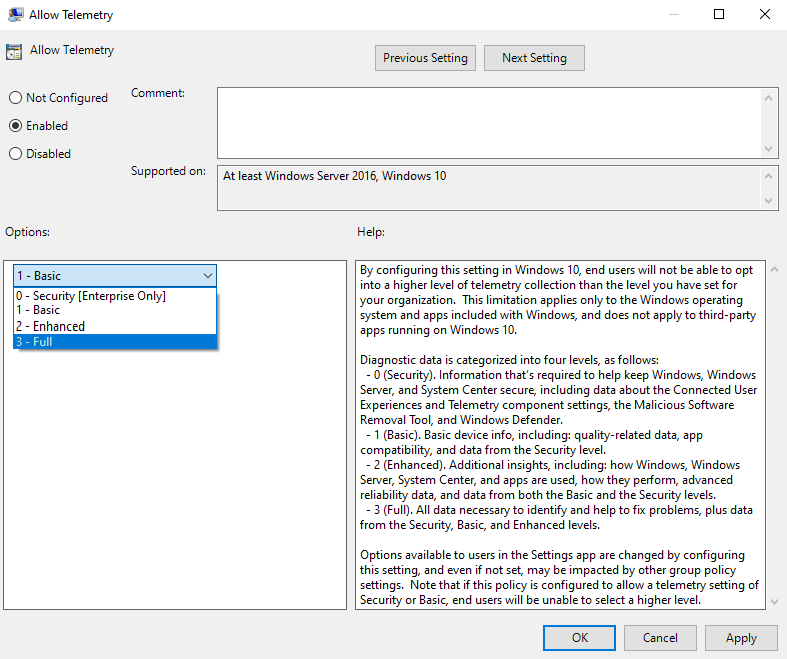
According to documentation from Microsoft Learn, many privacy-related features can be managed directly through the Group Policy Editor (in Windows Pro editions) or the Registry Editor, though these methods require technical expertise to prevent unintended system errors.
Risks and Long-Term System Stability
Modifying the Windows environment with third-party tools carries inherent risks. Microsoft frequently updates its operating system, and a script that functions correctly today may cause a “Blue Screen of Death” (BSOD) or feature failure following a major Windows Update. The complexity of the Windows registry means that even minor, well-intentioned changes can have cascading effects on system stability.
Furthermore, removing “superfluous” software can sometimes result in the loss of features that the user may later require, such as specific drivers or integration services for peripheral devices. Because Microsoft does not support the use of third-party debloating software, users who encounter issues after using these tools may find themselves unable to receive official support through standard channels, as noted in the Microsoft Support guidelines.
For those seeking to maintain a clean system, the most reliable method remains a “clean install” of Windows using an official ISO image from the Microsoft Software Download portal, followed by a manual selection of only the necessary drivers and applications. This avoids the pre-installed promotional software bundled by many PC manufacturers.
Next Steps for Users
The next major update for Windows 11 is expected to introduce further changes to its built-in privacy and application management features. Users should monitor official announcements from the Windows Insider Blog for information regarding upcoming changes to the OS architecture. If you have experience with system optimization or have encountered issues with debloating tools, please share your findings in the comments section below to help other members of our global community.
Worth a look