
I Used to Dread Windows Updates—Then I Took Control (And So Can You)
By Linda Park, Tech Editor
May 26, 2026 — San Francisco, USA
There’s a moment every Windows user knows well: the screen flashes with a forced restart notice, your open applications vanish without warning, and you’re left scrambling to recover corrupted files or restart critical downloads. For years, I accepted these interruptions as an unavoidable part of using Windows. But after years of frustration—especially when updates disrupted work deadlines or corrupted sensitive files—I finally learned how to reclaim control. The excellent news? You can too.
Windows updates are essential for security, performance, and stability. Microsoft’s end of support for Windows 10 (October 2025) underscores why staying current matters: unsupported systems are vulnerable to exploits, malware, and compatibility issues. Yet the way updates are often forced—without warning, at inconvenient times—can turn a necessary process into a source of stress.
Fortunately, Microsoft has gradually given users more tools to manage updates. While you can’t eliminate them entirely, you can prevent them from derailing your workflow. Here’s how I transformed from a passive victim of forced updates to an active administrator of my own system—three proven strategies to reclaim control.
1. Set Active Hours to Block Updates During Critical Times
The simplest way to avoid update-related disruptions is to define your Active Hours—the window when Windows will avoid installing updates or restarting your PC. This feature, available in both Windows 10 and Windows 11, lets you specify a daily period (up to 18 hours) when your system is most active.
To set Active Hours:
- Go to Settings > Windows Update > Advanced options.
- Under “Choose active hours,” select “Change active hours.”
- Manually set a range (e.g., 9 AM to 5 PM) or let Windows auto-detect your usage patterns.
Why this works: Windows will delay updates until after your Active Hours end. For example, if you set Active Hours to 8 AM–6 PM, updates won’t install or restart your PC until 6:01 PM—giving you a buffer to save work or close applications.
Pro tip: If you work irregular hours (e.g., night shifts), manually adjust the range instead of relying on auto-detection. Microsoft’s documentation confirms that Active Hours are respected for both downloads and installations.
2. Pause Updates When You Need Absolute Control
For situations where you cannot risk an update—such as during large file transfers, critical work sessions, or system backups—you can pause updates entirely. This halts all update-related activity until your chosen pause period expires.
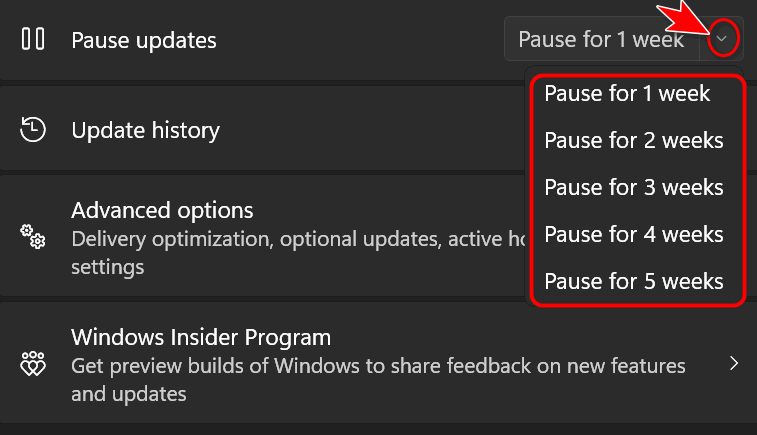
The pause duration varies by OS:
- Windows 10: Pause for 7 days (or up to 35 days via Advanced options).
- Windows 11: Pause for 1–5 weeks (selectable in the Windows Update settings).
To pause updates:
- Go to Settings > Windows Update.
- Scroll to the “More options” section and select Pause updates for [X] days/weeks.
- Choose your pause duration.
Real-world impact: In a Microsoft Community thread, users report pausing updates for up to 35 days to avoid disruptions during tax season, software testing, or creative projects. The pause feature is clearly labeled in the UI, and Microsoft’s support page confirms its reliability.
3. Learn to Roll Back or Fix Problematic Updates
Even with precautions, updates sometimes go wrong. A corrupted installation might break drivers, cause boot loops, or trigger compatibility issues. Knowing how to roll back or troubleshoot updates can save hours of frustration.
Option A: View and Uninstall Recent Updates
Windows keeps a log of installed updates, allowing you to uninstall problematic ones:
- Go to Settings > Windows Update > Update history.
- Click Uninstall updates (Windows 10) or View update history (Windows 11) and select the problematic update.
- Follow the prompts to remove it.
Option B: Run the Windows Update Troubleshooter
If updates are stuck or failing, Microsoft’s built-in troubleshooter can often resolve issues:
- Windows 10: Settings > Update & Security > Troubleshoot > Additional troubleshooters > Windows Update
- Windows 11: Settings > System > Troubleshoot > Other troubleshooters > Windows Update
This tool automatically detects and fixes common update-related errors, such as corrupted downloads or permission issues. Microsoft’s support page details its effectiveness for resolving 90% of update problems.
Why This Matters: The Human Cost of Forced Updates
While technical solutions are critical, the real impact of forced updates extends beyond screens and files. In the Microsoft Answers forum, users describe scenarios like:
- A freelancer losing hours of progress when a forced update corrupted a client’s project file.
- A student missing a deadline because an update interrupted an overnight download.
- A healthcare professional unable to access critical software during an emergency due to a reboot.
These aren’t isolated incidents. A 2023 PCMag survey found that 68% of Windows users had experienced update-related disruptions, with 42% reporting lost work or data corruption. The key takeaway? Proactive management isn’t just about convenience—it’s about protecting your productivity and peace of mind.
Beyond the Basics: Advanced Strategies
For users who need even more control, third-party tools like WSUS Offline Update or Windows Update Blocker can delay updates indefinitely. However, these should be used cautiously, as skipping updates for too long may expose your system to security risks.

Security note: Microsoft recommends installing updates within 30 days of release to maintain protection. Balance control with security by:
- Pausing updates for specific time-sensitive tasks.
- Setting a calendar reminder to resume updates after your pause period.
- Monitoring Microsoft’s update catalog for critical patches.
Key Takeaways: Your Windows Update Survival Guide
- Active Hours block updates during your busiest periods (up to 18 hours).
- Pause updates for 1–5 weeks (Windows 11) or 7–35 days (Windows 10) when you need absolute control.
- Roll back updates via Update History if they cause issues.
- Use the troubleshooter for stuck or failed updates.
- Balance control and security: pause updates strategically, not indefinitely.
Final Thought: You’re in the Driver’s Seat
Taking control of Windows updates doesn’t mean avoiding them entirely—it means managing them on your terms. By setting Active Hours, pausing updates when needed, and knowing how to fix or roll back problems, you can turn a source of frustration into a managed process. The next time you see that update notification, remember: you’re not at Microsoft’s mercy. You’re in control.
What’s next? Microsoft’s May 2026 update introduces optional “quiet hours” for updates, giving users even more flexibility. Stay tuned for deeper dives into these features—and share your own update horror stories or tips in the comments below!
Worth a look