
Stop the Scroll: Quickly Access App Settings on Your iPhone with a Powerful shortcut
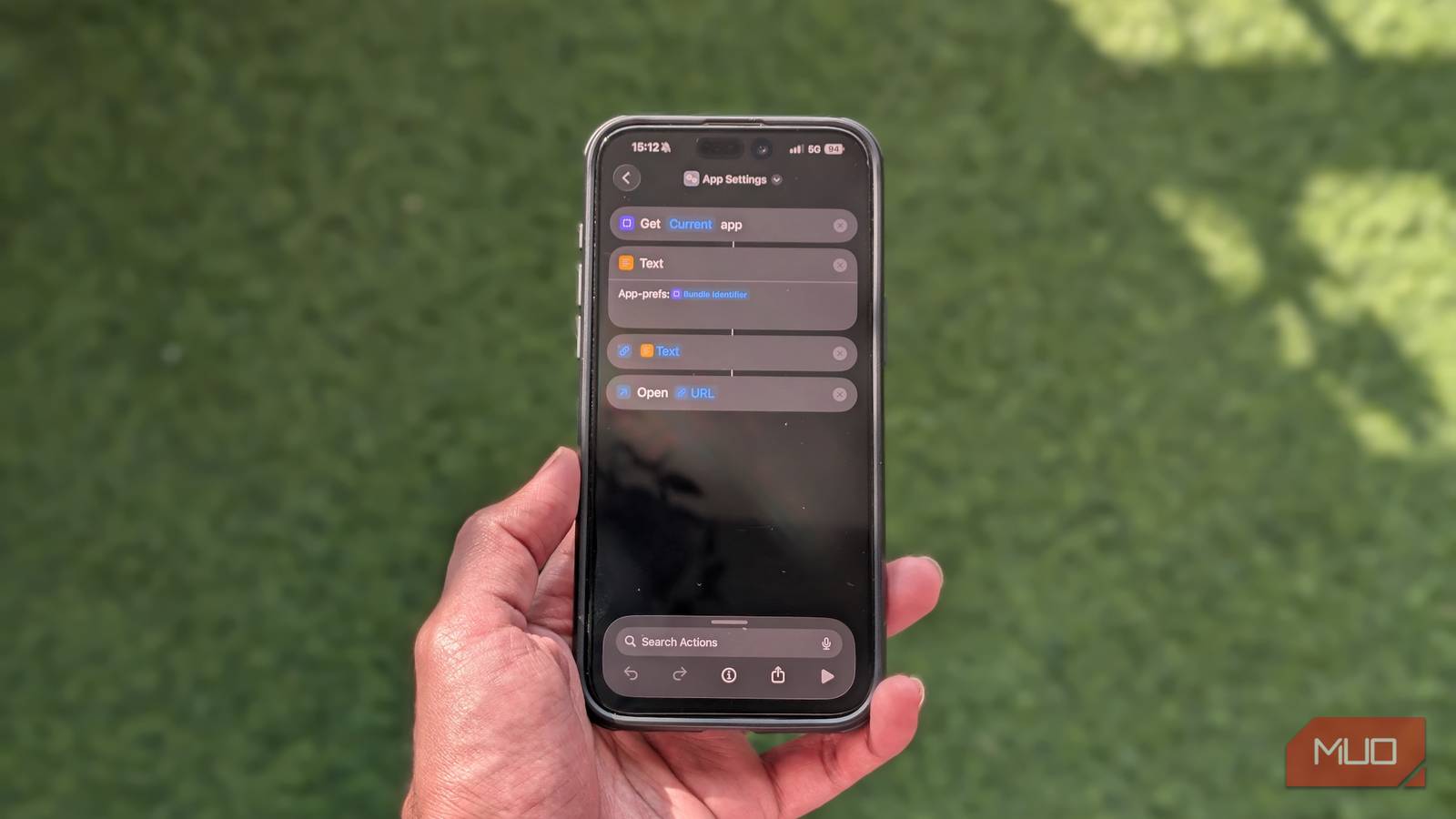
Navigating to an app’s settings on your iPhone can feel surprisingly cumbersome. Your already in an app, needing to tweak a permission or adjust a preference, and suddenly you’re bouncing between apps and menus.Fortunately, a clever iOS shortcut can streamline this process, saving you valuable time and frustration.Let’s explore how to create and use the “App Settings” shortcut to jump directly to the settings for any app on your device.
Why Use a Shortcut for App Settings?
Consider how often you adjust settings within your apps. Perhaps you want to manage notification preferences, control location access, or review privacy permissions. Each time, you’re forced to navigate away from the app and manually locate its settings within the iPhone’s main Settings app. This shortcut eliminates those extra steps, offering a faster, more direct route.
Setting Up the “App Settings” Shortcut
First, you’ll need to add the shortcut to your iPhone. Here’s how:
- Download the Shortcut: Open the Shortcuts app on your iPhone.
- Access the Gallery: Tap the Gallery tab at the bottom of the screen.
- Search for “App Settings”: Use the search bar to find the ”App Settings” shortcut.
- Add to Library: Tap the “+” button, and it’ll add the shortcut to your library.
Integrating the Shortcut for Easy Access
Now that the shortcut is in your library, you need to decide how you want to launch it. You have several options:
* Control Center: This is the easiest method for most users.
* Back Tap: A speedy gesture on the back of your iPhone.
* action Button (iPhone 15 Pro/Pro Max): Assign the shortcut to your device’s Action Button.
Let’s look at each method in detail:
1. Adding to Control Center:
- Open control Center: swipe down from the top-right edge of your screen.
- Customize Controls: Long-tap an empty area within the Control Center.
- Add a Control: Tap “Add a Control.”
- Search for “Run Shortcut”: Use the search field to find “Run Shortcut.”
- Choose the Shortcut: tap “Run shortcut,” then select the “App Settings” shortcut from the list.
2. Assigning to Back Tap:
- Navigate to Accessibility Settings: Go to Settings > Accessibility > Touch.
- Select Back Tap: Scroll down and tap “back Tap.”
- Choose a Gesture: Select either “Double Tap” or “Triple Tap.”
- Find the Shortcut: Scroll to the “Shortcuts” section and tap “App Settings.”
3. Configuring the Action Button:
- open action Button Settings: Go to Settings > action Button.
- Select Shortcut: Scroll and select “Shortcut.”
- Choose App Settings: Tap the dropdown and select the “App Settings” shortcut.
Using the “App Settings” Shortcut
With the shortcut configured, using it is incredibly simple.
- Open the App: first, open the app whose settings you want to access.
- Activate the Shortcut:
* Control Center: Bring up Control Center and tap the “App Settings” control.
* Back Tap: Perform the double or triple-tap gesture.
* Action Button: Press the action Button.
This will instantly take you to the app’s settings. When you’re finished, tap the arrow button (with the app name) in the top-left corner to return to the app you were previously using.
Beyond the Basics: expanding Your Shortcut Arsenal
Accessing settings on your iPhone doesn’t have to be complex. The “App Settings” shortcut is a fantastic starting point, but the world of iOS shortcuts offers even more possibilities.
Consider exploring Federico Viticci’s “Open Settings” shortcut ([https[https[https[https





![Sell Used iPhone: Get 10% Bonus & Top Payouts | [Your Brand Name]](https://i0.wp.com/photos5.appleinsider.com/gallery/66190-138789-gazelle-iphone-trade-in-bonus-2025-xl.jpg?resize=330%2C220&ssl=1 "Sell Used iPhone: Get 10% Bonus & Top Payouts | [Your Brand Name]")


