
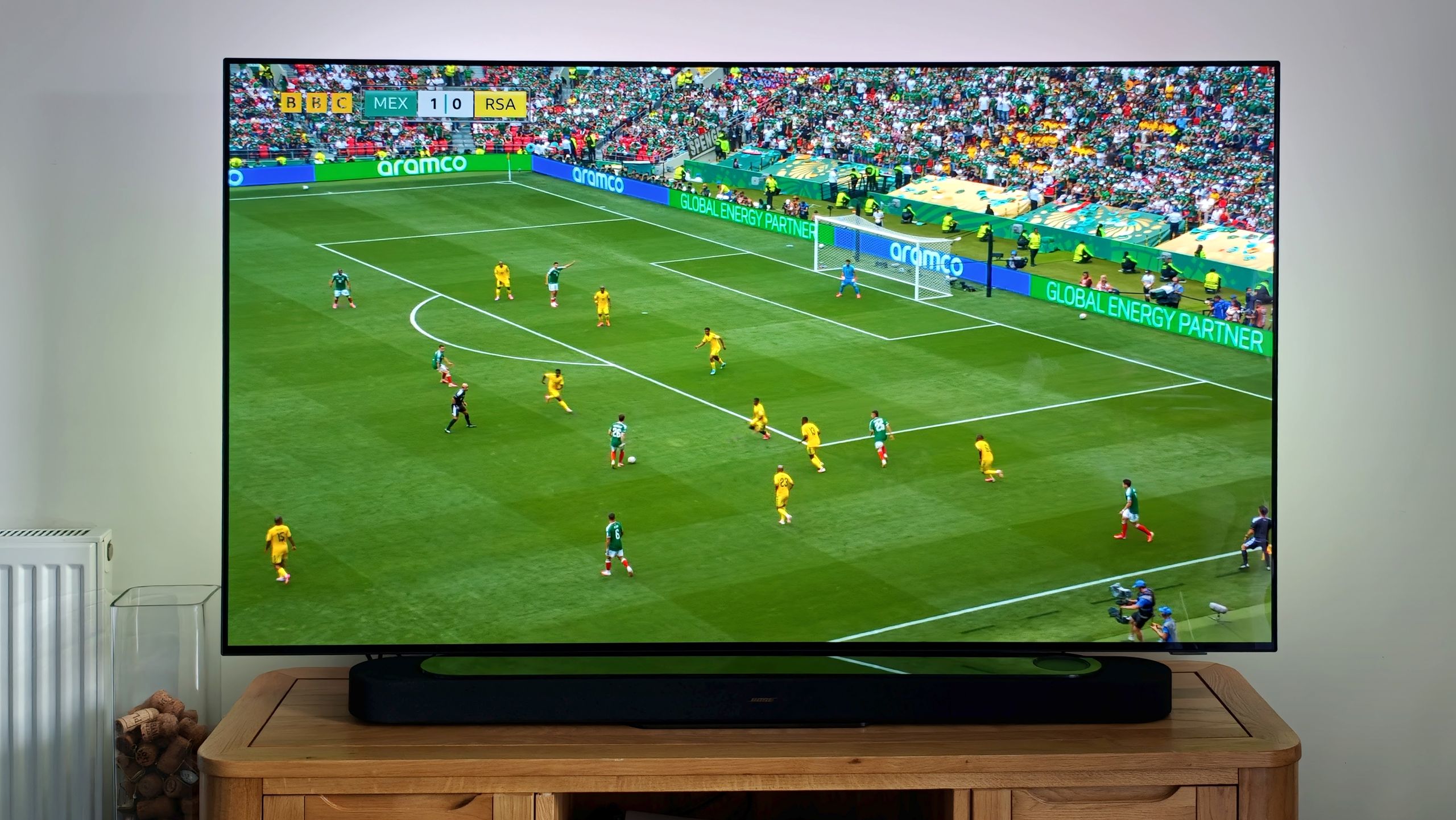
Viewers preparing for major sporting events like the FIFA World Cup can often optimize their existing equipment for a superior viewing experience by adjusting specific television settings, potentially eliminating the need for a costly hardware upgrade. By calibrating display modes, motion processing, and color profiles, users can achieve a more accurate and fluid picture that brings stadium action to life without requiring a new purchase.
As a technology editor, I have spent nearly a decade analyzing display hardware and software calibration. Most modern televisions ship with factory settings designed for bright retail showroom floors, not for the living room environment. These settings often prioritize artificial brightness and aggressive sharpening, which can actually degrade the quality of fast-paced sports content. Adjusting these parameters is a straightforward process that leverages the capabilities already built into your display.
Understanding Motion Processing and the “Soap Opera Effect”
The most common issue viewers encounter during fast-moving sports broadcasts is motion blur or “judder.” Many manufacturers include motion smoothing features—often labeled as TruMotion, MotionFlow, or Auto Motion Plus—which attempt to insert artificial frames to make movement appear smoother. While intended for high-refresh-rate gaming, these settings often create the “soap opera effect,” where the image appears unnaturally processed, sometimes causing artifacts around moving players or the ball.
According to Rtings, a leading independent display testing laboratory, viewers should consider disabling or setting motion interpolation to “Low” or “Clear” for sports. This allows the TV to handle the broadcast’s native frame rate more naturally, reducing the digital halos that often appear around a football as it travels across the pitch. If your television offers a “Sports Mode,” test it, but be aware that it often pushes saturation and brightness to extreme levels that may not be color-accurate.
Calibrating Picture Modes for Accurate Color
To achieve the most lifelike picture, you should move away from “Vivid” or “Dynamic” modes. These presets are designed to grab attention in a store but typically result in crushed blacks and blown-out highlights, losing detail in the grass texture or the players’ uniforms. Instead, experts recommend selecting the “Movie,” “Cinema,” or “Filmmaker Mode” as your starting point.

As noted by the CNET editorial team, these modes are calibrated to industry standards for color temperature and gamma. While the image may appear “warmer” or slightly dimmer than you are accustomed to, it provides a more faithful representation of the broadcast feed. If the picture feels too dark, adjust the “Backlight” or “OLED Light” setting rather than switching back to a high-contrast preset. This keeps the color accuracy intact while ensuring the screen is comfortable to view in your specific lighting conditions.
Managing Sharpness and Noise Reduction
High sharpness settings are another common culprit for poor image quality. Many users believe that increasing sharpness improves detail, but it actually adds artificial white edges to objects, which can make a broadcast look grainy or digital. For high-definition sports, it is generally recommended to set sharpness to zero or a very low value, such as 5% or 10%.
Similarly, “Noise Reduction” and “MPEG Noise Reduction” settings should be used sparingly. These features are intended to clean up low-quality, compressed signals. With modern 4K or high-bitrate 1080p sports broadcasts, these settings can cause the image to look waxy or smudged, particularly on the complex patterns of a grass pitch. Turning these off often reveals more fine detail in the broadcast feed, providing a sharper, cleaner image without the need for additional signal processing.
Environmental Factors and Screen Placement
Even the best settings can be undermined by poor room lighting. Reflections from windows or lamps can significantly reduce the perceived contrast of your TV. If you cannot control the ambient light during a daytime match, closing curtains or using bias lighting—a strip of LED lights placed behind the television—can help.

According to the International Telecommunication Union (ITU), which sets standards for television broadcasting and display viewing, proper seating distance relative to screen size is also critical for immersion. For a 4K display, sitting closer than you would for a standard HD set allows your eyes to resolve the extra detail, effectively improving the perceived quality of the broadcast without changing a single menu setting.
Summary of Recommended Adjustments
- Picture Mode: Switch to “Movie,” “Cinema,” or “Filmmaker” to ensure color accuracy.
- Motion Settings: Turn off or set motion interpolation to “Low” to avoid artificial movement artifacts.
- Sharpness: Reduce to 0–10% to prevent artificial edge enhancement and digital noise.
- Noise Reduction: Disable for high-quality broadcasts to maintain fine detail and texture.
- Backlight: Adjust this to match your room’s ambient light rather than using a “Vivid” preset.
Before the next match, spend ten minutes navigating your TV’s settings menu to apply these adjustments. By prioritizing a natural, accurate picture over processed, high-contrast presets, you can significantly enhance your viewing experience. Please share your own calibration tips or questions in the comments section below, and stay tuned for our upcoming coverage of display technology trends as we approach the final stages of the tournament.