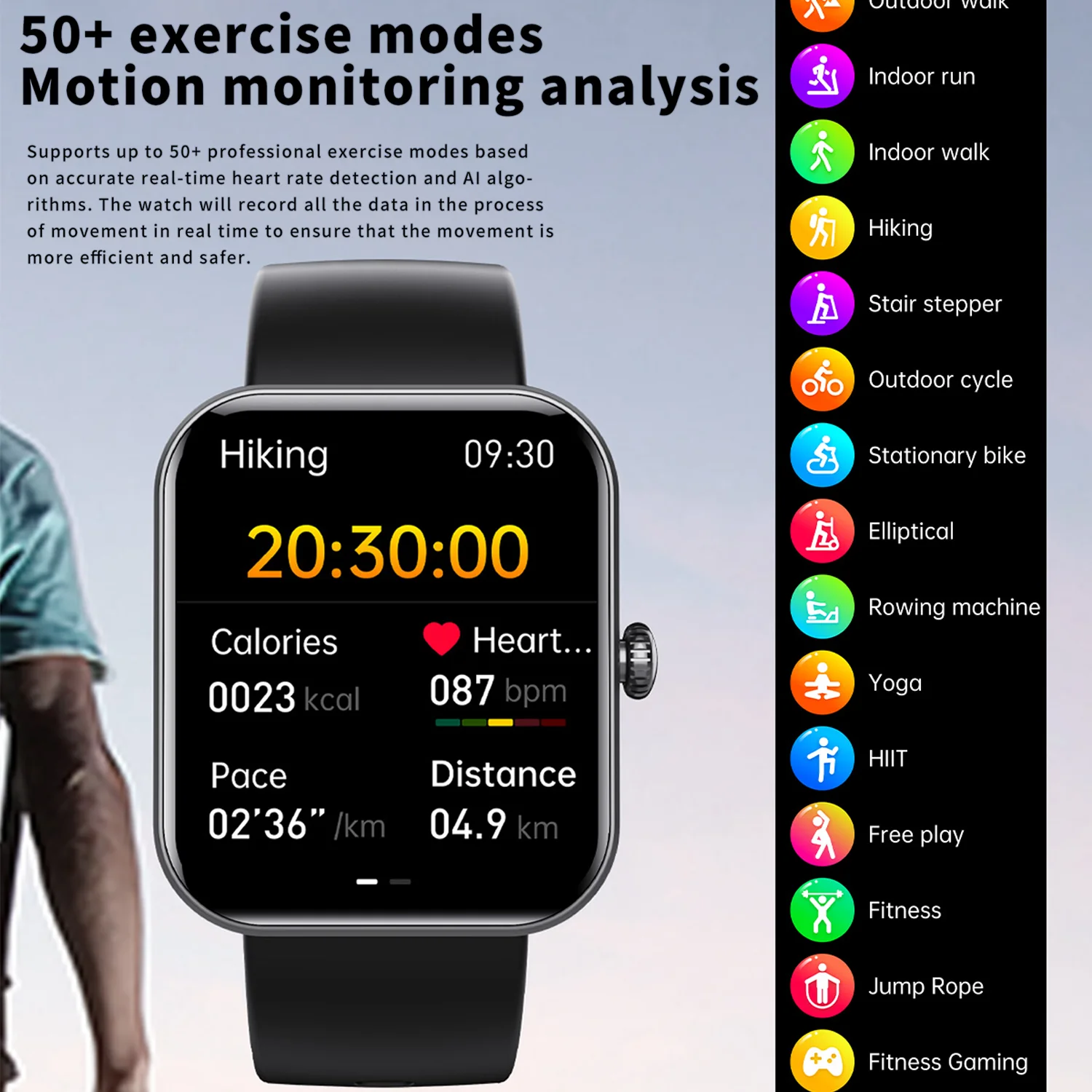
Smartwatch blood sugar alerts are managed through third-party Continuous Glucose Monitor (CGM) apps, as no major smartwatch currently features a built-in, non-invasive glucose sensor. Users can improve visibility by enabling “Always-On Display,” configuring “complications” for instant readings, and adjusting haptic notification strengths in settings for Apple, Samsung, Google, and Garmin devices.
The ability to view glucose levels on a wrist is a critical tool for people with diabetes, but the hardware limitations of current wearables mean the watch serves as a remote display rather than the primary sensor. Data is transmitted from a CGM sensor—typically worn on the arm or abdomen—to a smartphone, which then pushes the information to the smartwatch.
The U.S. Food and Drug Administration (FDA) issued a formal safety communication in February 2024 warning consumers against using smartwatches or smart rings that claim to measure blood glucose non-invasively, stating that no such device has been authorized for this use FDA Safety Communication. Consequently, reliable alerts depend entirely on the integration between medical-grade CGMs, such as those from Dexcom or Abbott, and the watch’s operating system.
1. Prioritize Complications and Tiles for Instant Access
The most effective way to make blood sugar readings easier to see is by moving the data from a buried app to the main watch face. In smartwatch terminology, these small data widgets are called “complications” (Apple/Google) or “modules” (Samsung/Garmin).
For Apple Watch users, adding a Dexcom or FreeStyle Libre complication allows the current glucose value to remain visible without needing to launch an app. Users can customize this by long-pressing the watch face, selecting “Edit,” and choosing the CGM app from the complication list. This eliminates the need to navigate menus during a hypoglycemic event when cognitive function may be impaired.
Samsung Galaxy Watch and Pixel Watch users can utilize “Tiles.” By swiping left or right from the home screen, users can access a dedicated glucose tile. According to Samsung’s health integration guidelines, these tiles provide a larger visual area than complications, making them more suitable for those with visual impairments.
2. Enable Always-On Display (AOD)
Standard power-saving modes turn off the watch screen until the wrist is raised, which can create a dangerous delay for users monitoring rapid glucose drops. Enabling the Always-On Display ensures that the blood sugar complication remains visible at all times.
While AOD increases battery consumption, it is a vital setting for diabetes management. On the Apple Watch, this is found under Settings > Display & Brightness > Always On. For Galaxy Watch users, the setting is located in Settings > Display > Always On Display. This ensures that a quick glance at the wrist provides the current reading without requiring a physical gesture that might be difficult during a medical emergency.
3. Configure Critical Alerts and Haptic Strength
Visuals are secondary to alerts when blood sugar hits a dangerous threshold. Most CGM apps use “Critical Alerts,” a special category of notifications that can bypass the mute switch or “Do Not Disturb” settings.
On iOS, users must specifically grant permission for “Critical Alerts” during the initial setup of the Dexcom or Libre app. If this is not enabled, a low-glucose alarm may be silenced if the phone is in a focus mode. To ensure these are felt, users should navigate to the watch’s Haptics settings and switch from “Default” to “Prominent.” This increases the vibration intensity, making it harder to sleep through a nocturnal hypoglycemia alert.
Garmin users integrating Dexcom G6 or G7 sensors can manage these alerts through the Garmin Connect app. Garmin’s system allows for distinct alert tones and vibration patterns, which helps users distinguish a glucose alert from a standard text message or email notification.
4. Adjust Contrast and Text Scaling
Blood sugar readings are often small numbers that can be difficult to read in direct sunlight or for users with diabetic retinopathy. Accessibility settings can significantly improve the legibility of these alerts.
Users should enable “Bold Text” and “Larger Text” in the accessibility menus of their respective devices. On the Apple Watch, this is found in Settings > Accessibility > Display & Text Size. On Wear OS devices (Pixel and Galaxy), users can adjust the font size in Settings > Display > Font size and style.
Additionally, choosing a high-contrast watch face—such as a black background with white or neon text—reduces glare and makes the glucose number stand out. Avoiding “busy” watch faces with multiple colors or patterns ensures that the most critical piece of health data remains the focal point.
5. Optimize Notification Priority and Focus Modes
Modern smartwatches use “Focus Modes” (Apple) or “Modes and Routines” (Samsung) to filter notifications. If not configured correctly, these modes can suppress CGM alerts during sleep or work.
To prevent this, users must add their CGM app to the “Allowed Apps” list within their specific focus profile. For example, if a user has a “Sleep” focus active, they must manually ensure that the Dexcom or Libre app is permitted to send notifications. This ensures that the watch will still vibrate and chime if glucose levels drop during the night, regardless of the overall phone status.
For Huawei Watch users, managing the “Do Not Disturb” exceptions in the Huawei Health app is necessary to ensure that third-party health alerts are not bundled with less urgent notifications, which can lead to a delayed response to glucose fluctuations.
Comparison of CGM Integration by Device
The experience of viewing glucose alerts varies based on the hardware and the supported CGM system. The following table outlines the current integration capabilities for the most common wearables.

| Device | Primary Method | Key Visibility Feature | Alert Capability |
|---|---|---|---|
| Apple Watch | Direct-to-Watch (Dexcom) | Complications | Critical Alerts (Bypass Mute) |
| Galaxy Watch | Samsung Health / App | Custom Tiles | Haptic Patterns |
| Garmin | Garmin Connect / Dexcom | Data Fields | Customizable Tones |
| Pixel Watch | Wear OS App / Fitbit | Complications | Standard Notifications |
While these settings improve the user experience, they do not replace the need for a medical device. The watch is a mirror of the data provided by the CGM. If the sensor fails or the Bluetooth connection between the sensor, phone, and watch is severed, the watch will not show a reading.
Users are encouraged to regularly test their alert settings by triggering a “test alert” within their CGM app to ensure the watch vibrates and displays the notification as expected. This verification process is essential for those who rely on these devices for overnight safety.
The next major development in this space is the ongoing effort by companies like Apple and Samsung to develop non-invasive sensors. However, until these receive FDA or EMA clearance, the optimization of existing CGM-to-watch pipelines remains the only medically sound method for wrist-based monitoring.
Do you use a smartwatch for glucose monitoring? Share your preferred settings or questions in the comments below.