Jonathon Jachura
2026-01-12 13:00:00
Remote work seemed temporary to many people back in 2019. Six years later (nearing 10 total, if we count hybrid work), I’m still at my home desk every single day, and my workspace has evolved through plenty of trial and error. Early on, I chased productivity through apps and software — task managers, focus timers, elaborate notification systems. Most of it didn’t stick. What actually moved the needle was physical hardware that solved problems I’d been working around for years. These eight gadgets range from $8 cable clips to an $1,100 TV, but each one earns its place on my desk daily. Some replaced expensive alternatives I thought I needed. Others fixed annoyances so small I barely noticed them until they were gone.
A single 55-inch TV replaced my four-monitor setup
Less hardware, more focus
My old workstation looked impressive — four 27-inch monitors surrounding my MacBook Pro like some kind of mission control center. Visitors always commented on it. What they didn’t see was the cable nightmare behind my desk, the constant fan noise, or how I’d rotate my entire body just to check Slack. My 55-inch Samsung Frame TV mounted on my wall handles everything those four screens did, minus the headaches.
MacOS window snapping divides the display into quadrants, giving me the same layout I had before. The difference is seamless movement between sections — no bezels interrupting my view, no hunting for which screen has which window. My Mac runs silently now because it’s pushing one display instead of four. When the workday ends, the frame shows artwork instead of sitting there as a giant black rectangle. The whole room looks cleaner.
The Mac Mini outperforms my old MacBook for less money
Desktop power without laptop prices
I almost dropped $3,000 on a new MacBook Pro before asking myself an honest question: when was the last time I worked somewhere other than my home office? Maybe ten days in the past year, and that’s being generous. Spending thousands on a laptop that never left my desk started feeling wasteful.
The Apple Mac Mini M4 costs a fraction of a comparable MacBook and runs better for desktop work. There’s no thermal throttling because there’s room inside the case for proper cooling and no fan screaming during video calls. My 2019 Intel MacBook still handles the rare afternoon at a café just fine, and honestly, that combination gives me better coverage than one expensive laptop ever did. Now I just walk downstairs and sit down — no cables to unplug, no laptop bag to pack.
Dual monitor arms gave me half my desk back
Floating displays free up workspace
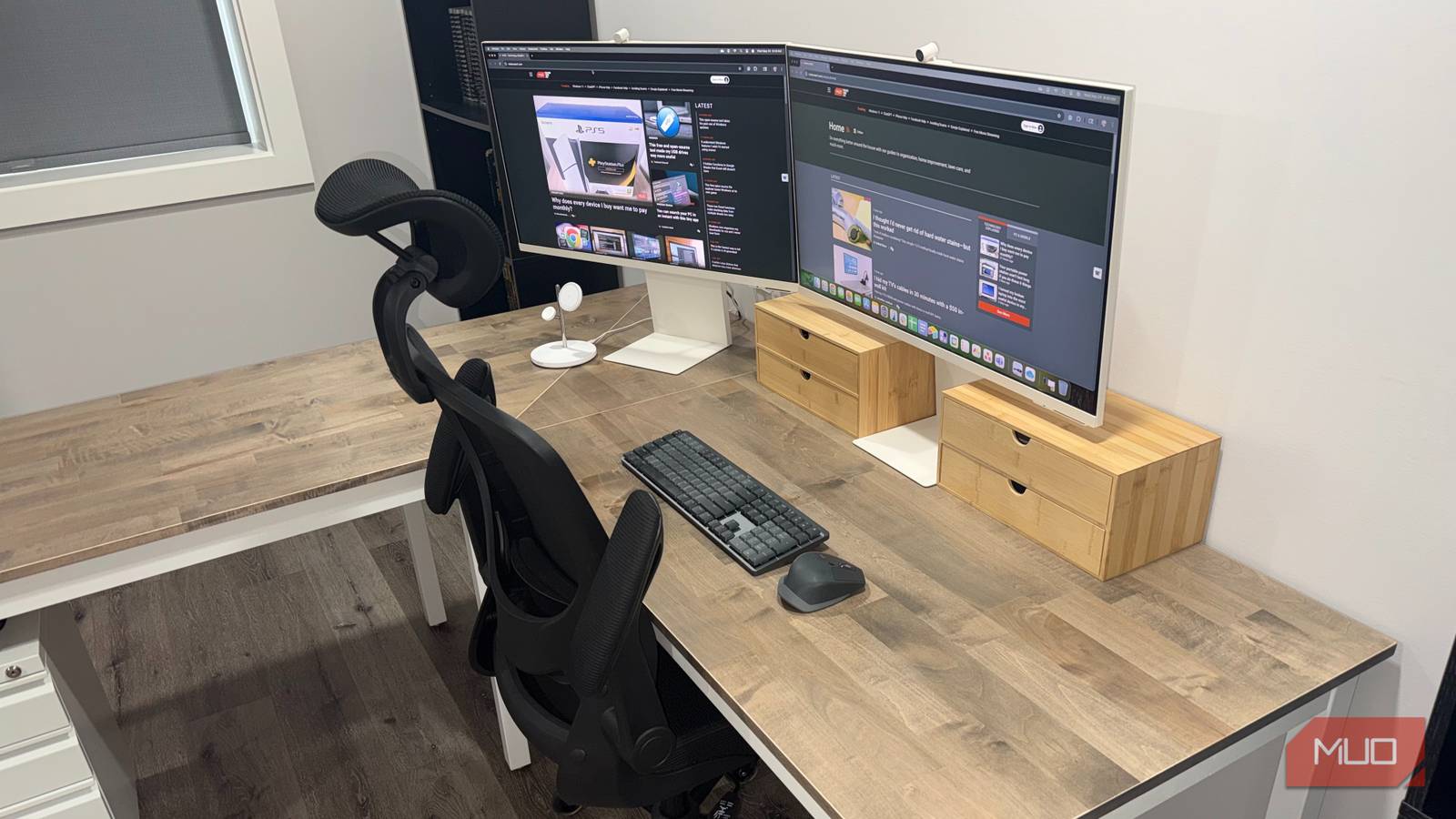
Factory monitor stands are desk hogs. The ones that came with my Samsung M8 displays ate up so much real estate that my keyboard barely fit. The HUANUO NITROGLIDE Dual Monitor Stand clamps to the desk edge and suspends both screens in the air.
Each arm floats on a gas spring, so adjusting height or angle takes zero effort — pull one forward for detailed work, swing the other aside when I need the space. The mounting point sits far enough back that my entire desk surface is now available. I’ve got room for notebooks, my phone charger, and all the random stuff that used to end up on the floor. Ergonomics improved, too, since I can finally set my screen height exactly where my eyes naturally rest.
An $83 keyboard tray beats a $500 standing desk
Stand without replacing your furniture

Standing desks dominated my research for weeks. Every decent option started around $400 and climbed fast with features I’d probably never touch. They’re also permanent — once you commit, that’s your workspace configuration until you move. My wife uses that same basement workspace, and she’s four inches shorter than me with completely different ergonomic needs. A fixed standing desk would work for one of us at best.
The Mount-It! Standing Keyboard Tray solved the problem for $83. The scissor-lift platform raises my keyboard and mouse to standing height while keeping everything else in place. The monitors and my coffee don’t move. Only my arms change position, which is all that actually needs to happen. Switching between sitting and standing takes maybe three seconds. I bought a second one for my upstairs office because the flexibility was too good to pass up.
A $17 timer cube fixed what focus apps couldn’t
Physical separation beats digital timers
Every Pomodoro app I tried failed the same way. I’d unlock my phone to start the timer, notice three unread messages, check one, and somehow lose fifteen minutes before the work session even began. The apps weren’t broken — the problem was using my phone at all.
The OORAII Pomodoro Timer sits on my desk and does exactly one thing. Turn the cube so 25 faces up, and it starts counting down. Rotate to 5 when you need a breather. No screen to unlock, no notifications competing for attention, no opportunity to get sidetracked. There’s something about physically moving an object that commits you to the task in a way touchscreens never managed. Seventeen dollars for something that actually changed my work habits — hard to argue with that.
One tap replaces three manual steps
My morning startup ritual had too many steps — silencing notifications, pulling up my project list, dialing the lights to the right brightness. All that fiddling before any real work happened. I stuck an NFC tag underneath my desk edge where my phone naturally lands each morning.
One tap fires off an iPhone Shortcut that runs the whole sequence automatically. The $8 pack came with twenty tags, so I’ve scattered them around the house for different automations — one by the bed for sleep mode, one in the kitchen for timers and recipes. Setting up automations in Apple’s Shortcuts app took one short session. With twenty tags for $8, I can afford to try ideas that might not pan out. The physical tap works better for me than voice commands ever did. It’s faster and doesn’t require speaking out loud to an empty room.
A wired microphone ended meeting audio disasters
Reliable connection beats wireless convenience

My AirPods worked fine until they didn’t. Mid-presentation on a client call, they’d decide my iPhone needed attention and hop over without warning. I’d be sharing my screen, talking through something important, and suddenly nobody could hear me. This happened often enough that I started dreading any meeting where I needed to present.
The Logitech Blue Yeti USB Microphone solved the problem entirely. One USB cable, one connection, zero surprises. Every video call just works now. No pairing dances, no device switching, no audio roulette. The Yeti isn’t small — it stands roughly twelve inches tall and works best within arm’s reach. But after months of reliable connections across Zoom, Teams, and Google Meet, that trade-off is worth it. People on calls actually hear me the first time now, which was a nice bonus I hadn’t expected.
$9 cable clips organized everything else
The finishing touch that ties it together

All this nice gear still had a problem: the underside of my desk looked like a crime scene. Power cords tangled with USB cables, everything swayed when I rolled my chair back, and finding a specific connection meant lying on my back with a flashlight.
VAMRONE Adhesive Cable Management Clips fixed it for under $10. The adjustable design grips thin USB cables and chunky power cords equally well. I mapped out three lanes — power along the back, data through the middle, charging cables near the front where I can reach them — and spent an afternoon routing everything properly. The 3M adhesive holds tight, and each clip includes a screw hole for spots where I wanted extra security. Swapping a cable now takes seconds instead of an excavation project.
Six years of lessons, eight gadgets worth keeping
None of this happened overnight. My workspace evolved through plenty of purchases that didn’t stick, configurations that seemed clever until they weren’t, and a gradual realization that the right hardware solves problems software can’t touch. The TV proved that one large display outperforms a cluster of smaller ones. The Mac Mini showed me I was wasting money on mobility I never needed. The timer cube demonstrated that sometimes the best tech is the kind that doesn’t connect to anything.
You don’t need all eight of these tomorrow. Start with whatever friction bothers you most — the cable mess, the monitor shuffle, the phone distractions — and fix that first. Small upgrades compound over time.
Worth a look