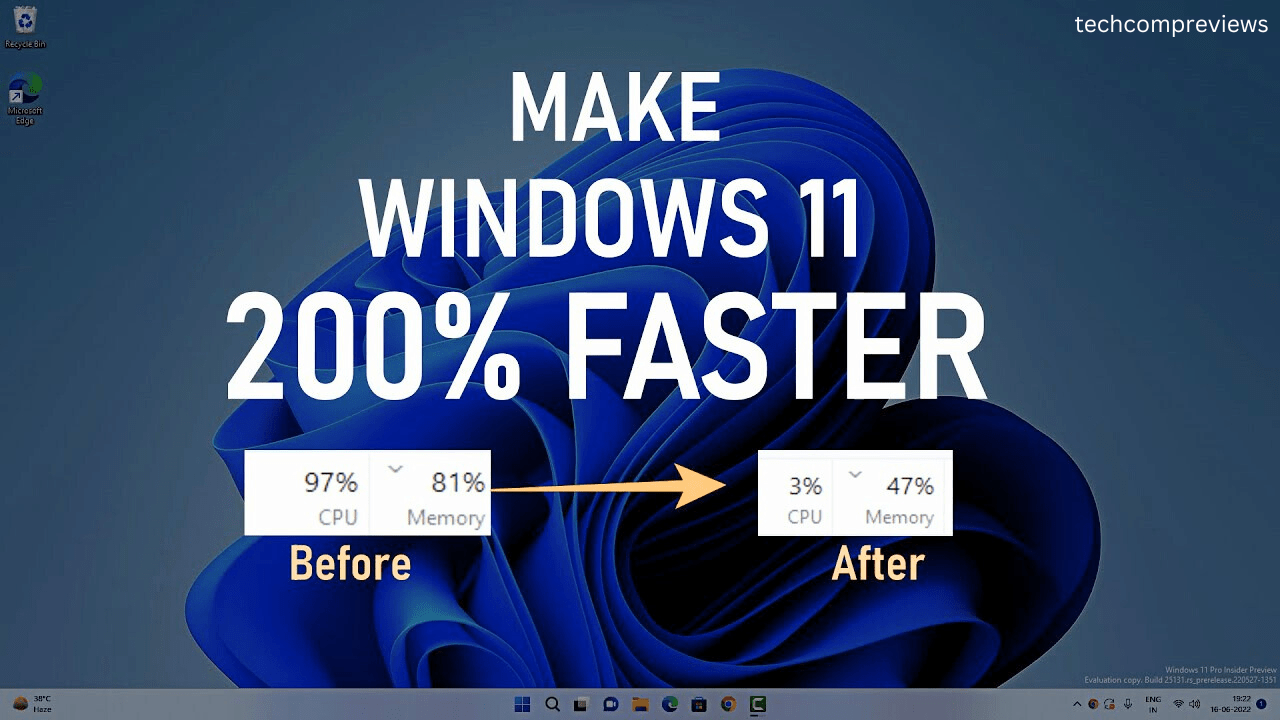
Optimizing your Windows 11 PC for better performance involves managing system resources, streamlining startup processes, and maintaining storage health. Users can improve responsiveness by auditing background applications, enabling Storage Sense, and keeping the operating system updated, according to official guidelines provided by Microsoft in their performance optimization support documentation. These steps help reduce the load on system memory and the processor, which are often the primary bottlenecks for aging hardware or systems cluttered with persistent background tasks.
Managing Startup Apps and Background Processes
The most immediate way to reclaim system resources is to audit which applications launch automatically when you sign in to Windows. Many programs register themselves as startup items without clear notification, consuming CPU and RAM cycles from the moment you reach the desktop. To manage these, navigate to Settings, select Apps, and open the Startup folder. Disabling high-impact applications—those labeled as having a high impact on startup time—can significantly reduce the time it takes for your system to become usable after a reboot.

Background processes also contribute to sluggish performance. Windows 11 allows users to monitor these via Task Manager. By pressing Ctrl + Shift + Esc, you can view the Processes tab to identify applications or services currently utilizing high percentages of your CPU, memory, or disk. If you find a program you do not recognize or do not need, you can end the task directly or uninstall the software via the Apps & Features menu to prevent it from restarting.
Optimizing Storage with Storage Sense
A full or fragmented drive can negatively impact system speed, particularly if your primary drive is a traditional Hard Disk Drive (HDD). Windows 11 includes a feature called Storage Sense, which automatically clears temporary files, empties the Recycle Bin, and removes files that have been sitting in your Downloads folder for extended periods. You can enable this by going to Settings > System > Storage.

Beyond automated cleanup, manual intervention remains necessary for large file management. Checking the “Installed apps” section within the Storage menu allows you to sort by size, making it easier to identify and remove large, unused software packages. According to Microsoft hardware documentation, keeping a portion of your drive’s total capacity free is a best practice to ensure the operating system has enough space for virtual memory paging and temporary file swapping.
System Updates and Security Maintenance
Performance is often tied to the efficiency of the software running on your device. Microsoft regularly releases updates via Windows Update that include performance patches and driver improvements designed to optimize hardware-software interaction. Regularly checking for updates in Settings > Windows Update ensures your machine is running the most stable version of the OS. These updates frequently include security patches that protect the system from malware, which is a common cause of unexpected performance degradation.
To ensure your system is not compromised by malicious software, use the built-in Windows Security suite. Running a “Full scan” with Microsoft Defender can identify processes that may be masking themselves as system tasks while secretly mining data or utilizing your hardware resources. If your system continues to feel slow after these maintenance steps, check the manufacturer’s website for specific chipset or firmware updates, as these can resolve hardware-level bottlenecks that standard Windows updates may not address.
Visual Effects and Interface Adjustments
Windows 11 features a modern interface with transparency effects, animations, and shadows. While these contribute to the aesthetic of the operating system, they require graphics processing power. On older hardware or devices with integrated graphics, these effects can lead to a perceptible lag. You can adjust these settings by searching for “Adjust the appearance and performance of Windows” in the Start menu.

In the Performance Options window, selecting “Adjust for best performance” will disable most animations and visual flourishes. While this removes the “modern” look of the UI, it frees up GPU and CPU cycles for more demanding applications. This is a reversible change, allowing you to re-enable specific effects like “Smooth edges of screen fonts” if the interface becomes too difficult to read after disabling the default settings.
Next Steps for System Health
Maintenance is an ongoing process rather than a one-time fix. Microsoft typically schedules major feature updates in the fall, which can introduce new performance-tuning tools or alter existing settings. Users should monitor the official Windows Experience Blog for announcements regarding upcoming features that may affect system optimization. If you have specific questions about your hardware configuration or are experiencing persistent issues after these steps, consider visiting the official Microsoft community forums to compare your experience with other users on similar builds. We welcome your feedback on these methods—let us know in the comments which of these tips provided the most noticeable improvement for your specific machine.