
Microsoft has quietly rolled out a significant security enhancement to its Microsoft Defender platform: the ability to automatically isolate hacked devices. This new feature, designed to contain cyber threats before they spread, represents a major shift in how organizations and individual users can defend against malware, ransomware, and other malicious attacks. But how does it work, which devices does it cover, and what should users know before relying on it?
In an era where cyberattacks are becoming more sophisticated and frequent, Microsoft’s move to automate threat response could be a game-changer. The feature builds on existing Microsoft Defender capabilities, including real-time protection, cloud-delivered protection, and automated investigation and response (AIR). However, its ability to automatically isolate compromised devices—effectively cutting them off from networks to prevent lateral movement—marks a proactive leap in cybersecurity defense.
This article breaks down the mechanics of the new isolation feature, its implications for businesses and consumers, and how users can manage this setting. We also address common questions about privacy, compatibility, and whether this feature replaces traditional antivirus solutions.
How Microsoft Defender’s Automated Isolation Works
Microsoft Defender’s automated isolation feature is part of its broader Endpoint Detection and Response (EDR) suite, which is now integrated into both Microsoft Defender for Individuals (formerly Microsoft Security Essentials) and Microsoft Defender for Business. The feature operates in three key phases:
- Threat Detection: Microsoft Defender uses a combination of machine learning, behavioral analysis, and signature-based detection to identify malicious activity. This includes detecting malware, ransomware, and even zero-day exploits.
- Automated Response: Once a threat is confirmed, Defender can trigger predefined actions, such as quarantining malicious files or isolating the affected device from the network.
- Isolation: The device is disconnected from the network (wired or wireless) to prevent the attacker from moving laterally across other systems. This is particularly critical in enterprise environments where a single breach can compromise an entire network.
Unlike traditional antivirus solutions that rely on user intervention to remove threats, this feature acts automatically, reducing the window of opportunity for attackers. According to Microsoft’s official documentation, the isolation process is designed to be seamless, with minimal disruption to legitimate user activity.
Which Devices Are Protected?
The automated isolation feature is currently available for:
- Windows 10 and Windows 11 devices running Microsoft Defender Antivirus.
- Windows Server 2016 and later versions.
- Android and iOS devices (via Microsoft Defender for Mobile), though isolation capabilities are more limited on mobile platforms.
For macOS and Linux devices, Microsoft Defender offers protection through third-party integrations (e.g., Microsoft Defender for Endpoint on macOS), but automated isolation is not yet supported. Users on these platforms should rely on native security tools or third-party antivirus solutions until Microsoft expands its feature set.
Note: While the feature is available, This proves not enabled by default. Users and administrators must manually activate it through the Microsoft Defender Security Center or Group Policy settings.
How to Enable or Disable Automated Isolation
For individual users, enabling automated isolation is straightforward:
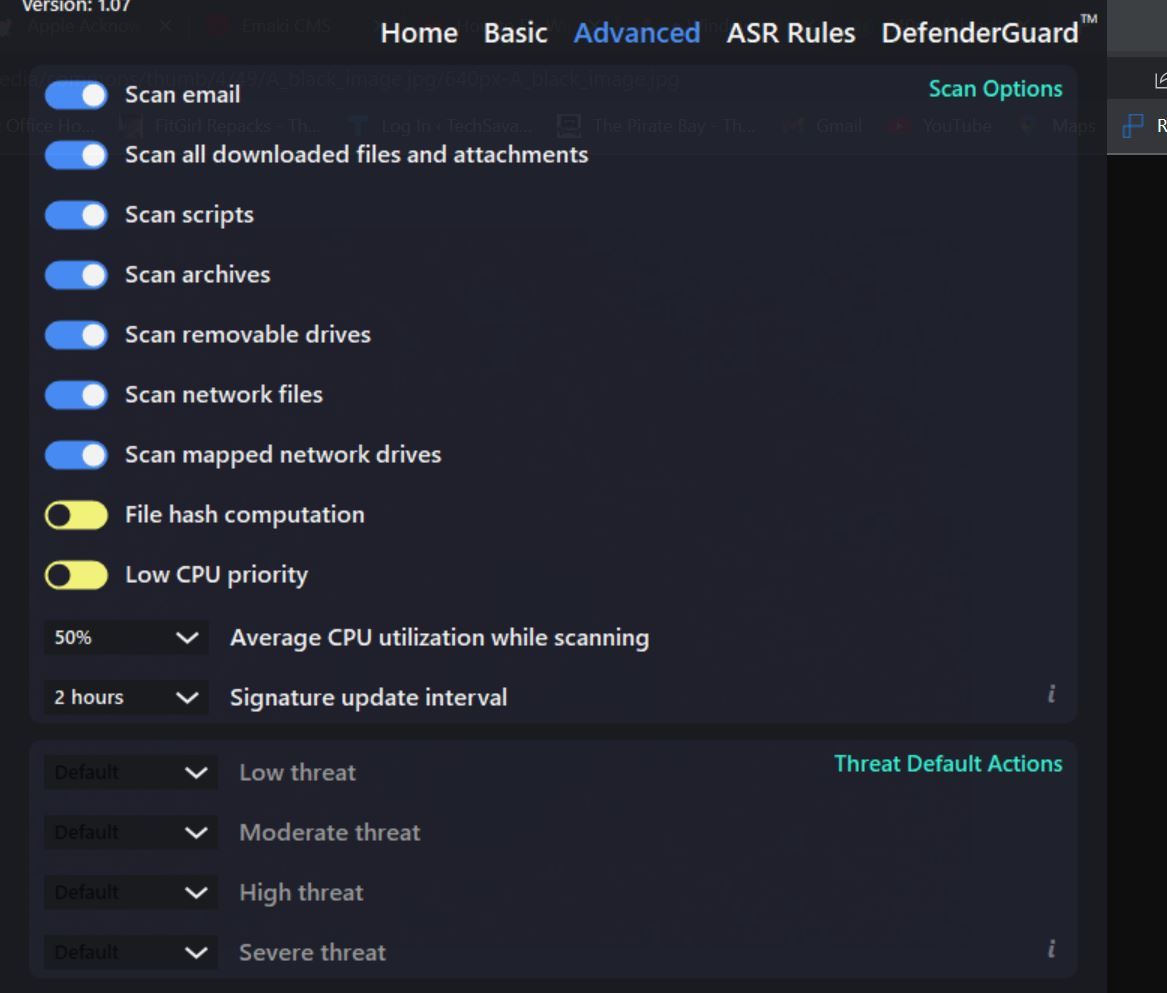
- Open the Microsoft Defender Security Center on your Windows device.
- Navigate to Virus & threat protection.
- Under Automatic sample submission, ensure that Automatically send samples to Microsoft is enabled (this helps improve threat detection).
- Go to Advanced features and look for Automated investigation and response (AIR). Enable this setting.
- For network isolation, check Isolate this device under Device performance & health (this may require administrative privileges).
For organizations, Microsoft provides detailed Group Policy and Microsoft Intune instructions to deploy and manage automated isolation across fleets of devices. Administrators can customize response actions, such as:
- Isolating only specific device types (e.g., workstations vs. Servers).
- Setting thresholds for when isolation triggers (e.g., after three failed login attempts).
- Excluding certain networks or devices from isolation.
Privacy and Security Implications
One of the most common concerns about automated isolation is its impact on user privacy, and productivity. Microsoft has addressed these issues with the following safeguards:
- Selective Isolation: Only devices flagged as compromised are isolated. Legitimate traffic remains unaffected.
- Transparency: Users receive notifications when their device is isolated, along with instructions for resolving the issue.
- Data Protection: Microsoft does not access user data during isolation unless the threat involves data exfiltration (e.g., ransomware encrypting files). In such cases, Microsoft Defender for Business can trigger additional responses, such as rolling back changes or restoring files from backups.
However, critics argue that automated isolation could lead to false positives, where legitimate activity is mistakenly flagged as a threat. Microsoft mitigates this risk by:
- Using behavioral analysis to distinguish between malicious and benign activity.
- Allowing users to override isolation decisions if they believe the action was unwarranted.
- Providing detailed logs and incident reports for administrators to review.
Does This Replace Traditional Antivirus?
No. While Microsoft Defender’s automated isolation is a powerful tool, it is not a standalone solution. Here’s how it complements traditional antivirus:
- Layered Defense: Automated isolation works alongside real-time scanning, cloud protection, and endpoint detection to create a multi-layered security posture.
- Incident Response: It excels at containing breaches but does not replace proactive measures like patch management, employee training, or network segmentation.
- Third-Party Integration: For advanced threat detection, organizations may still rely on specialized tools (e.g., CrowdStrike, SentinelOne) alongside Microsoft Defender.
For individual users, Microsoft Defender—with its automated isolation feature—is now a viable alternative to third-party antivirus suites, especially for those already using Windows 10/11 or Microsoft 365. However, users with high-risk profiles (e.g., journalists, activists, or those handling sensitive data) may still opt for additional security layers.
What’s Next for Microsoft Defender?
Microsoft continues to refine its automated isolation capabilities. Upcoming developments include:

- Cross-Platform Support: Expanding automated isolation to macOS and Linux devices in the coming year.
- AI-Driven Threat Prediction: Using Microsoft’s Copilot AI to anticipate and block emerging threats before they execute.
- Enhanced Enterprise Controls: Allowing IT administrators to define custom isolation policies based on device roles (e.g., isolating only executive workstations during high-risk periods).
Microsoft has not yet announced a specific timeline for these updates, but the company’s security roadmap suggests a focus on integrating AI and automation into all aspects of threat detection and response.
Key Takeaways
- Microsoft Defender’s automated isolation feature can now automatically disconnect hacked devices from networks to prevent cyberattacks from spreading.
- It is available for Windows 10/11, Windows Server, and mobile devices, but not yet for macOS or Linux.
- Users must enable the feature manually through the Microsoft Defender Security Center or Group Policy.
- While powerful, it is not a replacement for traditional antivirus but rather a complementary layer in a defense-in-depth strategy.
- Microsoft is expanding the feature to include AI-driven threat prediction and broader platform support in the near future.
Final Thoughts: Should You Enable Automated Isolation?
For most users, enabling Microsoft Defender’s automated isolation is a low-risk, high-reward decision. The feature adds an extra layer of protection without significant performance overhead. However, users should:
- Test the feature in a non-production environment first (e.g., a secondary device).
- Monitor Microsoft’s update history for improvements or bug fixes.
- Combine it with other security best practices, such as regular software updates and strong password policies.
As cyber threats evolve, tools like automated isolation will become increasingly critical. For now, Microsoft’s move positions its Defender platform as a leader in proactive cybersecurity—one that doesn’t just react to attacks but stops them before they start.
What do you think? Should automated isolation be enabled by default for all users? Share your thoughts in the comments below, and don’t forget to follow World Today Journal for the latest in tech and security updates.
Keep reading