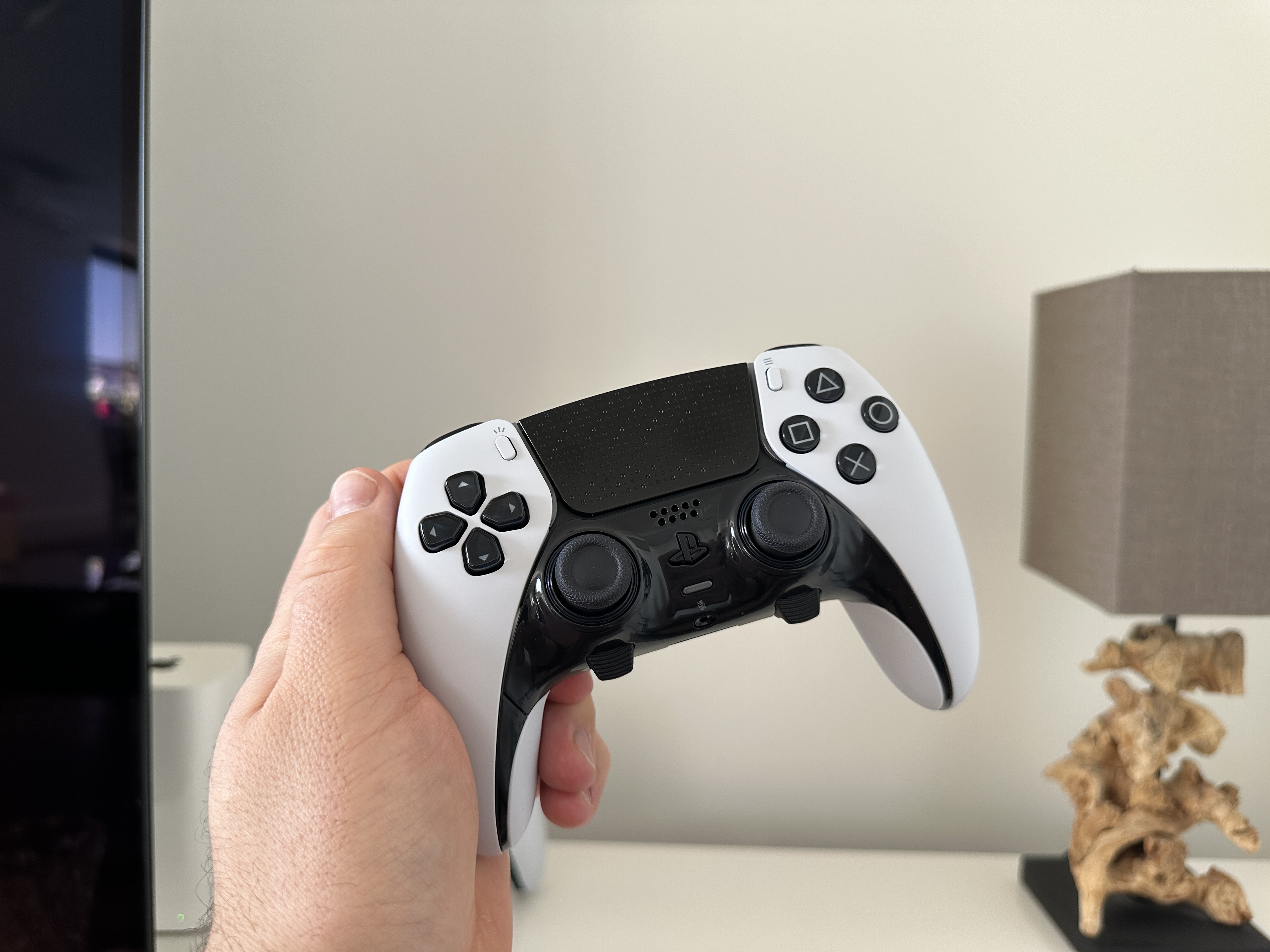
For gamers and tech enthusiasts, the ability to bridge the gap between high-end consoles and mobile devices is a significant quality-of-life improvement. One of the most sought-after integrations is learning how to connect iPhone with DualSense, the advanced controller from the PlayStation 5. As mobile gaming continues to evolve, the demand for precise, tactile input has made the pairing of Sony’s flagship controller with Apple’s ecosystem a priority for many users.
The integration is made possible through standard Bluetooth protocols, allowing the DualSense controller to function as a wireless game controller on iOS. While the setup process is streamlined, understanding the specific steps to enter pairing mode and managing the connection within the iOS settings is essential for a seamless experience.
This connectivity allows users to enjoy a variety of Apple Arcade titles, cloud gaming services and native iOS games with the ergonomics of a professional console controller. By shifting from touch controls to the DualSense, players can achieve higher precision and a more immersive gaming session on their iPhones.
Step-by-Step Guide: How to Connect iPhone with DualSense
Connecting a DualSense controller to an iPhone requires a few specific inputs to create the device “discoverable” to the mobile operating system. Because the controller is designed primarily for the PlayStation 5, it must be manually toggled into pairing mode to be seen by the iPhone’s Bluetooth scanner.
To begin the process, ensure your iPhone is updated to the latest version of iOS to ensure maximum compatibility with external controllers. Once the phone is ready, follow these steps to initiate the connection:
- Enter Pairing Mode: Press and hold the Create button (the small button to the left of the touchpad) and the PS button (the center logo button) simultaneously.
- Identify the Signal: Hold these buttons until the light bar around the touchpad begins to blink rapidly. This indicates that the controller is now in pairing mode and searching for a host device.
- Access iOS Settings: On your iPhone, navigate to Settings and then select Bluetooth. Ensure that the Bluetooth toggle is switched to the “On” position.
- Select the Device: Look under the “Other Devices” section. You should see “DualSense Wireless Controller” appear in the list. Tap the device name to complete the pairing.
Once the light bar on the controller stops blinking and remains a steady color, the connection is established. You can now launch any compatible game to test the inputs.
Optimizing the Gaming Experience on iOS
While the basic connection is straightforward, maximizing the utility of the DualSense on an iPhone involves understanding which features translate from the console to the mobile environment. Not every feature of the DualSense—such as the advanced haptic feedback or adaptive triggers—is supported by every single iOS app, as these often require specific developer implementation.
For the best experience, users should check for game updates in the App Store, as developers frequently release patches to improve controller mapping and latency. If you encounter a situation where the controller is connected but not responding in a specific game, restarting the game or toggling the Bluetooth connection off and on often resolves the issue.
It is too important to manage battery life. Since the DualSense is a power-intensive device, using it via Bluetooth will drain the controller’s internal battery. When not in use, it is recommended to connect the controller to a power source using a USB-C cable to ensure it is ready for the next session.
Troubleshooting Common Connection Issues
If you find that the “DualSense Wireless Controller” does not appear in your iPhone’s Bluetooth menu, We find a few common culprits. First, ensure the controller is not currently synced to a nearby PlayStation 5 console, as the console may “hijack” the connection and prevent the controller from entering pairing mode.

If the device remains undiscoverable, attempt a hard reset of the controller. There is a small reset hole located on the back of the DualSense. inserting a paperclip for a few seconds can clear previous pairing data and allow a fresh connection attempt with the iPhone.
The Broader Context of Apple and Sony Integration
The ability to pair these devices is part of a larger trend of interoperability between tech giants. While Apple and Sony often compete in different sectors, they frequently collaborate or maintain standards that allow their hardware to coexist. For instance, in the audio space, the AirPods Max 2 and the Sony WH-1000XM6 represent the pinnacle of premium headphones, and users often switch between these ecosystems depending on their needs comparing the two flagship models.
the relationship between these companies extends into the hardware supply chain. Reports indicate that Apple has shifted some of its focus toward Samsung for the production of innovative triple-layer image sensors for future iPhone models, such as the iPhone 18 family, moving away from some previous reliance on Sony sensors to improve photo and video performance.
Despite these shifts in corporate supply chains, the consumer-facing software compatibility—like the DualSense pairing—remains a vital part of the user experience, ensuring that high-quality peripherals remain useful across different platforms.
| Action | Button Combination / Setting | Expected Result |
|---|---|---|
| Enter Pairing Mode | Create Button + PS Button | Light bar blinks rapidly |
| Enable Discovery | Settings > Bluetooth > On | iPhone scans for devices |
| Finalize Link | Tap “DualSense Wireless Controller” | Steady light bar / Connected status |
As mobile gaming continues to integrate more “AAA” experiences, the synergy between console hardware and mobile software will only grow. Users are encouraged to keep their firmware updated for both their iPhone and their DualSense controller to ensure the most stable connection possible.
For those following the latest in hardware developments, the next major milestone will be the rollout of the iPhone 18 series, which is expected to introduce new sensor technology. Stay tuned for further updates on how these hardware changes might impact the overall ecosystem.
Do you use a DualSense controller for your mobile gaming, or do you prefer a dedicated mobile gamepad? Share your experience and tips in the comments below.