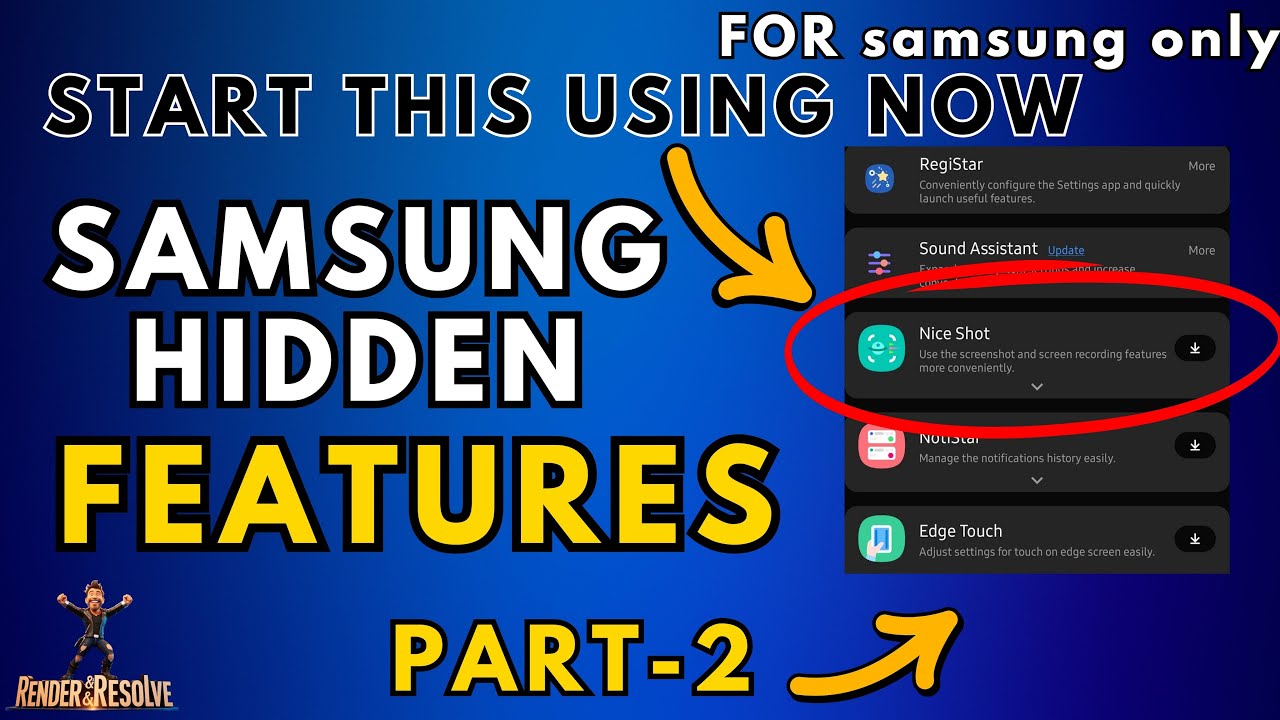
Samsung smartphone users are frequently discovering hidden settings and interface shortcuts within the One UI operating system that can streamline daily device management. These features, often tucked away in the “Advanced features” or “Labs” sections of the Android-based software, allow for granular control over how the device handles multitasking, gesture navigation, and system-level automation. While these tools are standard in recent iterations of Samsung’s software, they remain underutilized by many users who rely solely on default configurations.
As a technology editor, I often see users searching for ways to optimize their mobile experience without installing third-party applications. Samsung’s One UI is built on Android, and its design philosophy emphasizes customization. By accessing the Settings menu, users can unlock capabilities that alter the behavior of the hardware buttons, notification panels, and application windows, providing a tailored interface that reflects individual usage patterns.
Managing Advanced Features in One UI
The primary hub for these hidden optimizations is the “Advanced features” menu within the main Settings application. According to official Samsung documentation, this section governs system-wide behaviors such as “Side button” customization, “Motions and gestures,” and “Labs.” For instance, users can remap the physical power button to launch a specific application or open the camera, rather than invoking the Bixby voice assistant by default.
Another significant area for customization is the “Labs” menu, which provides access to experimental features currently being tested by Samsung’s software engineering teams. These features, such as “Multi window for all apps” or “Full screen in Split screen view,” allow users to force applications that do not natively support split-screen multitasking to function within that environment. These experimental tools are subject to change or removal in future firmware updates, as noted in the Samsung support knowledge base.
Optimizing System Performance and Navigation
Beyond experimental features, the One UI interface allows for significant adjustments to navigation and accessibility. Users can switch between standard button navigation and gesture-based controls by navigating to Settings > Display > Navigation bar. This shift can provide more screen real estate, which is particularly beneficial for devices with larger displays, such as the Galaxy S24 Ultra or the Z Fold series.
Performance optimization also extends to the “Device care” section. This tool provides a centralized view of battery health, storage usage, and memory management. By using the “Auto optimization” feature, the operating system can automatically restart the device at scheduled intervals to maintain system stability and clear temporary cache files, a practice supported by Samsung’s maintenance guidelines. This helps in mitigating the performance degradation that can occur over long periods of continuous operation.
Understanding the Impact of System Customization
While these “tricks” are effective, they are standard features of the operating system rather than hidden exploits. The confusion often arises because the sheer depth of the Android menu system can make specific tools difficult to locate. For power users, the “Developer options” menu offers even deeper control, including the ability to adjust animation scales, which can make the interface feel faster by reducing the duration of transition effects. Accessing this requires a specific sequence: navigating to “About phone,” selecting “Software information,” and tapping the “Build number” seven times until a confirmation toast message appears.
It is important to note that while these settings are intended for user customization, altering configurations within “Developer options” can occasionally lead to unexpected behavior in specific applications. Samsung provides these tools to enable power users to refine their experience, but the default settings are typically optimized for the average user’s battery life and performance requirements.
Future Updates and Official Resources
Samsung frequently updates its One UI software to include new features and security patches. Users should regularly check for firmware updates via Settings > Software update to ensure they have access to the latest interface improvements. For those looking to stay informed about new capabilities, the Samsung Support portal remains the most reliable source for documentation regarding device functionality and software changes.
These adjustments allow for a more personalized interaction with your mobile device, turning a standard smartphone into a highly responsive tool. If you have discovered a specific configuration that has improved your workflow, feel free to share your experiences in the comments below.
Keep reading
- Over 550 Movies and TV Shows Removed from PlayStation Libraries
- New Records in 3D Hybrid Bonding Push Chip Interconnect Density to New Limits
- Samsung Eyes Partnership to Supply Tesla’s Next-Gen AI Semiconductor (newsdirectory3.com)
- Samsung Health May Delete User Data if AI Training Consent is Denied (archyde.com)