
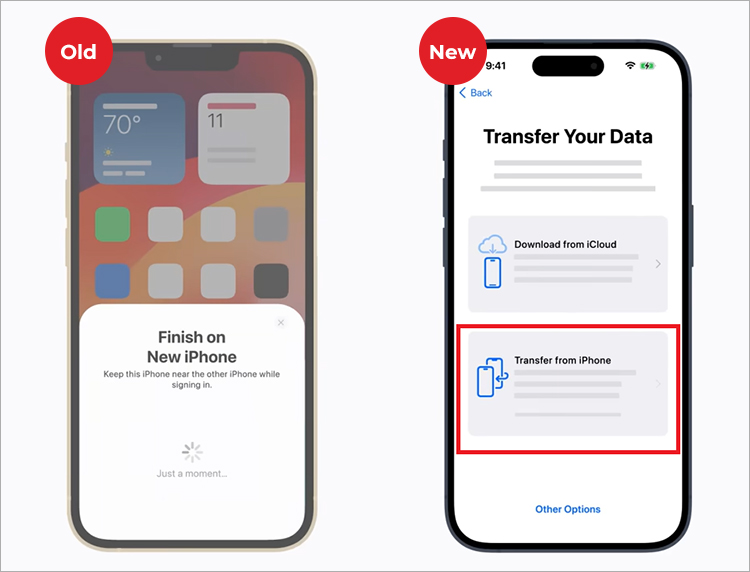
Users looking to migrate from an Apple iPhone 13 to a new smartphone can seamlessly transfer their data, photos, and settings using Apple’s built-in migration tools, regardless of whether they choose to remain within the iOS ecosystem or switch to Android. Apple provides specific, verified protocols for data migration that ensure personal information remains intact during the transition to a new device.
Data Migration Options for iPhone Users
Transferring data from an iPhone 13 is a well-documented process supported by Apple’s “Quick Start” feature. When upgrading to a new iPhone, users can place their current device near the new one to initiate a direct transfer via iCloud or a peer-to-peer wireless connection. According to Apple’s official support documentation, this process moves apps, photos, and system settings automatically. For users moving to a different operating system, such as Android, Google provides the “Switch to Android” app, which facilitates the transfer of contacts, calendar events, photos, and videos from an iPhone to an Android device.

Evaluating a Switch to Non-Apple Hardware
The decision to leave the Apple ecosystem often involves weighing the benefits of hardware variety against the convenience of the “Walled Garden.” While Apple’s integration between the iPhone, Mac, and iPad provides a unified experience, modern Android flagships—such as those from Samsung or Google—offer distinct hardware choices, including foldable screens and advanced camera sensors. As noted by industry analysis from The Verge, the primary friction point for users switching remains iMessage and FaceTime, which are proprietary to Apple. Users planning to switch are encouraged to disable iMessage in their iPhone settings before removing their SIM card to ensure incoming SMS messages are not lost during the transition.
Ensuring Data Security During Transfer
Security remains a primary concern for users migrating sensitive information. Apple utilizes end-to-end encryption for backups stored in iCloud, as detailed in the Apple Platform Security Guide. When using a local computer backup via iTunes or Finder on a Mac, users can select “Encrypt local backup” to ensure that health data, saved passwords, and Wi-Fi settings are preserved. It is essential to verify that the target device has sufficient storage capacity to accommodate the data being migrated from the iPhone 13, which typically comes in 128GB, 256GB, or 512GB storage tiers.

What to Consider Before Upgrading
Before finalizing a purchase, users should assess the longevity of their current iPhone 13. Apple continues to support the iPhone 13 with the latest iOS updates, and the device remains compatible with current security patches as of 2024. For those experiencing battery degradation, Apple’s official battery service offers a more cost-effective alternative to purchasing a new device. If the decision is made to switch, users should ensure they have access to their Apple ID and password, as these credentials are required to deactivate “Find My” and sign out of iCloud services, which is a mandatory step before wiping the old device for trade-in or resale.
For the most current information regarding trade-in values and compatibility, users can visit the official Apple Trade In portal. Readers are encouraged to share their own experiences with migrating between platforms in the comments section below.