
If you have spent any time scrolling through your social media feeds lately, you have likely noticed a surge of surreal, hyper-realistic, or stylized portraits that look too perfect to be traditional photography. From ethereal fantasy landscapes to high-fashion editorial looks, these visuals are not just the work of professional digital artists; they are the result of a viral trend powered by the CapCut AI image generator.
What began as a tool for quick video edits has evolved into a comprehensive creative suite, allowing users to transform simple selfies into complex works of art using artificial intelligence. This trend, often tagged with #capcutpioneer and #capcutphotoedit, has democratized high-end digital manipulation, enabling anyone with a smartphone to experiment with “prompt engineering” to redefine their online presence.
As an entertainment editor who has watched the intersection of technology and celebrity culture for over 15 years, I have seen many filters come and go. However, the shift toward generative AI represents a fundamental change in how we consume and create imagery. We are no longer just applying a layer of color or a blur; we are collaborating with algorithms to synthesize entirely new realities.
For those wondering how to join the movement or why these specific photos are dominating the cultural conversation, understanding the mechanics of the tool is the first step. By leveraging both text-to-image and image-to-image capabilities, CapCut has positioned itself as a central hub for the next generation of digital storytelling.
Understanding the CapCut AI Image Generator
At its core, the AI image generator within CapCut is a generative AI tool developed by ByteDance, the parent company of TikTok. Unlike traditional photo editing, which relies on modifying existing pixels, generative AI uses deep learning models to create images from scratch or reorganize existing images based on textual descriptions known as “prompts.”
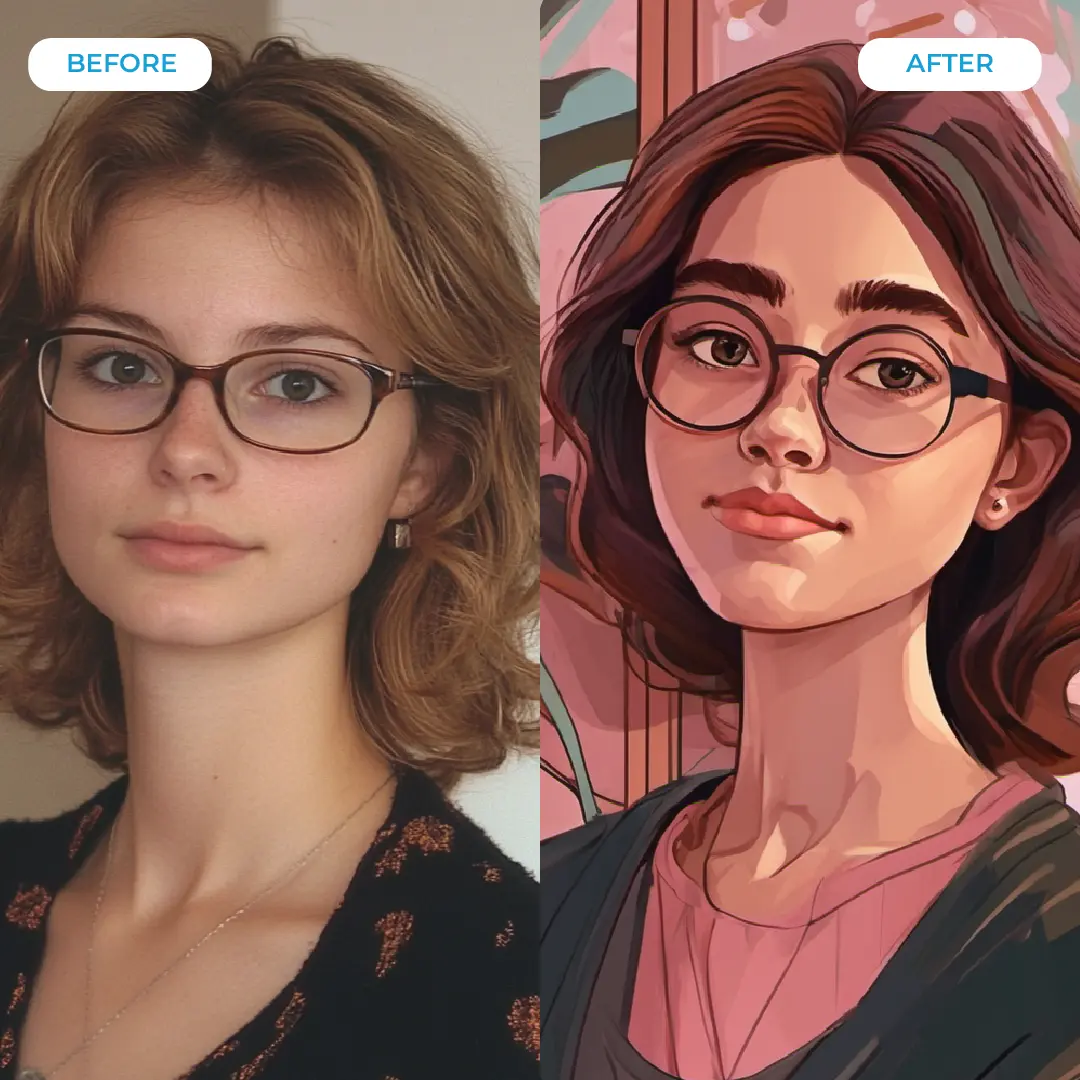
The tool primarily operates through two distinct modes: text-to-image and image-to-image. In text-to-image mode, the user describes a scene—such as “a futuristic city in the clouds during sunset”—and the AI generates a visual representation of that description. Image-to-image mode, which is the driver behind the current “trending photos” phenomenon, allows users to upload a reference photo and apply AI transformations to it, maintaining the basic composition of the original while changing the style, lighting, or environment.
This capability is particularly potent for social media users because it bridges the gap between a casual snapshot and a professional-grade asset. The “AI Lab” section of the app serves as a sandbox where these experiments happen, providing a streamlined interface that removes the steep learning curve typically associated with professional AI software like Midjourney or Stable Diffusion.
Step-by-Step: How to Create Trending AI Photos
Joining the trend is designed to be intuitive, requiring no prior experience in graphic design. The process centers on the “AI Lab,” a dedicated space within the application for testing emerging generative features.
- Access the AI Lab: Open the CapCut application and navigate to the AI Lab section. This area is specifically curated for generative tools that go beyond standard video clipping.
- Select the Image Tool: Within the lab, select the image generation option. This will open the interface where you can choose between starting from a blank canvas (text-to-image) or using a reference (image-to-image).
- Upload Your Reference: For the trending “transformation” photos, select a clear photo of yourself or the subject you wish to alter. High-resolution images with neutral lighting generally yield the most consistent results.
- Enter Your Prompt: This represents the most critical step. In the prompt box, describe exactly how you want the photo to look. For example, “Convert this photo into a 3D Pixar-style animation” or “Transform this portrait into a cyberpunk warrior in a neon-lit Tokyo street.”
- Generate and Refine: Once the prompt is submitted, the AI will process the request and provide several variations. Users can then refine their prompts—adding adjectives like “cinematic lighting,” “hyper-realistic,” or “soft pastel colors”—to achieve the desired aesthetic.
The Art of the Prompt: Maximizing Your Results
The quality of an AI-generated image is directly tied to the quality of the prompt. In the entertainment industry, we call this “creative direction.” When using the CapCut AI image generator, the more specific the direction, the more professional the output.
To move beyond basic results, users should focus on three key elements: Subject, Environment and Style. Instead of a simple prompt like “make me a superhero,” a high-performing prompt would be: “A cinematic portrait of a superhero wearing matte black armor with gold accents, standing in a rainy New York City alleyway, shot on 35mm film, moody lighting, 8k resolution.”
By specifying the “camera” (e.g., 35mm film) and the “lighting” (e.g., moody or volumetric), you signal the AI to mimic professional photography techniques. This is why some trending photos look like high-budget movie posters while others look like simple filters; the difference lies in the descriptive depth of the user’s prompt.
Commonly Trending Styles to Try
- The 3D Animation Look: Prompts focusing on “stylized 3D characters,” “big eyes,” and “smooth textures” to mimic modern animation studios.
- The Retro-Futurism Aesthetic: Using terms like “synthwave,” “neon gradients,” and “1980s sci-fi” to create a nostalgic yet futuristic vibe.
- The High-Fashion Editorial: Prompts that include “Vogue style,” “minimalist background,” “sharp shadows,” and “avant-garde clothing.”
- The Digital Painting: Requesting “concept art,” “oil painting brushstrokes,” or “watercolor textures” to move away from realism toward fine art.
Why AI Photos Are Dominating Social Media
The viral nature of these photos is not accidental. It taps into a fundamental human desire for identity experimentation. In the era of the “personal brand,” the ability to present oneself in a variety of idealized or fantastical versions is an incredibly powerful social currency.
the integration of these tools within the ByteDance ecosystem creates a seamless loop. A user can generate an AI image in CapCut, immediately import it into a TikTok video template with trending music, and share it with millions of people in a matter of minutes. This friction-less pipeline from creation to distribution is what allows a trend to go global in a matter of days.
From a cultural perspective, we are seeing a shift in the definition of “authenticity.” While previous generations valued the “raw” photo, current trends prioritize the “curated” or “imagined” version of reality. The AI image generator does not just edit a photo; it creates a digital avatar that represents how the user *feels* or how they wish to be perceived in a specific creative context.
The Broader Impact on Digital Creativity
While the trend is currently focused on fun selfies and stylized avatars, the implications for the entertainment and marketing industries are significant. Small business owners and independent creators are now using these tools to create high-quality promotional materials without the need for expensive photoshoots or specialized software.
However, the rise of generative AI also brings important conversations regarding intellectual property and the nature of art. As AI models are trained on vast datasets of existing images, the line between “inspiration” and “replication” becomes blurred. For professional photographers and digital artists, these tools represent both a threat to traditional workflows and an opportunity to accelerate their own conceptualization process.
In my experience covering red carpet events and studio productions, the “perfection” of AI can sometimes strip away the human element—the slight imperfection that makes a photo feel alive. The most successful creators in the CapCut community are those who find a balance, using AI to enhance their vision rather than letting the algorithm dictate the entire aesthetic.
| Feature | Traditional Editing (Filters/Retouching) | AI Image Generation (CapCut AI) |
|---|---|---|
| Process | Modifies existing pixels/colors | Synthesizes new pixels based on prompts |
| Control | Manual adjustment of sliders/brushes | Textual description (Prompting) |
| Outcome | Enhanced version of reality | Entirely new or stylized reality |
| Time Required | Varies by complexity (minutes to hours) | Near-instantaneous generation |
Final Thoughts and Future Outlook
The trend of AI-generated photos is more than just a fleeting social media fad; it is a glimpse into the future of visual communication. As these tools become more sophisticated, the barrier between imagination and imagery will continue to dissolve. You can expect to see more integrated features, such as AI-generated video backgrounds that react in real-time to a user’s movements, further blurring the line between the physical and digital worlds.
For the average user, the CapCut AI image generator is a gateway to digital literacy in the age of AI. Learning how to prompt effectively today is akin to learning how to use a camera decades ago—it is a foundational skill for anyone looking to navigate the modern creative landscape.
As we move forward, the next major development in this space will likely be the integration of more personalized AI models that can maintain a consistent “character” across different images and videos, allowing users to create entire narrative worlds starring their own AI avatars.
Have you experimented with the AI Lab in CapCut yet? Which prompts gave you the most surprising results? Share your creations and your favorite prompting tips in the comments below, and don’t forget to share this guide with your fellow creators.
Related reading