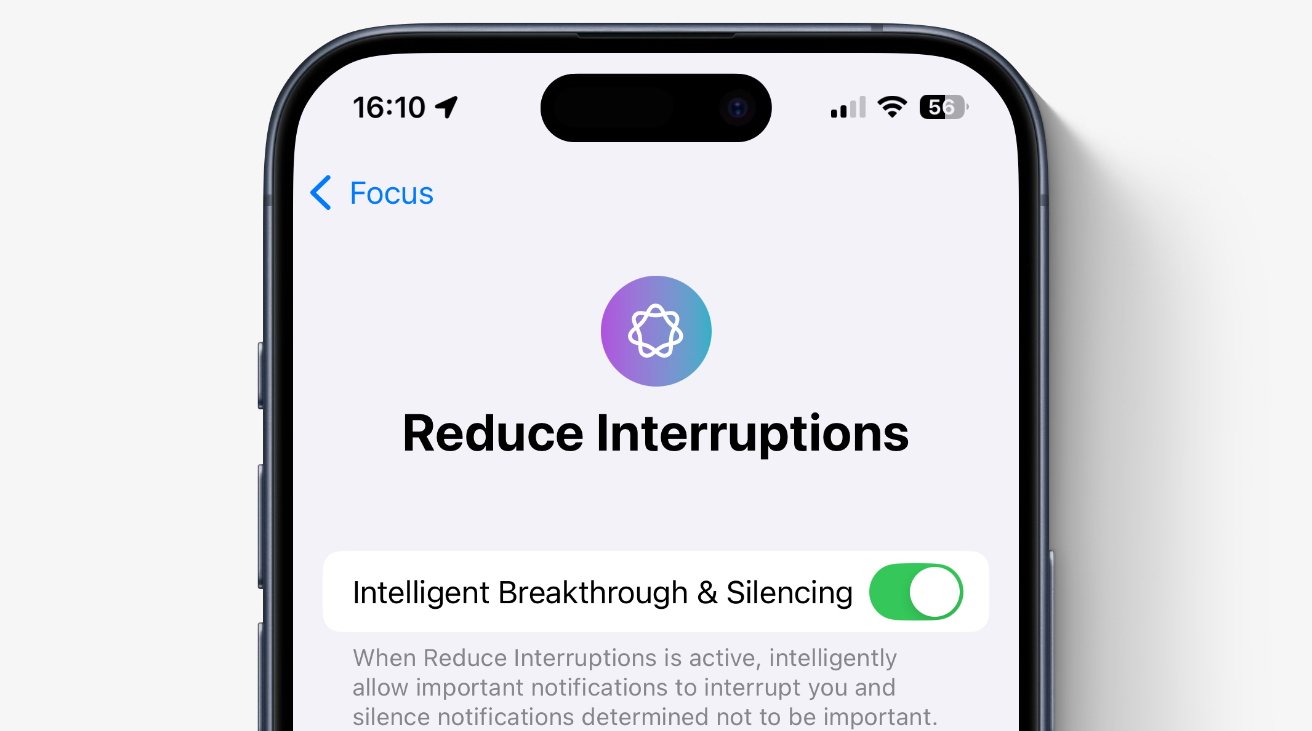
Mastering Focus: A Deep Dive into Apple’s Reduce Interruptions Feature
Are you constantly battling a barrage of notifications? do you find yourself distracted and struggling to concentrate on what truly matters? Apple’s new reduce Interruptions feature, powered by Apple Intelligence, promises a solution. This isn’t just another Do Not Disturb mode; it’s a smart system designed to intelligently filter notifications, ensuring you stay connected to what’s crucial without being overwhelmed. This article will explore everything you need to know about this game-changing feature, from its core functionality to how it compares to existing focus modes, and how to maximize its benefits.
Understanding the Problem: Notification overload & Its impact
We live in an age of constant connectivity. While staying informed is valuable, the sheer volume of alerts can be detrimental to productivity, focus, and even mental wellbeing. Studies show that it takes an average of 23 minutes and 15 seconds to regain full focus after an interruption. https://www.rescuetime.com/blog/how-long-does-it-take-to-regain-focus/ this constant switching of attention leads to decreased efficiency and increased stress.
What is Apple’s Reduce Interruptions Feature?
Reduce Interruptions, unveiled at WWDC 2024, leverages the power of Apple Intelligence to dynamically manage your notifications. unlike customary Focus modes which rely on pre-set rules, this feature learns your behaviour and prioritizes alerts based on context and importance. It’s designed to be seamless and intuitive, working in the background to minimize distractions while ensuring you don’t miss critical updates.
This isn’t a standalone app, but rather a deeply integrated component of iOS 18, iPadOS 18, and macOS.As Craig Federighi highlighted, the goal is to intelligently filter the noise, allowing you to remain connected without being constantly pulled away from your current task.
How Does reduce Interruptions Differ from Existing Focus Modes?
| Feature | Reduce Interruptions (Apple Intelligence) | Traditional Focus Modes |
|---|---|---|
| intelligence | Learns and adapts to your behavior. | Rule-based; requires manual configuration. |
| Prioritization | Dynamically prioritizes notifications based on context. | Blocks or allows notifications based on time, location, or app. |
| Adaptability | Offers a more nuanced approach to notification management. | More rigid; less adaptable to changing circumstances. |
| Learning Curve | Minimal; designed to work automatically. | Can require significant setup and adjustment. |
Setting Up and Using Reduce Interruptions: A Step-by-Step Guide
While details are still emerging, hear’s what we certainly know about getting started:
- Update to iOS 18/iPadOS 18/macOS: Ensure your devices are running the latest operating system.
- Locate the Settings: navigate to the “Notifications” section in your device’s settings app.
- Enable Reduce Interruptions: Toggle the feature on.
- Allow learning Period: The system will need time to learn your patterns. Initially, you may still see some irrelevant notifications.
- Customize (If needed): Apple may offer options to fine-tune the prioritization rules, though the emphasis is on automatic learning.
Beyond the Basics: Maximizing the Benefits
* Combine with Existing Focus Modes: Reduce Interruptions isn’t meant to replace existing Focus modes. Use them in conjunction for even greater control. For example, activate a “Work” Focus mode and Reduce Interruptions for maximum concentration.
* Review Notification Settings Regularly: Ensure apps are categorized correctly and that you’ve adjusted individual app notification settings to your preferences.
* Utilize Scheduled Summary: Apple’s scheduled Summary feature
Keep reading