Taming Liquid Glass: Customizing iOS 26S New Look
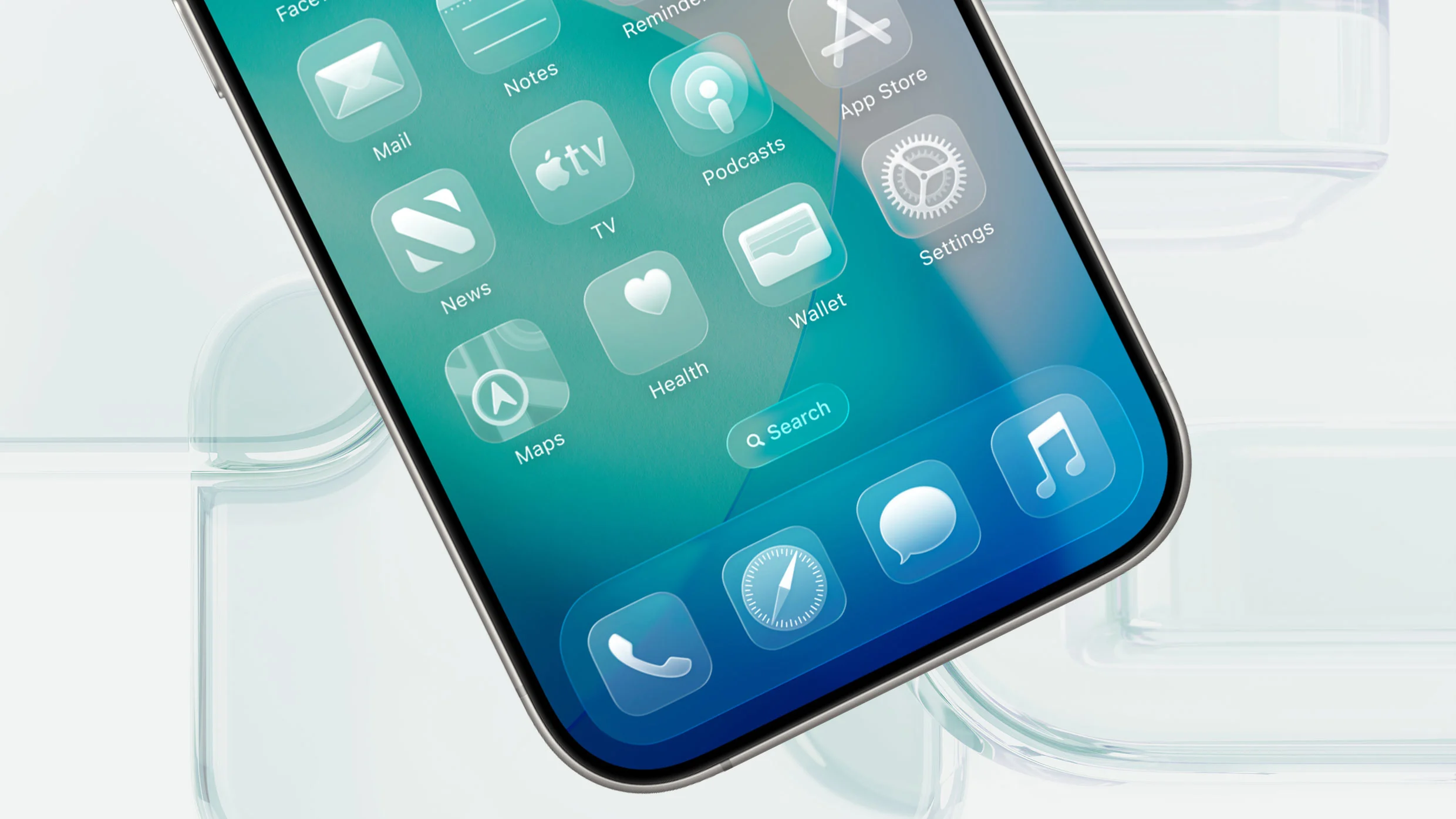
iOS 26 introduced “Liquid Glass,” a striking new visual design that’s sparked both excitement and, for some, a bit of frustration. While many iPhone users are embracing the refreshed aesthetic, others find the increased transparency can make certain interface elements harder to see. Fortunately, apple has listened to user feedback and provided several ways to personalize the Liquid Glass experience. This guide will walk you through options to adjust the look to best suit your preferences.
Understanding the Challenge
Liquid glass utilizes layered transparency and blurring effects to create a more immersive visual experience. Though, this can sometimes cause buttons and toolbar elements to blend into the background, reducing thier visibility. If you’re finding this to be the case, don’t worry – you’re not stuck with it.
Option #1: Adjusting the Tint
Apple directly addressed concerns about visibility with the iOS 26.1 update. Now, you can adjust the overall tint of Liquid Glass, effectively controlling the intensity of the effect. This is the most straightforward way to customize the look.
Here’s how to adjust the tint:
- Open the Settings app on your iPhone.
- Scroll down and tap “Accessibility.”
- Select “Display & Text Size.”
- Locate and adjust the “Liquid Glass Tint” slider.
Moving the slider towards less color will reduce the intensity of the liquid Glass effect, making elements more opaque and easier to distinguish.Experiment to find the level that feels most agreeable for your eyes.
Option #2: Reducing Transparency for Clarity
Another effective solution is to reduce overall transparency within iOS. This setting specifically targets elements like buttons and toolbars,preventing background content from bleeding through.
Follow these steps to enable this feature:
- Open the Settings app.
- Tap “Accessibility.”
- Select ”Display & Text Size.”
- Toggle the “Reduce Transparency” switch to the ON (green) position.
As you can see, enabling this option virtually eliminates background bleed-through on key interface elements.
Option #3: dark Mode for Enhanced Contrast
Dark Mode is a powerful tool for improving visibility, especially with a transparent interface like Liquid Glass. Switching to Dark Mode inverts the color scheme, presenting a darker background and lighter text. This can considerably enhance contrast and make elements pop.
To enable Dark Mode:
- Open the Settings app.
- Tap “Display & Brightness.”
- Select “Dark” under the “Appearance” section.
You can also schedule Dark Mode to automatically activate at sunset or a custom time.
Option #4: Outline Buttons for Easier Visibility
A final way to enhance clarity is to force iOS to display borders around buttons and other UI elements. This is achieved through the “Show Borders” Accessibility option.
Here’s how to enable it:
- Open the Settings app.
- Tap “Accessibility.”
- Select ”display & Text Size.”
- Toggle the “Show Borders” switch to ON (green).
This option adds a subtle outline around ”prominent UI,” according to Apple’s documentation,helping them stand out against the background.
Liquid Glass: Here to Stay, But Customizable
The new look of iOS 26 isn’t going anywhere.Apple invested meaningful effort in developing this design,and it’s clearly resonating with a large portion of its user base. However, the inclusion of customization options like the tint slider demonstrates Apple’s commitment to user experience.
While you may not be able to completely disable Liquid Glass,you now have multiple ways to tailor it to your individual needs and preferences. Experiment with these settings to find the perfect balance between a modern aesthetic and optimal usability.
Keep reading