
Navigating the balance between system security and operational stability is a challenge many Windows users face regularly. Recently, discussions have surfaced regarding the utility of managing Windows updates, specifically the option to temporarily pause them. For many, the automatic update cycle is a set-it-and-forget-it feature, but Notice legitimate scenarios where users may need to exercise more control over when these background processes occur.
As we move through 2026, Microsoft continues to refine how Windows 10 and Windows 11 manage software deployments. While the company consistently emphasizes that keeping an operating system up to date is the most effective way to protect against emerging cybersecurity threats, the ability to “pause” updates remains a standard feature within the Windows settings menu. This functionality serves as a practical tool for users who require uninterrupted system performance during critical tasks or who wish to delay a deployment until they have verified compatibility with their specific software environments.
Understanding the Windows Update Pause Functionality
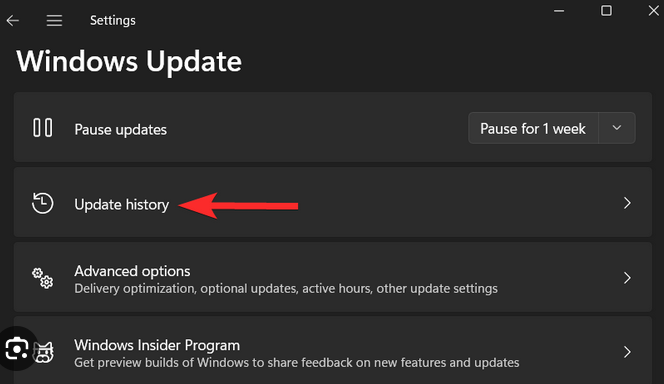
For most home users, Windows Update operates in the background, downloading and installing patches automatically to ensure the system remains protected. According to official Microsoft support documentation, users can pause updates for a limited duration—typically up to 35 days. This feature is built directly into the operating system’s update interface, allowing for a controlled approach to system maintenance.
The decision to pause updates is often driven by a need for stability. For professionals, students, or gamers, a sudden system restart or a background download consuming bandwidth during a high-stakes task can be disruptive. By accessing the “Windows Update” section within the “Settings” application, users can manually select how long they wish to hold off on new installations. Once the selected pause period expires, the system will naturally resume its standard update cadence, ensuring that long-term security is not compromised.
Why Stability Matters: The User Perspective
The primary reason for delaying an update is usually compatibility. In enterprise environments, IT administrators often test updates on a small subset of machines before deploying them company-wide to avoid potential conflicts with specialized software. While individual consumers do not always have the luxury of a dedicated IT team, the ability to pause updates allows those who rely on specific, potentially sensitive hardware or software configurations to wait for community feedback or official patches if an issue is reported.
It is crucial to distinguish between “pausing” and “disabling.” While some users may look for ways to permanently stop updates, Microsoft’s design—as outlined in their Windows as a Service (WaaS) guidelines—is built around the necessity of regular security patches. Permanent, unauthorized disabling of updates can leave a system vulnerable to known exploits, which is why the “pause” feature is intentionally temporary and limited in scope.
Best Practices for Managing System Updates
If you find yourself needing to pause updates, it is crucial to have a plan for when to resume them. Consider these steps to maintain a healthy system:
- Schedule Your Maintenance: If you pause updates for a project, set a calendar reminder to resume them once your task is complete.
- Monitor Official Sources: Keep an eye on the official Windows Release Health dashboard to stay informed about known issues or resolved bugs that might affect your system.
- Don’t Stay Paused Indefinitely: Security threats evolve rapidly. Regularly applying updates is the most effective defense against malware and system instability.
Managing your computer’s update cycle is about finding a rhythm that works for your specific use case. Whether you are a creative professional rendering complex projects or a student working on time-sensitive assignments, the tools provided in Windows settings offer enough flexibility to ensure your machine works for you, rather than against you.
Looking Ahead: The Future of Windows Deployments
As Microsoft continues to iterate on the Windows experience, the focus remains on streamlining the user experience while hardening the security posture of the platform. Future updates are expected to further optimize the download and installation process, making it less intrusive and more efficient. For now, the “pause” feature remains a vital manual override for users who require precision control over their computing environment.

We invite you to share your experiences with Windows updates in the comments below. Do you find the automatic system works well for you, or do you prefer to manage your update schedule manually? Join the conversation and let us know your thoughts on how Windows can better serve your workflow in the months to come.
Related reading