
Samsung is officially transitioning its mobile messaging strategy, moving away from its proprietary Samsung Messages app in favor of Google Messages as the default platform on its Galaxy devices. Starting in July 2024, users in the United States and other select regions will find that Samsung Messages is no longer pre-loaded as the primary communication tool on new device launches, marking a significant shift in the company’s ecosystem, according to official company support documentation. For existing users, this change necessitates a clear understanding of how to migrate conversation history and media to ensure no data is lost during the transition.
The move toward Google Messages, which utilizes Rich Communication Services (RCS) as its backbone, aligns Samsung with a global push for unified messaging standards. By standardizing on a single platform, Samsung aims to provide a more consistent experience across the Android ecosystem, allowing for features like end-to-end encryption, typing indicators, and high-quality media sharing that function seamlessly between different device manufacturers, as outlined by Android’s official development guidelines.
Why Samsung is Transitioning to Google Messages
The primary driver behind this shift is the industry-wide adoption of RCS, a modern protocol that replaces the aging Short Message Service (SMS) and Multimedia Messaging Service (MMS). While Samsung Messages historically supported RCS, the implementation was often fragmented depending on the carrier and region. By defaulting to Google Messages, Samsung ensures that all users benefit from a unified RCS experience that works identically regardless of the service provider, according to reports from industry analysts at The Verge.
For the average user, this means that “Advanced Messaging” features will become more reliable. When both parties use Google Messages, they can send larger files, see when the other person is typing, and enjoy improved group chat management. This change is not merely a software update; it represents a fundamental change in how Samsung manages its native applications to better integrate with the wider Android framework maintained by Google.
How to Migrate Your Conversations Safely
Moving your data is a straightforward process, but it requires manual initiation. If you have years of text history, photos, or documents stored within the Samsung Messages app, you should not simply delete the app or switch providers without first confirming your backups. Most Samsung Galaxy devices automatically sync data through the Samsung Cloud or Google One, but you can verify your status by checking your settings menu.
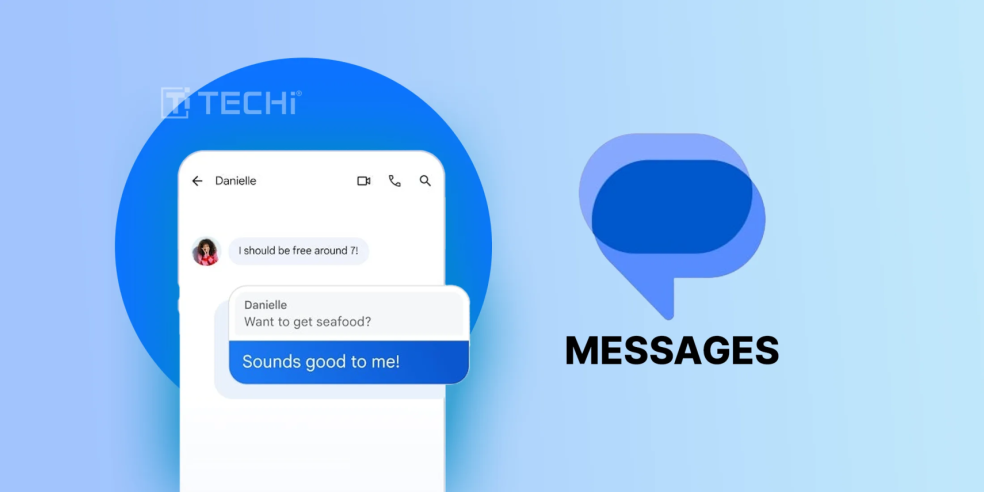
To ensure your messages move over to Google Messages, follow these steps:
- Open the Settings app on your Samsung device.
- Select Accounts and backup to ensure your latest data is synced to your Samsung Account.
- Open the Google Messages app. If it is not already installed, download it from the Google Play Store.
- Follow the on-screen prompts to set Google Messages as your Default SMS app.
- Once set as default, the application will typically prompt you to import existing SMS and MMS messages from the device storage.
If the import does not trigger automatically, you can navigate to the Google Messages settings and look for the “Import SMS” option. It is important to note that while text-based messages usually transfer easily, some third-party media or highly specific encrypted chat files may require manual saving to your device’s internal storage before the switch, as detailed in Google’s migration support pages.
What Happens to Your Existing Samsung Messages App?
If you prefer the interface of the original Samsung Messages app, you will still be able to use it, though it will no longer be the default application for sending or receiving texts on newer devices. Samsung has indicated that the app will remain available for download through the Galaxy Store for those who wish to keep it as a secondary tool, according to Samsung’s official support portal.
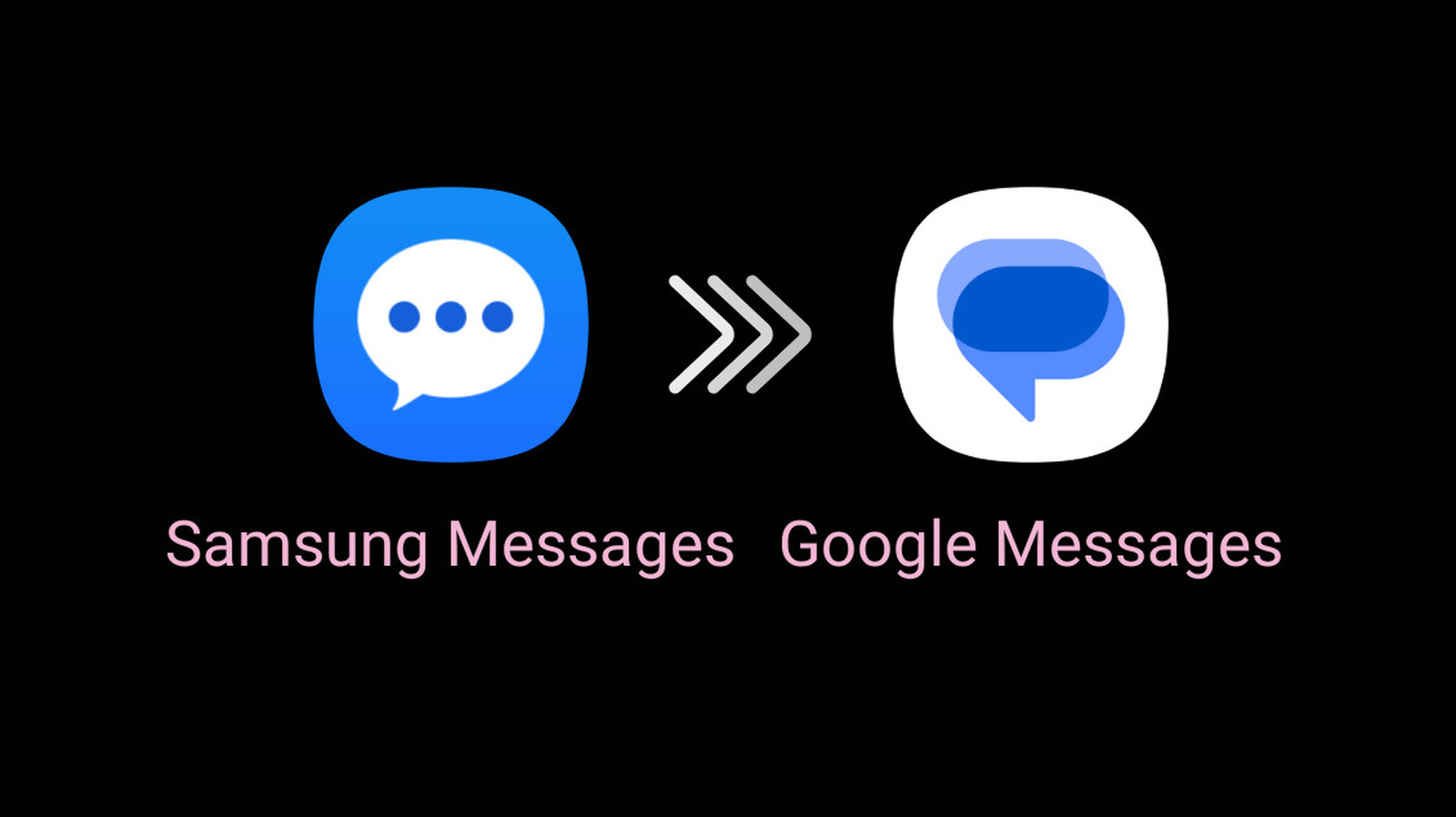
However, users should be aware that because it is no longer the default, the app will not be able to send or receive new messages unless it is set as the primary messaging client. Keeping it as a secondary app essentially turns it into an archive viewer for your older, historical conversations. If you choose to keep it, ensure that you are not accidentally missing incoming messages by checking the “Default Apps” section in your device settings.
Managing Your Privacy and RCS Settings
Once you have successfully migrated to Google Messages, it is a good practice to verify your privacy settings. Google Messages offers end-to-end encryption for RCS chats, which is a significant security upgrade over standard SMS. You can verify if a conversation is encrypted by looking for a lock icon in the message bar.
To optimize your new messaging experience:
- Enable RCS Chats: Go to Settings within Google Messages and toggle “RCS chats” to “On.”
- Check Data Usage: Since RCS uses data, ensure your settings are configured to allow media downloads over Wi-Fi only if you have a limited mobile data plan.
- Review Spam Protection: Google Messages includes built-in spam detection, which can be toggled in the advanced settings menu to filter out unwanted messages automatically.
The transition period is ongoing, and users should keep an eye on their device’s “Software Update” section for any further optimizations Samsung may push out to ensure a smoother transition. As of late 2024, there are no further scheduled shutdowns for other core Samsung applications, and the company continues to provide security patches for its legacy software suite. We encourage readers to share their experiences or questions regarding this migration in the comments section below.
Worth a look