
Digital clutter often accumulates silently, consuming valuable storage space on personal computers and cloud drives. Managing duplicate files effectively requires more than manual sorting; specialized software tools designed for identifying and removing redundant data can help users reclaim gigabytes of space. While various utilities exist for this purpose, finding a reliable, affordable solution is a common priority for those looking to optimize their system performance.
For many users, the primary challenge in file management is the sheer volume of assets—photographs, documents, and backups—that proliferate across multiple drives. Duplicate file management tools function by scanning drive directories and comparing file hashes or metadata to identify exact matches, allowing users to remove unnecessary copies safely. As storage costs fluctuate and data density increases, these tools have become a staple for efficient digital organization.
How Duplicate Management Tools Function
At their core, duplicate file management utilities operate by cataloging the contents of a drive and comparing them against a set of criteria. High-quality tools utilize checksum algorithms—mathematical formulas that create a unique “fingerprint” for every file. When the software detects two files with identical fingerprints, it flags them as duplicates, regardless of their filenames. This method is significantly more accurate than relying on file names alone, as it accounts for renamed files that contain identical data.
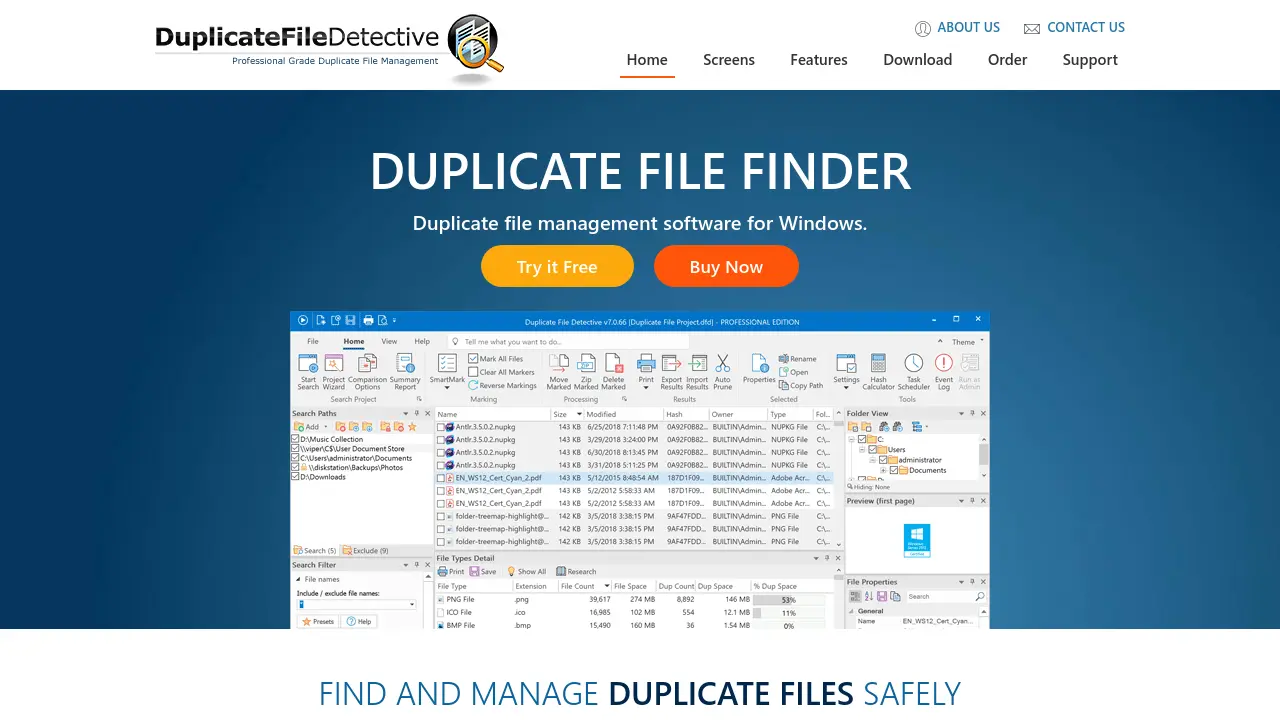
Modern applications typically offer a visual interface where users can preview files before deletion. This safety feature is critical for preventing the accidental removal of important system files or unique data that merely shares a similar naming convention. Many tools also allow for “hard linking,” a process where the software replaces one of the duplicate files with a reference to the original, effectively freeing up space without breaking file paths or application dependencies.
Optimizing System Storage Efficiency
Maintaining a lean file system can lead to noticeable improvements in search speeds and backup times. When a computer’s indexing service—such as Windows Search or macOS Spotlight—has fewer redundant files to process, it can deliver search results more quickly. Furthermore, reducing the total number of files on a drive can streamline the process of cloud synchronization, as there is less data to upload or download during routine backups.
Beyond speed, there is a practical benefit to managing storage capacity on devices with limited internal drives, such as laptops with small solid-state drives (SSDs). Reclaiming space by eliminating duplicates can delay the need for expensive hardware upgrades or additional external storage purchases. It is recommended to perform these cleanup operations periodically, particularly after large data transfers or system migrations, to ensure that the storage environment remains organized and efficient.
Best Practices for Data Cleanup
Before initiating a deep scan of your storage drives, it is essential to follow a few standard safety protocols to protect your data. First, always ensure that you have a current, verified backup of your most important files on a separate, offline storage medium or a secure cloud service. Even the most reputable software can occasionally trigger false positives if it is not configured correctly, and having a backup ensures that no data is permanently lost during the cleanup process.
Additionally, users should exercise caution when scanning system-level directories. Operating system files—typically located in folders like “Windows,” “System32,” or “Library”—should generally be excluded from duplicate scans. Deleting or moving these files can lead to system instability or application crashes. Most modern cleanup tools include “safe zones” or pre-configured exclusion lists that prevent users from accidentally modifying essential system components, but it remains a best practice to review the scan results carefully before confirming any deletion commands.
As digital storage continues to grow in capacity and importance, the ability to manage that space effectively remains a fundamental skill for computer users. Whether you are managing professional archives or personal photo libraries, the right tools can help you maintain control over your digital footprint, ensuring that your storage resources are used for the content that matters most.
We encourage readers to share their experiences with file management utilities in the comments section below. Have you found a particular workflow or tool that has helped you keep your drives organized? Let us know your thoughts and join the discussion on the most efficient ways to maintain a clean and responsive digital workspace.