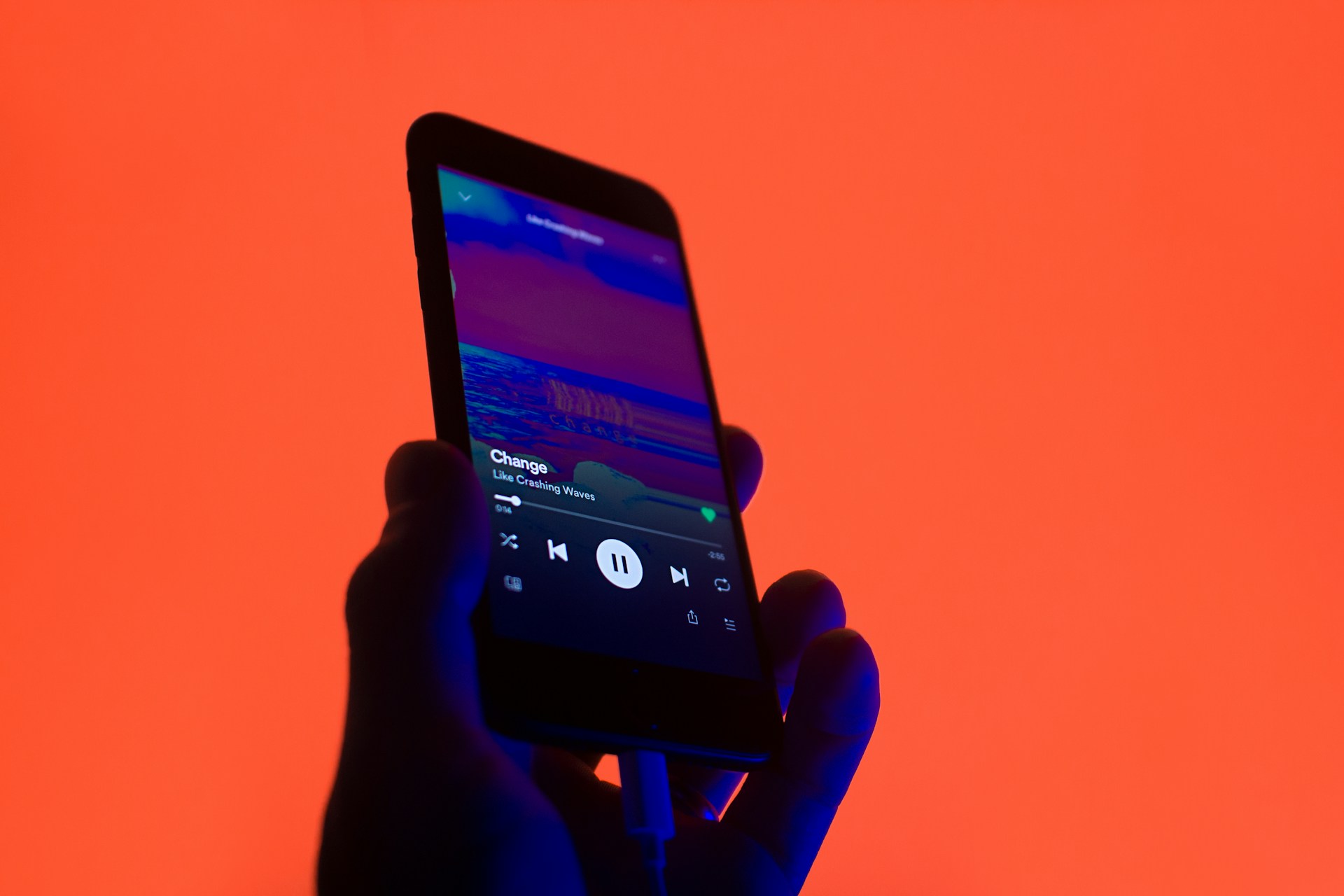
For many music lovers, the act of listening is a sanctuary—a moment to disconnect from the visual noise of the digital world and immerse oneself in sound. However, for those using the Spotify mobile app, this experience is often interrupted by “Canvas,” the platform’s feature that replaces static album art with short, looping video visuals. While these clips provide a creative outlet for artists, they can be a source of distraction, a drain on battery life, and a significant consumer of mobile data.
Learning how to disable Spotify videos is a simple yet transformative adjustment. By stripping away the visual layer, users can return to a “pure audio” experience that prioritizes the music over the imagery. Whether you are trying to conserve data on a limited plan or simply want to reduce the cognitive load of your streaming session, removing these visuals is one of the most effective ways to customize your interface.
This shift toward minimalism comes at an interesting time for the streaming giant. As Spotify expands its technical capabilities—most recently introducing high-fidelity audio options for its most demanding listeners—the tension between “more” (higher quality, more visuals) and “less” (efficiency, focus) has become a key part of the user experience. For some, the ultimate luxury isn’t just the bitrate of the song, but the ability to silence the visual clutter entirely.
How to Disable Spotify Canvas and Looping Videos
The looping videos you see on your “Now Playing” screen are known as Canvas. Because This represents a system-wide setting, you only need to disable it once to apply the change across your entire library. The process is straightforward and can be completed in a few taps within the mobile application.
To turn off these visuals, follow these steps:
- Open the Spotify app on your iOS or Android device.
- Tap your Profile Icon or the Settings (gear icon) in the top left or right corner of the home screen.
- Navigate to the Playback section.
- Scroll down until you find the Canvas toggle.
- Switch the toggle to Off.
Once disabled, Spotify will revert to displaying the standard, static album cover art for every track. This change is immediate and does not require a restart of the application. For users who frequently switch between devices, this setting is typically tied to the specific device’s app installation rather than the cloud account, meaning you may need to repeat the process on your tablet or secondary phone.
Managing Video Podcasts and Visual Content
While Canvas is a looping background, Spotify has also integrated full-scale video podcasts into its ecosystem. Unlike Canvas, which is a decorative element, video podcasts are distinct pieces of content. If you find that your app is automatically playing video versions of podcasts when you would prefer only the audio, there are a few ways to manage this.

Currently, Spotify does not have a single “global kill switch” for all video podcasts in the same way it does for Canvas. However, you can control the experience by using the Data Saver mode. When Data Saver is active, the app prioritizes audio and restricts the automatic loading of high-bandwidth visual elements. This is particularly useful for users who listen to podcasts during commutes where signal strength may fluctuate.
To enable Data Saver, go to Settings > Data Saver and toggle the switch to On. This not only helps with video content but also reduces the overall quality of the stream to ensure uninterrupted playback, which is a critical trade-off for those in low-connectivity areas.
The Technical Impact: Battery, Data, and Performance
Disabling visual elements isn’t just about aesthetics; it has tangible effects on your device’s hardware performance. Every looping video requires the GPU (Graphics Processing Unit) to render frames and the CPU to manage the loop, which incrementally increases power consumption. Over a long listening session, the cumulative effect of rendering dozens of different Canvas clips can lead to a noticeable drop in battery percentage compared to displaying a single static image.
From a data perspective, the impact is even more significant. While a static JPEG of album art is a tiny file, a looping video—even a short one—requires more data to buffer and play. For users on capped data plans or those roaming internationally, these “slight” videos can add up to hundreds of megabytes over the course of a month.
By choosing to disable Spotify videos, you are essentially optimizing your device for longevity and efficiency. This is especially important for users with older smartphones that may struggle with memory management when running high-resolution visuals in the background while simultaneously streaming high-bitrate audio.
The Paradox of Choice: High Fidelity vs. Minimalist Utility
The desire to simplify the Spotify experience exists alongside a growing demand for extreme audio quality. On September 10, 2025, Spotify announced the rollout of Lossless audio to Premium subscribers in select markets. This feature allows users to stream tracks in up to 24-bit/44.1 kHz FLAC, providing a level of detail and clarity that was previously unavailable on the platform.
According to Gustav Gyllenhammar, VP of Subscriptions at Spotify, the goal of this rollout was to prioritize “quality, ease of use, and clarity at every step.” However, high-fidelity audio—especially in FLAC format—requires significantly more data than standard compressed streams. This creates a technical paradox for the user: the pursuit of the “perfect” sound (Lossless) increases data consumption, while the pursuit of a “perfect” visual experience (Canvas) further increases it.
For the audiophile, the most logical configuration is often a hybrid approach: enabling Lossless audio to maximize sonic detail while disabling Canvas and videos to eliminate unnecessary data waste and visual distraction. This allows the listener to dedicate all available bandwidth and device resources to the audio stream itself.
Comparison of Spotify Playback Profiles
| Setting Configuration | Data Usage | Battery Impact | Primary Benefit |
|---|---|---|---|
| Standard (Canvas ON, Normal Quality) | Moderate | Moderate | Visual engagement/Artist expression |
| Minimalist (Canvas OFF, Data Saver ON) | Very Low | Low | Maximum battery and data savings |
| Audiophile (Canvas OFF, Lossless ON) | Very High | Moderate | Highest possible sonic fidelity |
| Full Experience (Canvas ON, Lossless ON) | Extreme | High | Maximum sensory immersion |
Why the “Pure Audio” Experience Matters
Beyond the technical specifications of battery and data, there is a psychological component to disabling videos. The modern digital environment is characterized by “attention fragmentation,” where constant visual stimuli compete for our focus. When a user opens a music app, the intent is often to enter a state of flow—whether for work, exercise, or relaxation.
Looping videos, while artistic, can trigger a “visual loop” in the brain that distracts from the emotional nuance of the music. By removing the Canvas, the listener is forced to rely entirely on their auditory senses, often leading to a deeper connection with the composition. This return to the “album cover” era mimics the experience of owning a physical record, where the visual was a static companion to the music, not a competing distraction.
for users with sensory processing sensitivities, the abrupt transition between different looping videos can be jarring. A consistent, static interface provides a predictable environment that allows the music to remain the central focus.
Quick Tips for a Better Spotify Experience
- Custom Data Settings: Don’t forget to set different quality levels for Wi-Fi and Cellular in your settings to avoid unexpected data charges.
- Sleep Timer: If you use Spotify to wind down, use the built-in sleep timer to ensure the app doesn’t run all night, further preserving battery.
- Cache Management: Periodically clear your cache in the settings menu to free up storage space on your device, especially if you download a large number of playlists.
Looking Ahead: The Future of Audio-First Streaming
As Spotify continues to integrate AI-driven features—such as the AI Playlist and the DJ—the platform is becoming more of a personalized media hub than a simple music player. The inclusion of video content is part of a broader strategy to compete with platforms like YouTube and TikTok, where visual engagement is the primary metric of success.
However, the enduring popularity of “audio-only” preferences suggests that there will always be a significant segment of the population that views music as a purely sonic medium. The ability to toggle these features on and off is not just a convenience; it is a necessary concession to the diverse ways people consume art.
As the platform continues to roll out Lossless audio and further refine its interface, the most valued feature for many will remain the simple “Off” switch. The power to curate one’s own sensory environment is, in itself, a premium experience.
For the latest updates on feature rollouts and technical guides, users are encouraged to monitor the official Spotify Newsroom or the Support center for official documentation on new settings. We will continue to track how the introduction of high-fidelity formats affects the overall app performance and user behavior.
Do you prefer the visual energy of Canvas or the simplicity of static art? Let us know in the comments below and share this guide with someone looking to save their mobile data.