
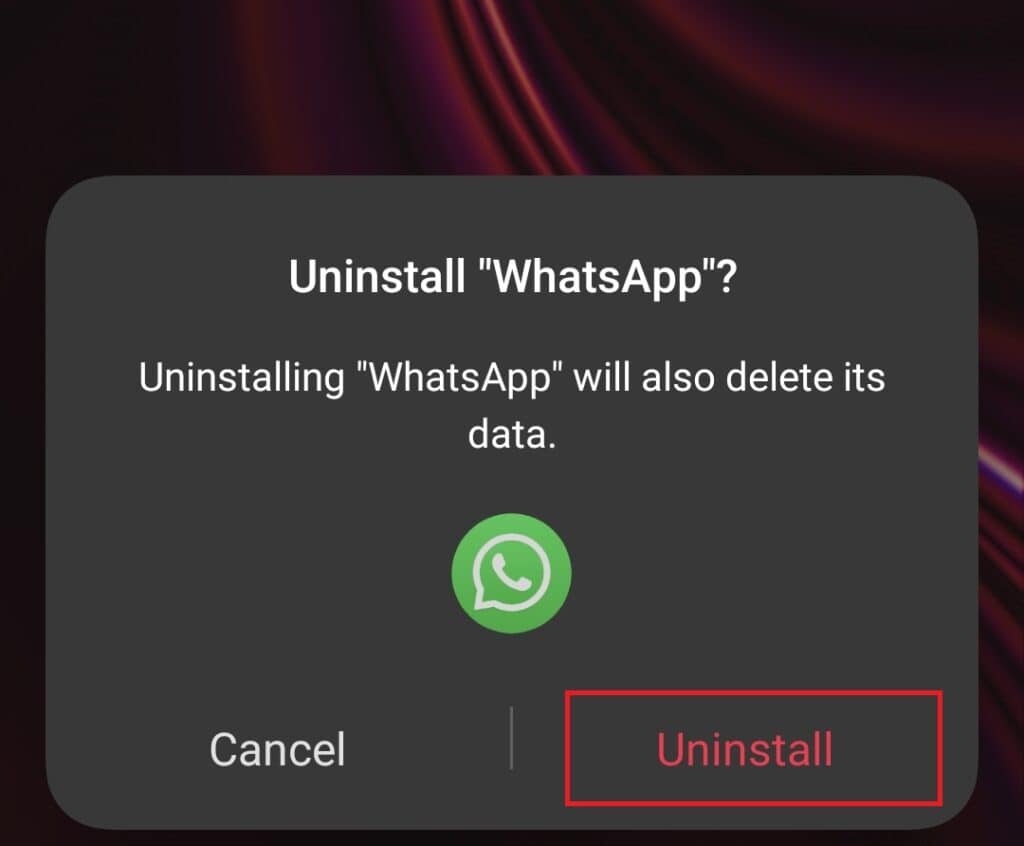
Many iPhone users encounter unexpected obstacles when attempting to remove WhatsApp from their devices, often discovering that standard uninstall methods fail without clear explanation. This issue has sparked discussions across online forums, including Reddit threads where users report persistent difficulties despite following common troubleshooting steps. Understanding the underlying causes requires examining both iOS system behaviors and WhatsApp’s specific integration with Apple’s ecosystem, particularly regarding data persistence and background processes.
The inability to uninstall an app on iOS typically stems from restrictions imposed by the operating system rather than the application itself. Apple’s mobile OS includes built-in protections that prevent removal of certain system-integrated software, though WhatsApp is not classified as such. Instead, common barriers include pending updates, corrupted installation states, or active background processes that interfere with the uninstall sequence. In some cases, residual data from failed updates or interrupted installations can create a locked state where the system refuses to initiate removal until the underlying conflict is resolved.
To address this, users should first verify that WhatsApp is not currently running in the background or undergoing an update cycle. Accessing the App Store and checking for available updates can reveal if a stalled process is blocking removal. If an update appears stuck, pausing or canceling it through the update queue may restore normal functionality. Restarting the iPhone often clears transient system locks that prevent uninstall actions, as a full reboot terminates all background processes and resets temporary system states.
If standard methods continue to fail, Apple provides alternative pathways through device settings. Navigating to Settings > General > iPhone Storage reveals a detailed list of installed applications and their storage usage. Selecting WhatsApp from this menu presents two options: “Offload App” and “Delete App.” The offload feature preserves user data whereas removing the binary, whereas deletion removes both the app and its associated data. Choosing “Delete App” and confirming the action typically succeeds where direct home screen removal fails, as this route bypasses certain interface-level restrictions.
For persistent cases where even settings-based removal does not perform, connecting the iPhone to a computer and using Finder (on macOS Catalina or later) or iTunes (on older systems) offers a deeper level of control. When the device appears in the sidebar, selecting it and navigating to the “Files” tab allows users to locate WhatsApp under app-specific containers. Deleting the app container directly through this interface can force removal when iOS-level methods are obstructed, though this approach requires caution to avoid unintended data loss.
It’s as well important to consider whether mobile device management (MDM) profiles or parental controls are active on the device, as these can impose restrictions that prevent app deletion. Checking Settings > General > Device Management or Screen Time restrictions may reveal external controls limiting user actions. If such profiles are present, particularly on employer-issued or institutionally managed devices, authorization from the managing entity may be required before uninstallation can proceed.
Finally, if all standard troubleshooting fails, backing up the device and performing a factory reset remains a last-resort option, though this should only be undertaken after exhausting less invasive methods. Users are advised to consult Apple’s official support documentation or contact Apple Support directly for model-specific guidance, especially when dealing with recurring system-level issues that affect multiple applications beyond WhatsApp alone.